Watchlists
A watchlist is a saved group of instruments that you can pick as the Instrument of a Signals AI strategy. You build the strategy once, and it runs on every underlying in the watchlist - whichever underlying meets your conditions takes the trade.
Without a watchlist, a strategy runs on a single underlying. Running the same EMA crossover on 10 stocks would mean building, backtesting, and deploying 10 separate strategies. With a watchlist, it's one strategy.
When to use this
Use a watchlist when you want the same logic on many instruments - for example, "run my 20/50 SMA crossover on these 21 stocks and take a trade whenever any of them crosses over." This is especially useful for stocks, where different stocks trigger on different days.
Stick with a single instrument when the strategy is built for one specific underlying (for example, a NIFTY options strategy).
How a watchlist strategy works
| What | How it works on a watchlist |
|---|---|
| Entry / exit conditions | Defined once, and checked separately on each underlying. The Canvas and nodes are the same as for a single instrument. |
| Chart data | One data type (Spot, Futures, Options…) for the whole watchlist - see Which chart data you can use. |
| Strike selection (Options / Combined Premium) | Each underlying picks its own strike using the same criteria (ATM, offset, premium range) and the same Rolling or Fixed timing. |
| Max Concurrent Signals | Applies per underlying. Each underlying can have its own open position. |
| Max Signals in a Day | Applies to the whole watchlist combined. |
| Execution settings | One set of execution settings applies to every underlying. |
| Backtest cost | One Signals backtest per underlying in the watchlist. |
| Deployment cost | 5 deployment slots per watchlist strategy, for both Forward Test and Algo Trade. |
Watchlist rules
- One asset class per watchlist. A watchlist holds only Indices (NSE and BSE indices), only Stocks, or only Crypto - never a mix. Order types, data, and venues differ between these classes (for example, CNC exists for stocks but not for indices, and crypto trades on a different exchange), so one class keeps a single set of execution settings valid for every underlying.
- RWA tokens count as Crypto. You can add them to a Crypto watchlist, alone or mixed with BTCUSD and ETHUSD, but not to an Indices or Stocks watchlist.
- Up to 50 underlyings per watchlist.
- Unlimited watchlists. Create as many as you like. They're saved to your AlgoTest account.
Create a watchlist
-
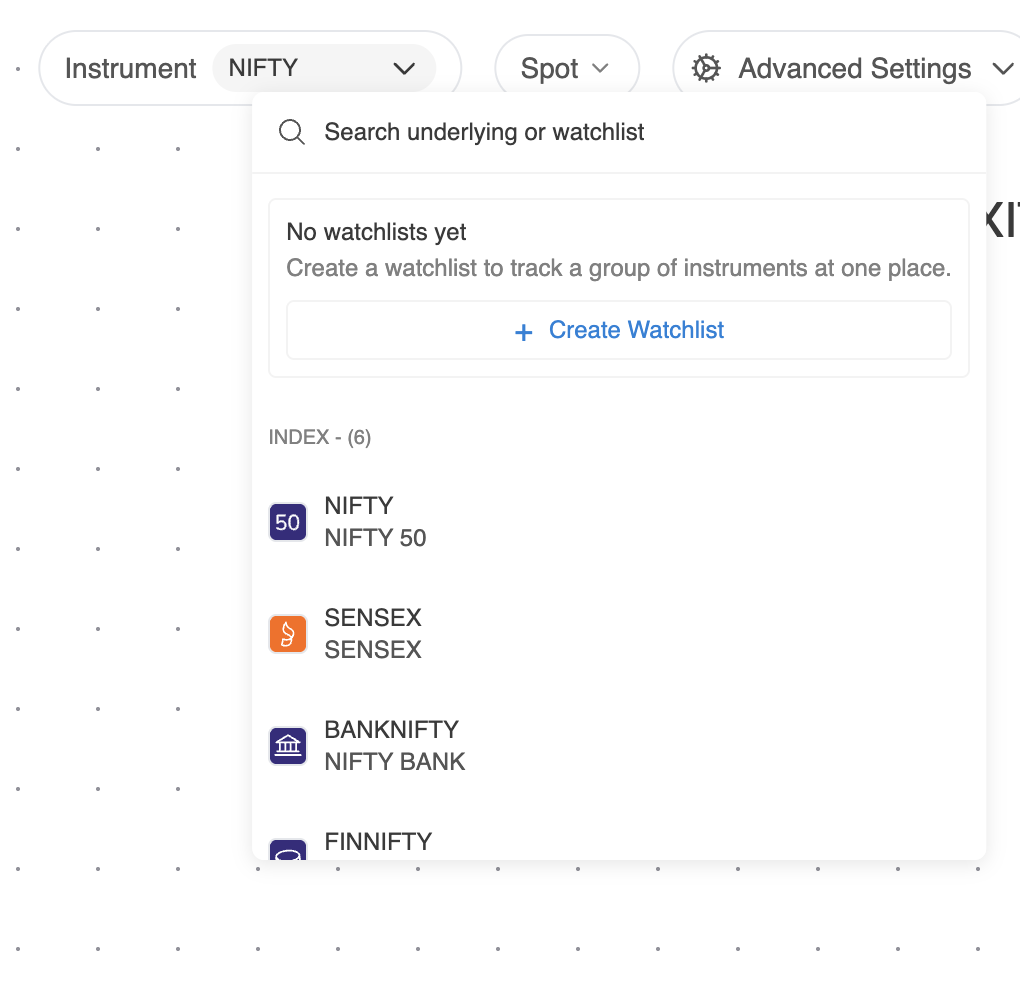
On the Canvas, click the Instrument dropdown.
- If you have no watchlists yet, click + Create Watchlist at the top of the dropdown.
- If you already have watchlists, click Manage next to My Watchlists, then click Create Watchlist in the Manage Watchlist panel.
-
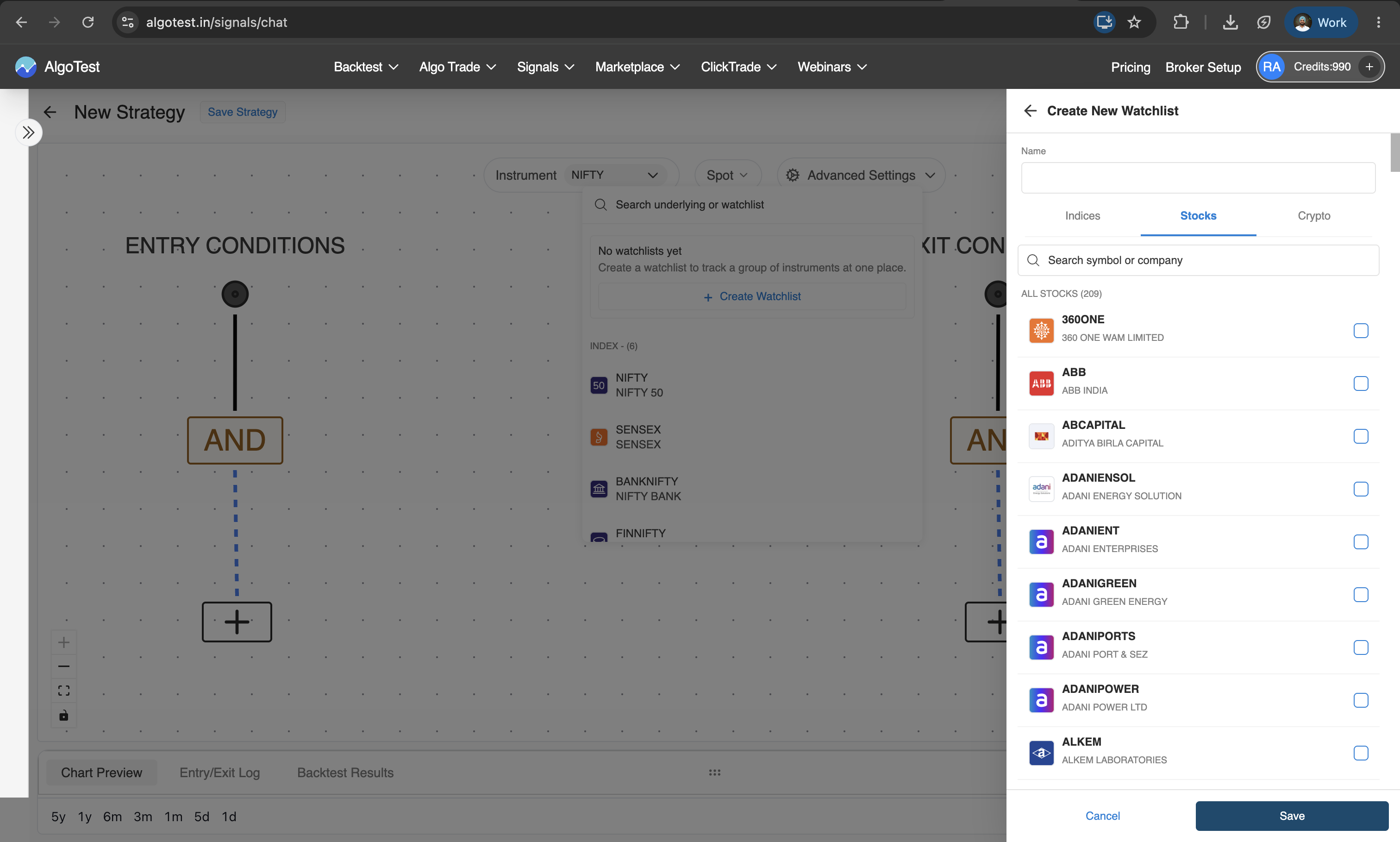
The Create New Watchlist panel opens. Enter a Name for the watchlist.
-
Pick the asset class tab: Indices, Stocks, or Crypto. A watchlist can only hold one asset class.
-
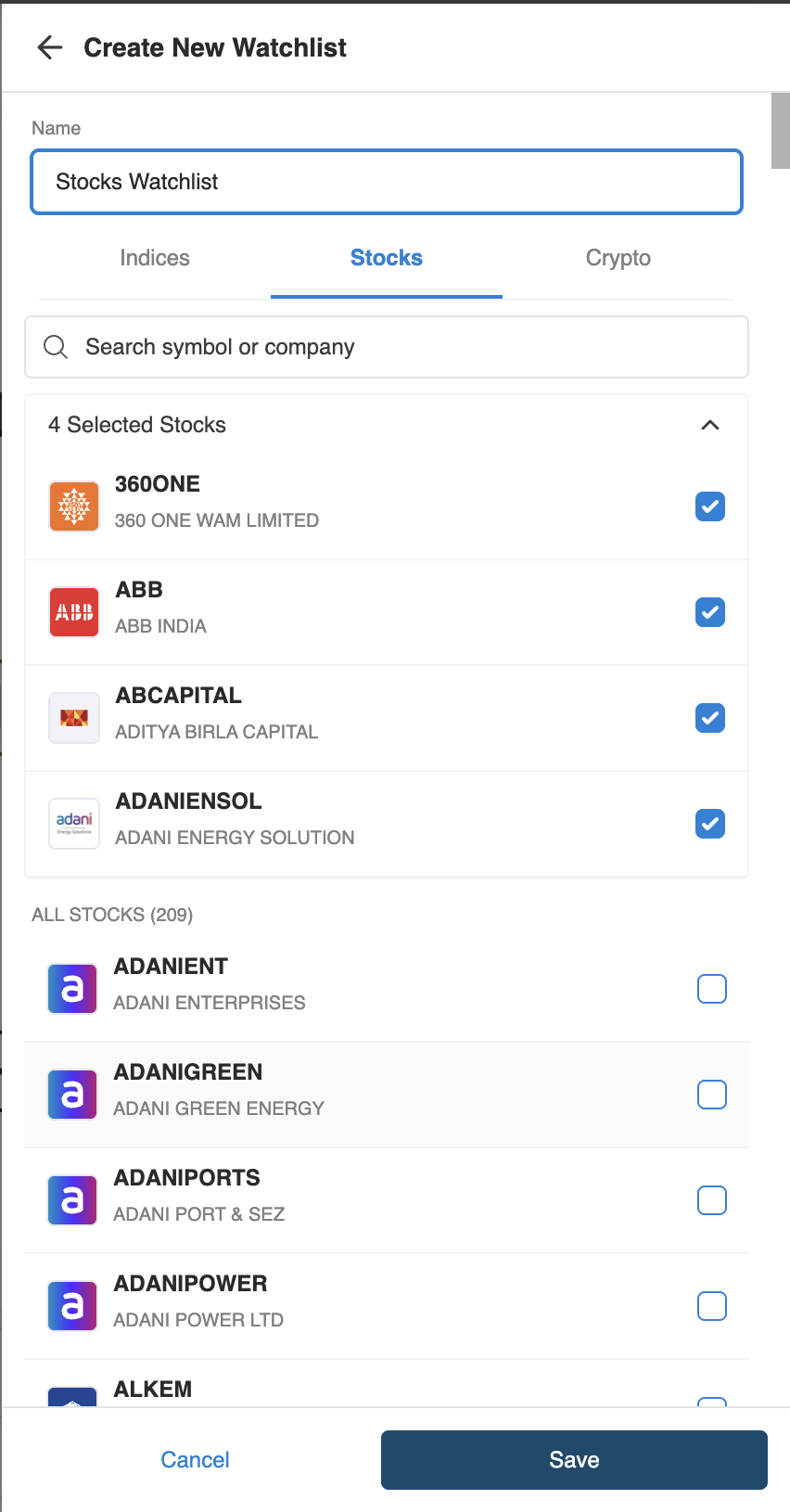
Search by symbol or company name, and tick each instrument you want to add (up to 50). Ticked instruments move to the top under a count, such as 4 Selected Stocks.
-
Click Save.
Your watchlist now appears under My Watchlists in the Instrument dropdown, and in the Manage Watchlist panel under its asset class tab with the number of instruments in it.
Edit, view, or delete a watchlist
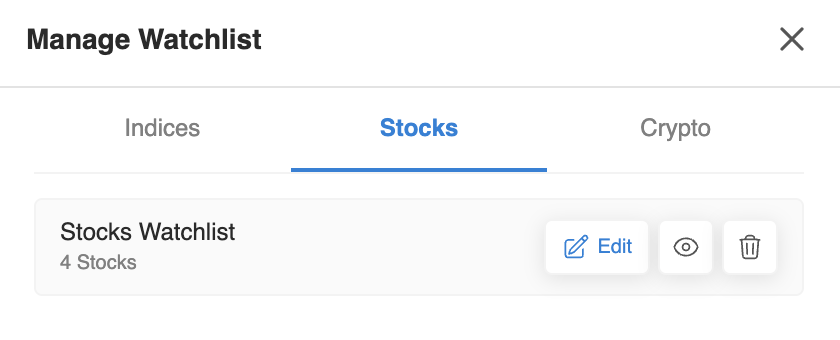
Open Instrument → Manage and go to the watchlist's asset class tab. Each watchlist has three buttons:
| Button | What it does |
|---|---|
| Edit | Opens Edit Watchlist, where you can rename the watchlist and add or remove instruments |
| Eye icon | Shows the instruments in the watchlist without changing anything |
| Bin icon | Deletes the watchlist |
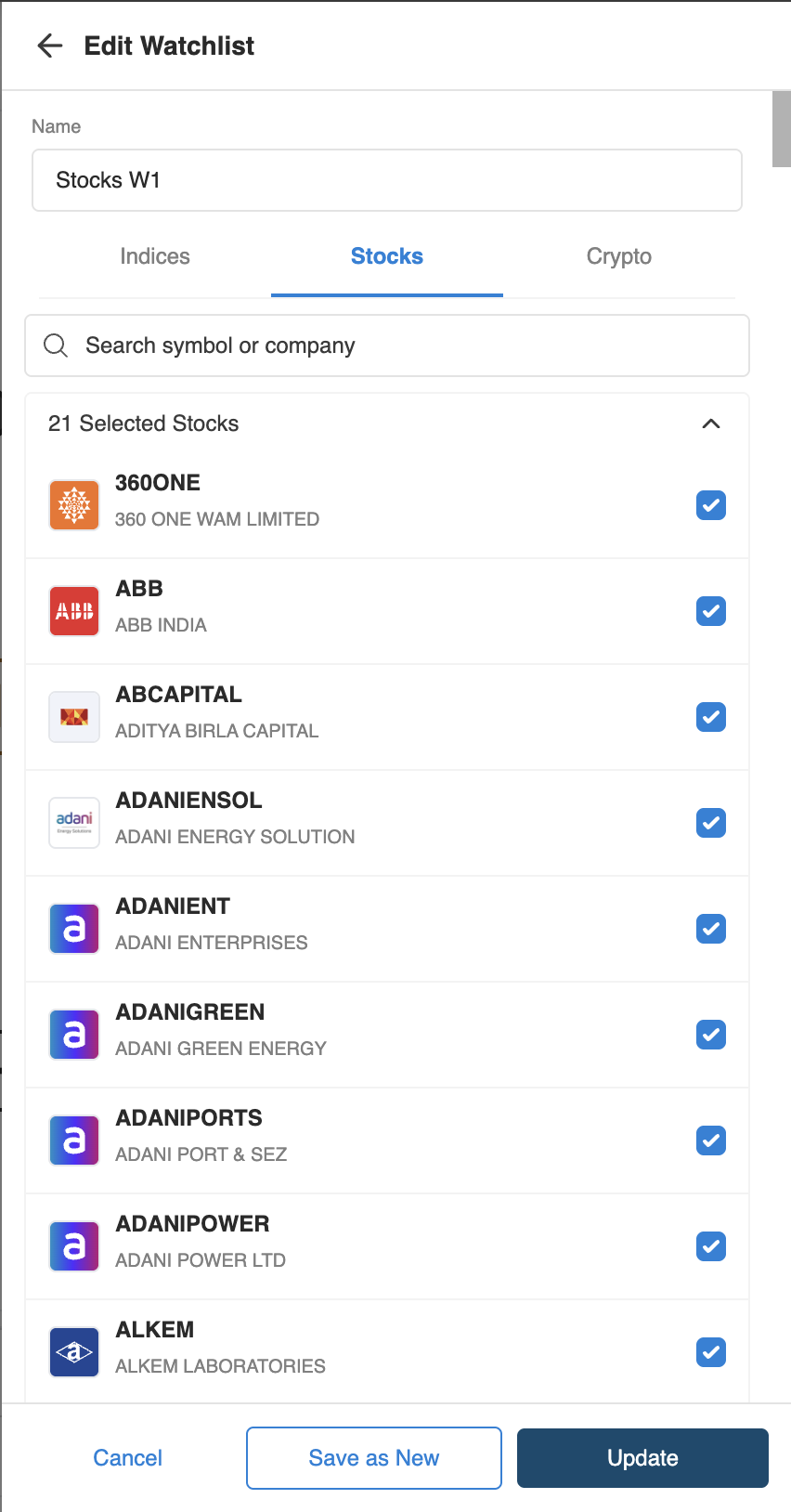
Edit a watchlist
-
Click Edit on the watchlist.
-
Rename it, tick new instruments, or untick ones you want to remove.
-
Choose how to save:
- Update saves the changes to this watchlist.
- Save as New keeps the original unchanged and saves your edits as a separate watchlist - handy for making a variation of an existing list.
- Cancel discards your changes.
Delete a watchlist
Click the bin icon on the watchlist.
You can't delete a watchlist while a strategy using it is deployed in Forward Test or Algo Trade. Stop or delete those deployments first, then delete the watchlist.
Use a watchlist in a strategy
-
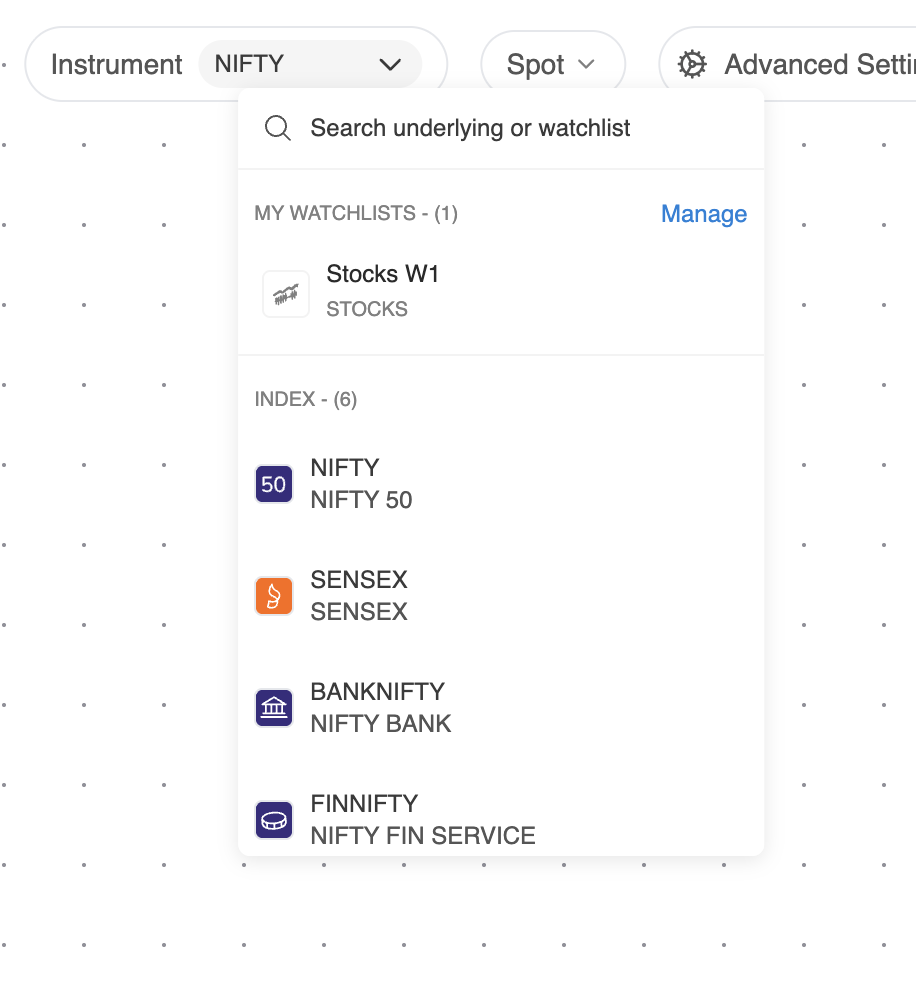
Click the Instrument dropdown. Your saved watchlists appear under My Watchlists, above the single instruments. You can also type a watchlist's name in the search box.
-
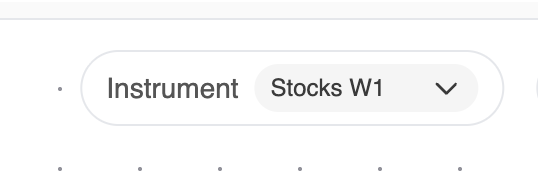
Click the watchlist. The Instrument field now shows the watchlist name.
-
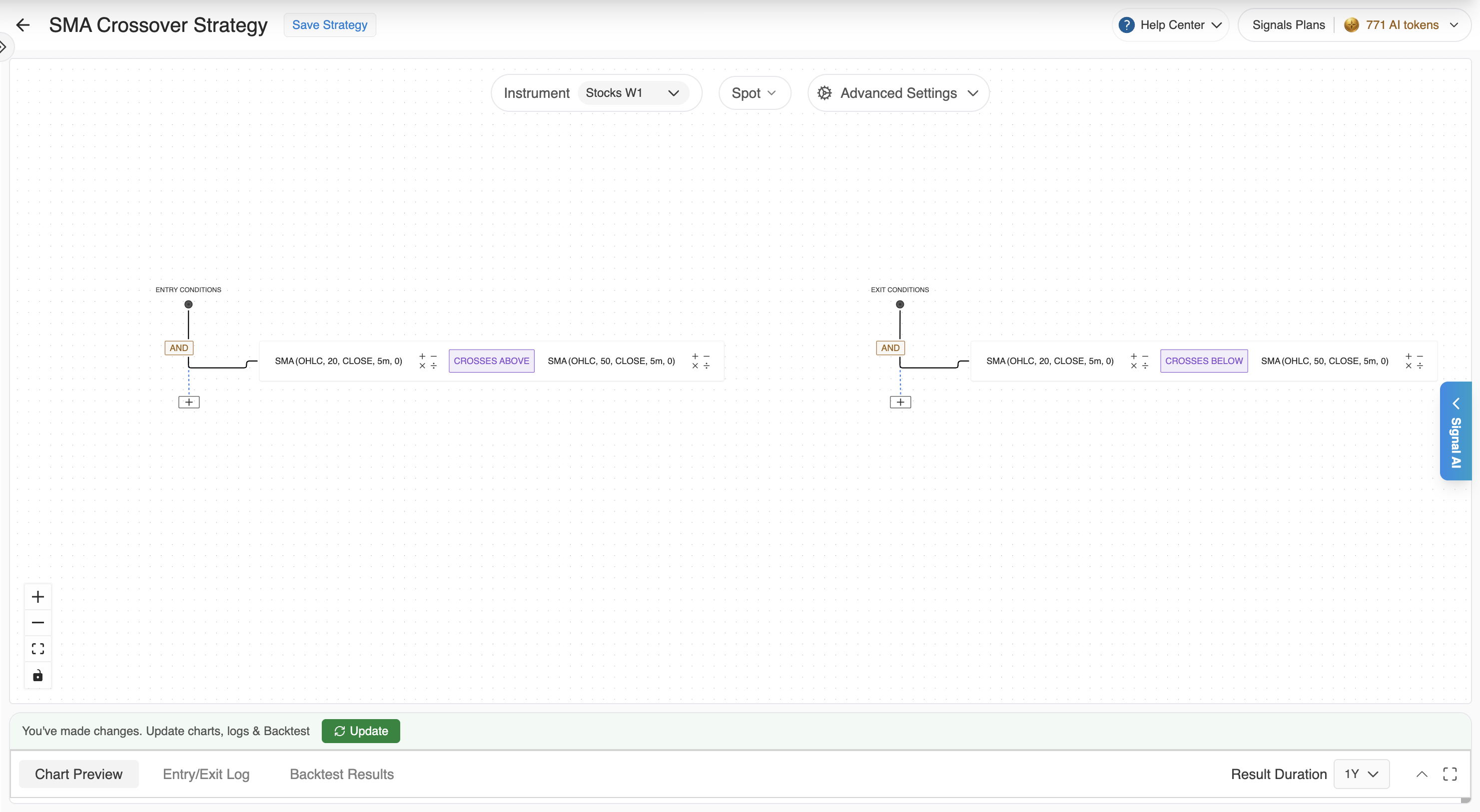
Pick the chart data (for example Spot) and build your entry and exit conditions exactly as you would for a single instrument. See Building on the Canvas.
-
Set your signal limits in Advanced Settings - note how they apply to a watchlist in Signal limits on a watchlist.
Which chart data you can use
A watchlist uses one data type for every underlying in it. Only F&O-enabled stocks can be added to a watchlist, so every stock has futures and options. That means a watchlist gets the same data types as a single instrument from its asset class - Spot, Futures, Options, Combined Premium, and Synthetic Future.
The one exception is a Crypto watchlist with an RWA token in it. RWA tokens only support Perpetual Future, so that watchlist can only use Futures (Perpetual Future). See RWA Tokens.
For what each data type means, see Choosing an Instrument & Chart Data.
Signal limits on a watchlist
The two signal limits are set once for the strategy, in the same Advanced Settings as always, but they count differently on a watchlist:
- Max Concurrent Signals counts per underlying. At most one position is open on each underlying at a time - an underlying can't stack a second entry on top of its own open position. Different underlyings can be open at the same time.
- Max Signals in a Day counts across the whole watchlist. Every entry on any underlying uses up one from the same daily total.
Example: a watchlist of 10 stocks, with Max Concurrent = 1 and Max Signals in a Day = 6.
- Five different stocks fire during the morning → 5 open positions. All are taken.
- A sixth stock fires → 6 open positions. Also taken.
- A seventh stock fires → rejected. The day's limit of 6 is used up.
- Stock #3 exits and its condition becomes true again → its per-underlying slot is free, but the entry is still rejected, because the day's 6 are already used.
On a large watchlist, Max Signals in a Day is shared by every underlying. If it's set low, the first few underlyings to fire will use up the day's limit, and later signals on other underlyings are skipped - even strong ones. Set it with the size of your watchlist in mind.
Check signals per underlying
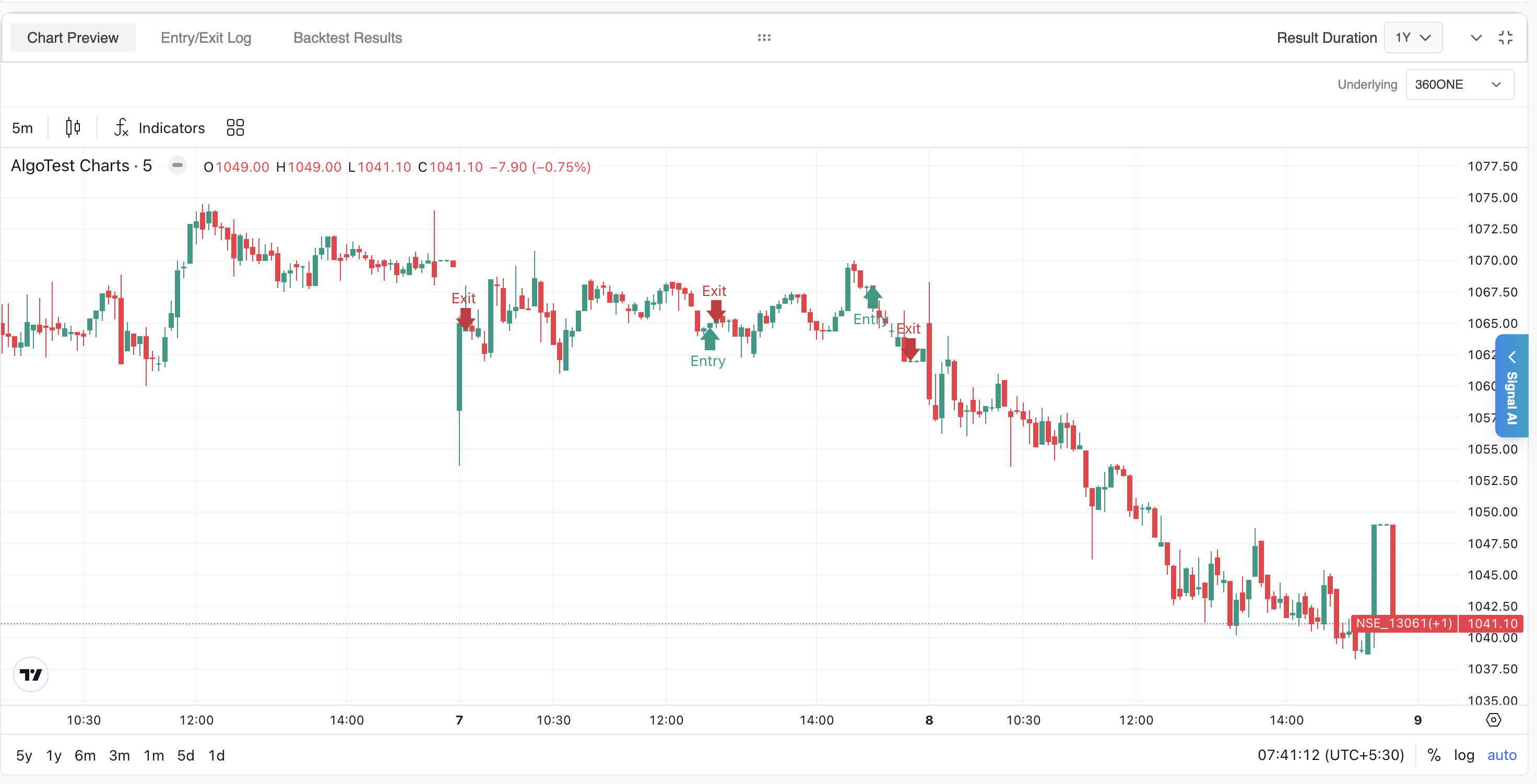
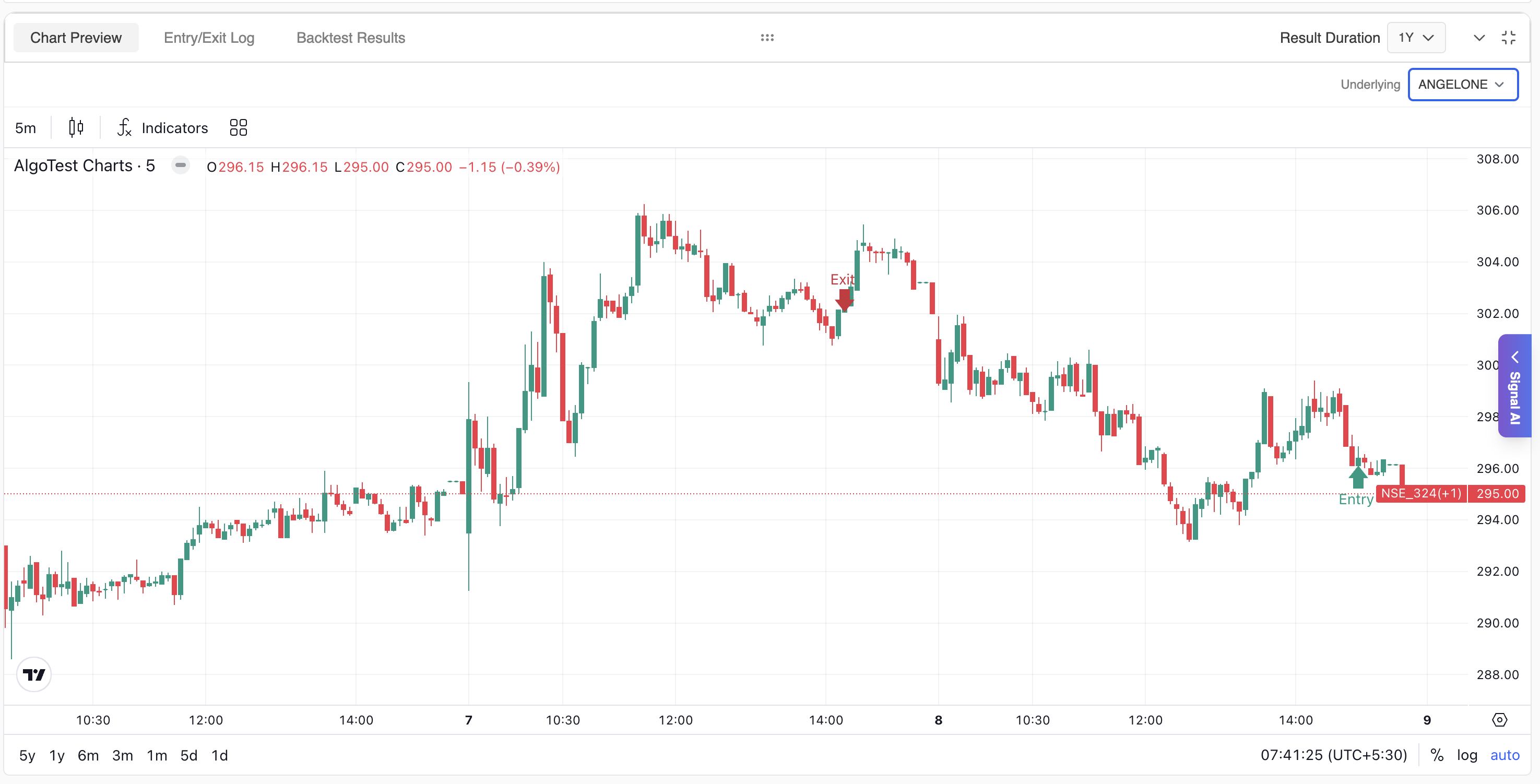
Chart Preview
The Chart Preview gets an Underlying dropdown listing every instrument in the watchlist. Pick one, and the chart re-renders for that instrument with its own entry and exit markers.
Entry & Exit Logs
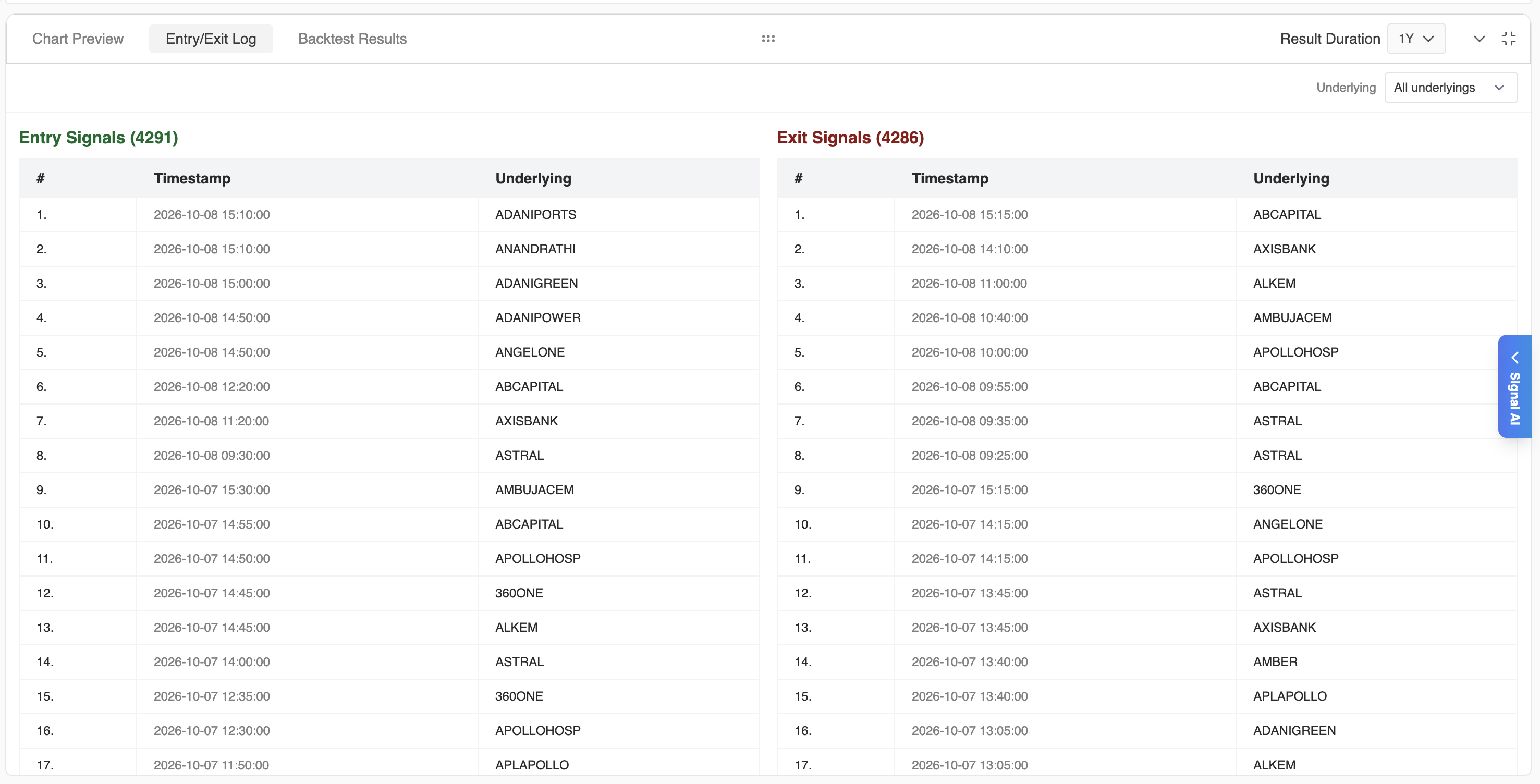
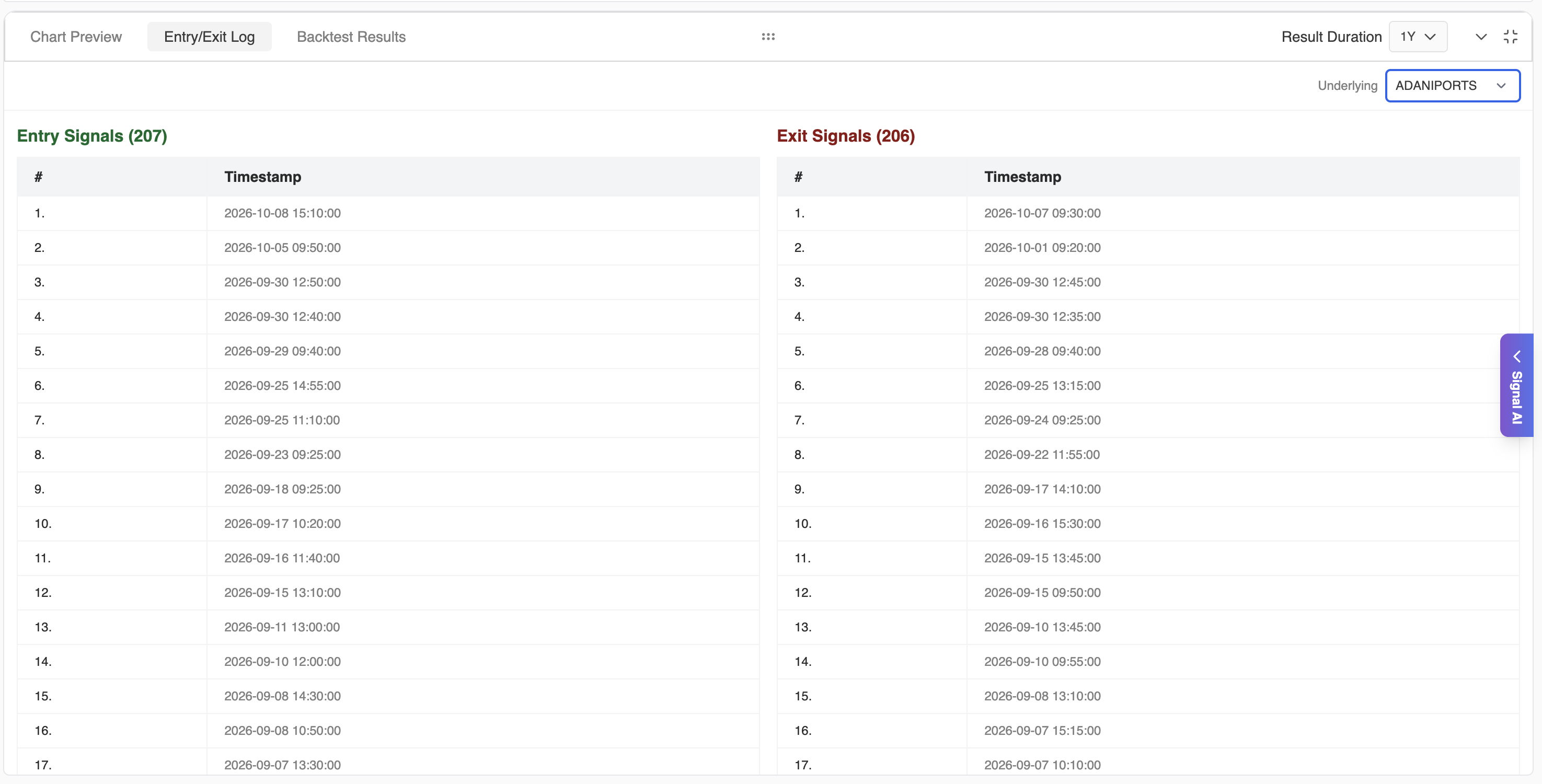
The Entry & Exit Logs also have an Underlying dropdown:
- All underlyings shows every signal across the watchlist in one list, with an Underlying column telling you which instrument fired.
- Pick a single underlying to see only its signals.
Backtest a watchlist strategy
A watchlist strategy is backtested the same way as any signal strategy - see Backtesting for the full flow. The differences:
-
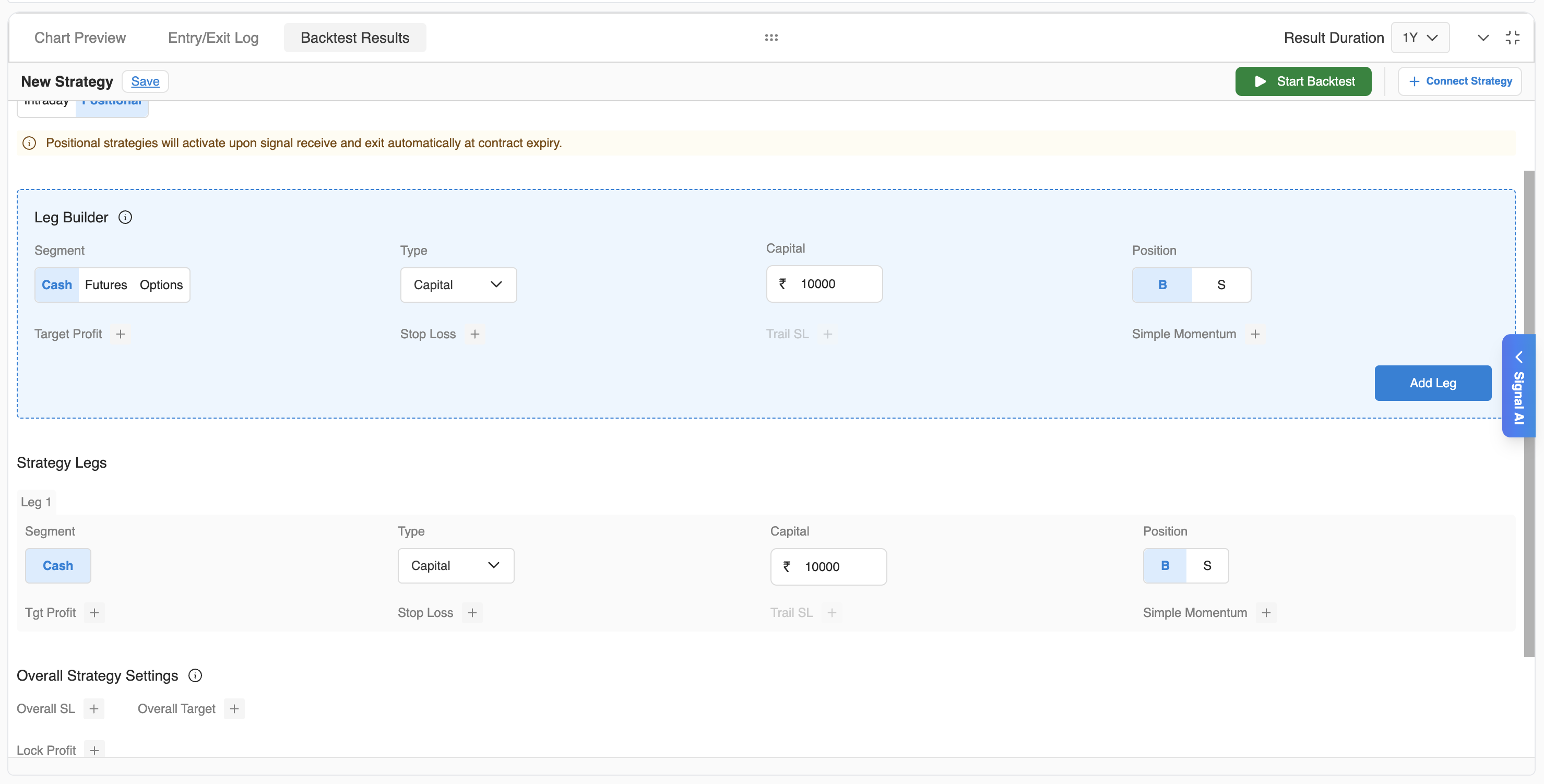
The connected strategy uses AlgoTest's multi-stock setup. Capital or quantity is set per underlying, and the backtest gives one portfolio-level report with the combined P&L across all underlyings. In the example below, each underlying trades in the Cash segment with ₹10,000 of capital.
-
Choose which underlyings to include. Under Underlyings included in result, every underlying is ticked by default. Untick any underlying to leave it out of the results. The results update instantly, with no need to re-run the backtest.

-
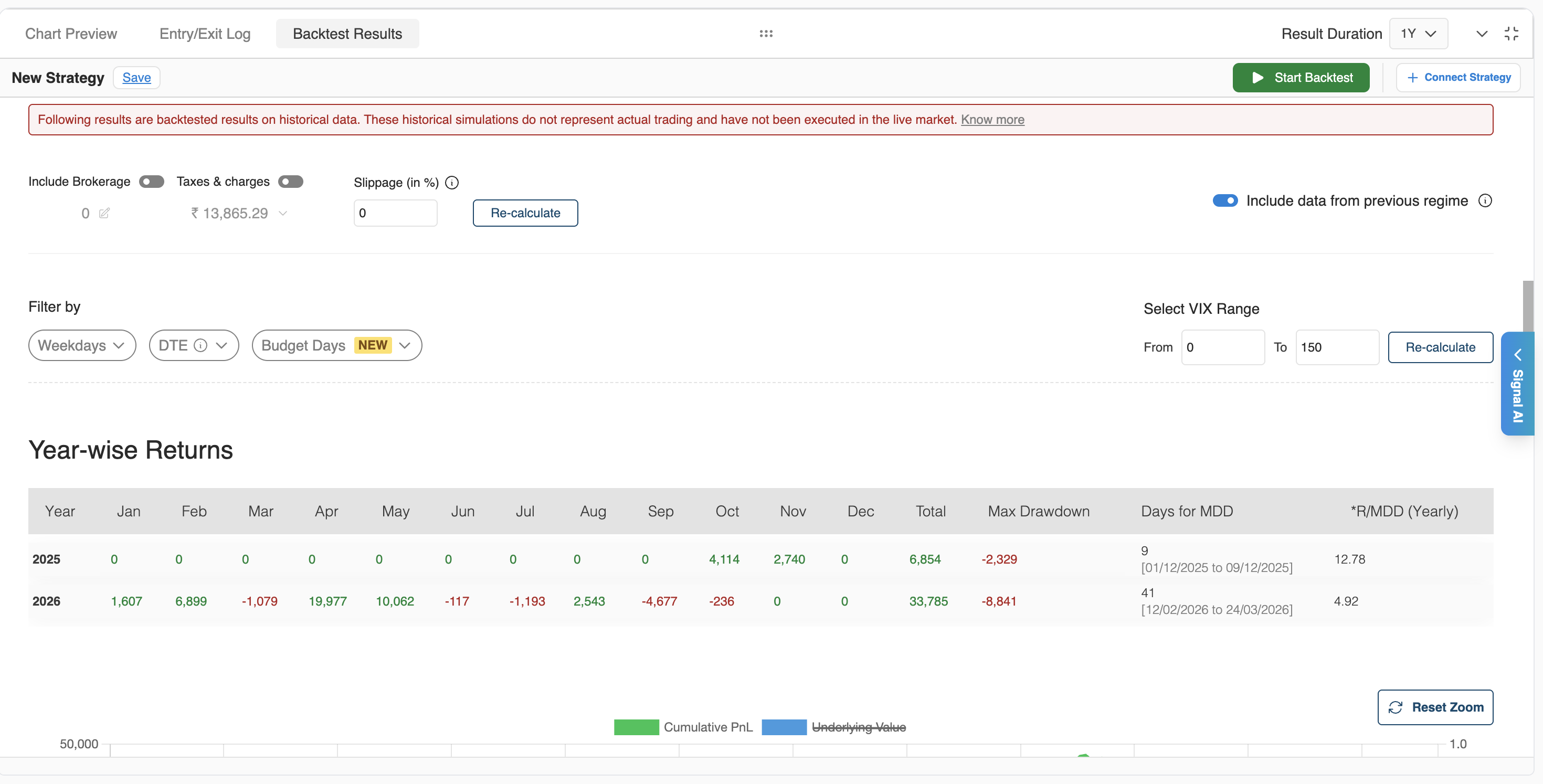
Read the results as usual. The report format is the same as a single-instrument backtest (year-wise returns, max drawdown, stats, full report) - it simply contains trades from all included underlyings.
Backtest credits
A watchlist backtest uses one backtest per underlying, from both pools (see the two pools):
| Plan | A 5-underlying watchlist backtest uses… | Largest watchlist you can backtest |
|---|---|---|
| 1 Month Plan | 5 Signals backtests and 5 920 backtests | As many underlyings as you have Signals backtests left this week (5 at most) |
| 6 Month Plan | Unlimited Signals backtests, plus 5 920 backtests (unless you have an Unlimited Backtest Plan) | 50 |
The 1 Month Plan includes 5 Signals backtests a week, so one watchlist backtest can use your whole week's quota. If the watchlist has more underlyings than you have Signals backtests left, backtesting isn't available - for example, a 10-stock watchlist can't be backtested on the 1 Month Plan at all. To backtest it, upgrade to the 6 Month Plan for unlimited Signals backtests, or trim the watchlist (use Save as New to keep the original).
You can still forward test and algo trade a watchlist of any size on the 1 Month Plan.
Deploy a watchlist strategy
Save the strategy and deploy it from Saved Signals exactly as you would any signal - set up execution settings, then Forward Test or Algo Trade.
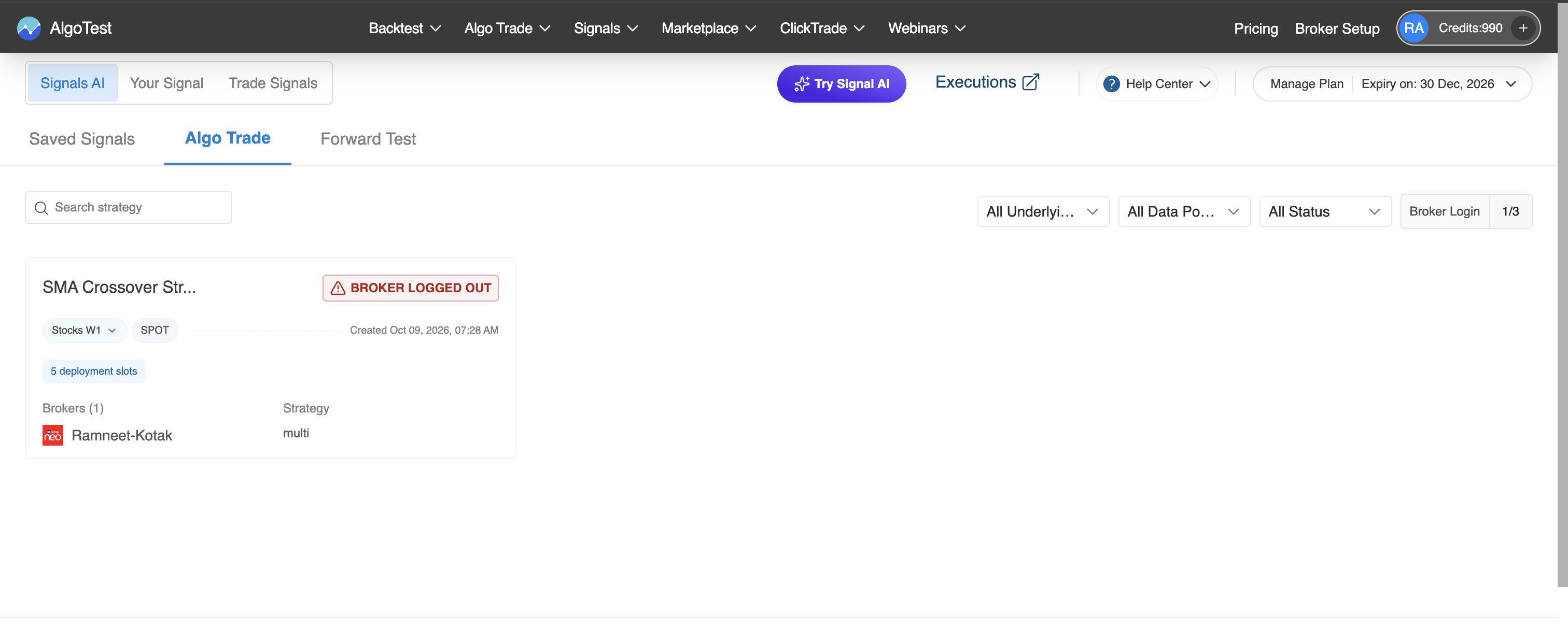
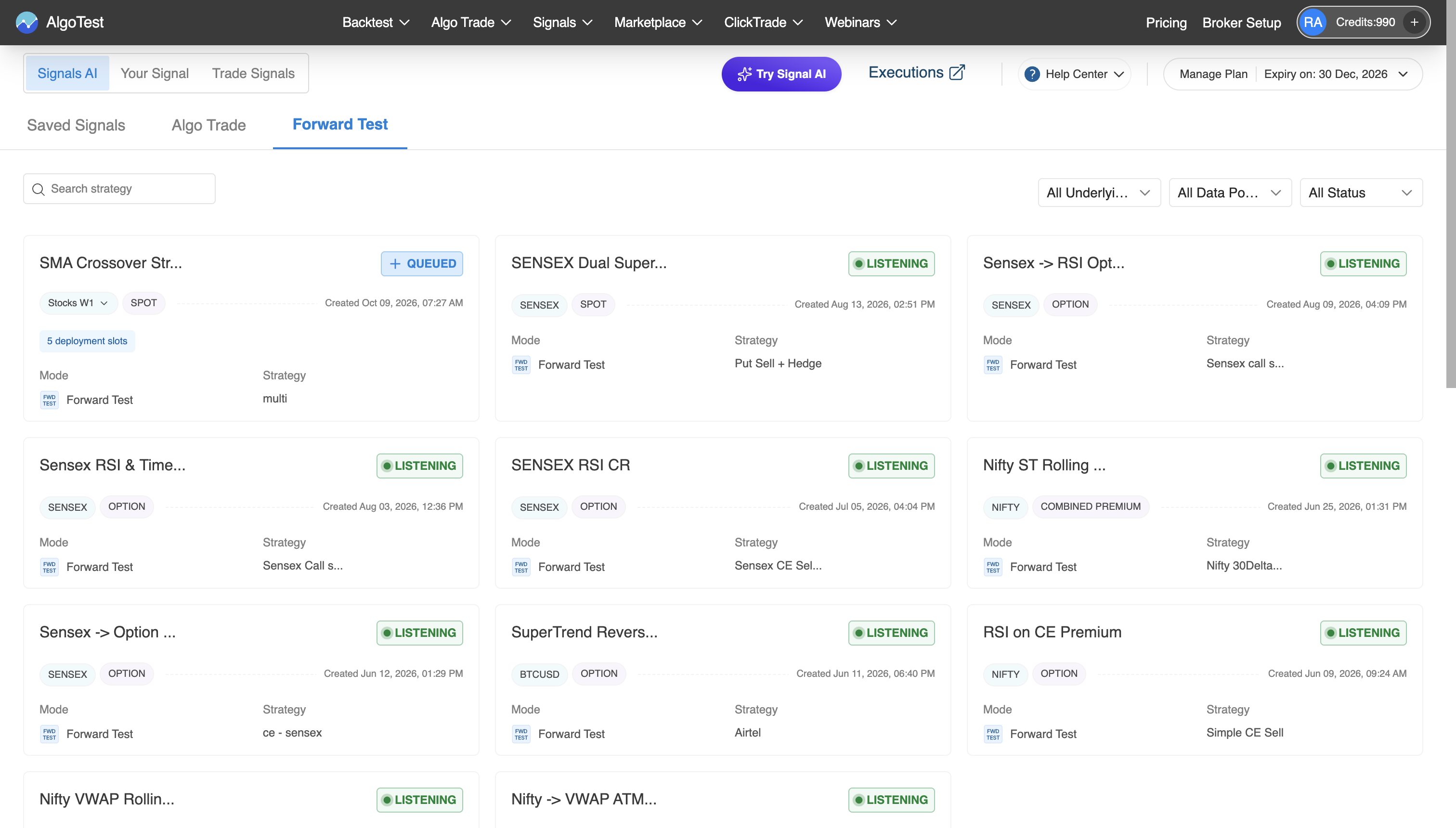
On the dashboard, a watchlist strategy shows the watchlist name where a single-instrument strategy shows its underlying. Hover over the watchlist name to see the instruments in it.

Deployment slots
Each watchlist deployment uses 5 deployment slots, whether it has 2 underlyings or 50. This applies to Forward Test and Algo Trade separately. The card shows a 5 deployment slots tag.
| Plan | Slots | Watchlist strategies you can run at once |
|---|---|---|
| 1 Month Plan | 10 Forward Test + 10 Algo Trade | 2 in Forward Test + 2 in Algo Trade |
| 6 Month Plan | 50 Forward Test + 50 Algo Trade | 10 in Forward Test + 10 in Algo Trade |
You can mix watchlist and single-instrument strategies. For example, on the 1 Month Plan, one live watchlist strategy uses 5 of your 10 Algo Trade slots, leaving room for one more watchlist strategy or five single-instrument strategies.
There's no limit on the number of trades a deployment can take, and extra broker slots don't change watchlist limits.
Execution settings
One set of execution settings applies to every underlying in the watchlist. You can't set a different quantity, order type, or other setting for an individual underlying.
What a watchlist can't do
- No per-underlying overrides. Conditions, chart data, strike criteria, and execution settings are the same for every underlying.
- No mixing asset classes. Indices, stocks, and crypto each need their own watchlist.
- No more than 50 underlyings in one watchlist.
- No extra purchase. Watchlists are included in your Signal Plan at no extra cost.
Next steps
- Set signal limits to control how many trades your watchlist can take per day
- Backtest your strategy
- Forward test it before going live