Backtesting
Backtesting runs your complete strategy - signals plus the trade they execute against historical market data, so you can evaluate performance before risking anything.
Backtesting is included on both Signal Plans: 5 backtests a week (resets every Monday) on the 1 Month plan, unlimited on the 6 Month plan. See Pricing & Plans.
Signals say when - a trade says what
Your signal defines when to enter and exit. To backtest, you must also define what gets traded when the signal fires: which legs (options/futures), how many lots, and any risk settings. This trade definition uses AlgoTest's standard Strategy Builder (the same one used for time-based strategies - you may see it referred to as a "920 strategy" elsewhere; it's just a trade configuration).
The 920/AlgoTrade page itself is for time-based strategies. For signal strategies, you only use the Strategy Builder to define the trade - you never need to activate anything from the 920 page. See the FAQ.
Your weekly quota
The backtest entry point shows "X of 5 Signals backtests left this week" plus the day it resets (Monday), if you're on the 1 Month plan. On the 6 Month plan it shows unlimited.
- A backtest consumes 1 credit only when it completes successfully - a failed or errored run doesn't cost you anything.
- Re-running the same strategy (even unchanged) consumes another credit - there are no free re-runs.
- Because a Signals backtest runs against a connected 920 strategy, each run also uses 1 credit from your separate 920 free-backtest pool (25/week). These two counters are shown separately in the app so a Signals backtest never looks like it ate into your 920 credits, and vice versa - see Pricing & Plans for how the two pools work.
- Running out for the week? You'll see a clear "0 of 5 left" state with two options: wait for the Monday reset, or upgrade to the 6 Month plan for unlimited backtesting immediately.
A watchlist backtest uses one backtest per underlying from each pool, so a 5-stock watchlist uses 5 Signals backtests and 5 920 backtests. On the 1 Month Plan, a watchlist with more underlyings than your remaining weekly Signals backtests can't be backtested.
Run a backtest
-
Open the Backtest Results tab in the bottom panel of the builder. Use the expand icon for full screen.
-
Choose the trade. Either:
- click + Connect Strategy at the top right of the tab to use a trade you've already saved, or
- build the trade right there in the tab (steps 3-5).
-
Pick a segment at the top of the tab:
Segment Covers Weekly & Monthly Expiries NIFTY, SENSEX Monthly Only Expiry MIDCPNIFTY, BANKNIFTY, FINNIFTY, BANKEX Stocks - Cash / F&O All NIFTY 500 stocks Crypto Delta Exchange and CoinSwitch, with a switch to pick one -
Set the Instrument settings (such as the index) and the Entry settings, including Strategy Type: Intraday, BTST, or Positional.
Positional trades exit on a signal or at expiryWith a Positional trade, a position opens when your entry signal fires and closes when your exit signal fires - or, if no exit signal comes, at contract expiry. The BTST and Positional exit timings in the trade settings aren't used. For example, a positional NIFTY weekly option position that never gets an exit signal is closed at that week's expiry.
-
Build the legs in the Leg Builder - segment, lots, position (buy/sell), option type, expiry and strike criteria - and click Add Leg for each one. Add optional risk settings if you want them: Target Profit, Stop Loss, Trail SL, Simple Momentum, and the overall settings (Overall SL, Overall Target, Lock Profit). Click Save in the tab header to save the trade so you can reuse it.
-
Set the backtest period with Result Duration (MAX, 2Y, 1Y, 6M, 1D, or Custom) - see Chart Preview.
-
Click the green Start Backtest.
If you changed the strategy since the last preview, click Update in the "You've made changes" banner first, so the backtest uses your latest conditions.
Reading the results
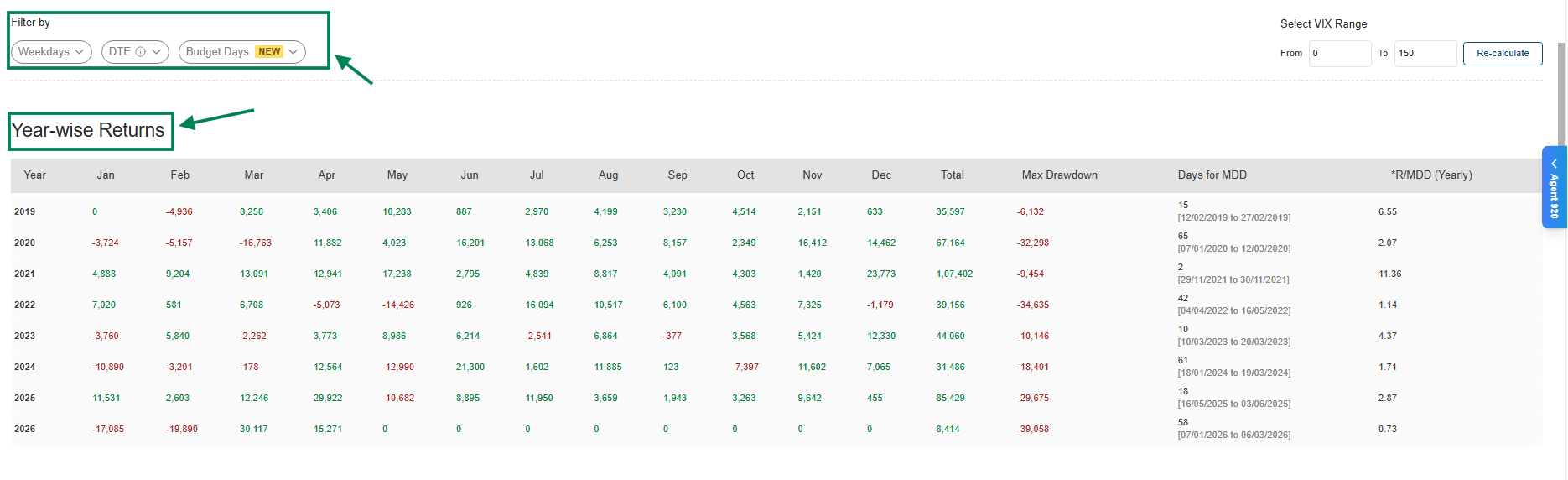
Year-wise Returns - performance per year: consistency check across different market regimes.
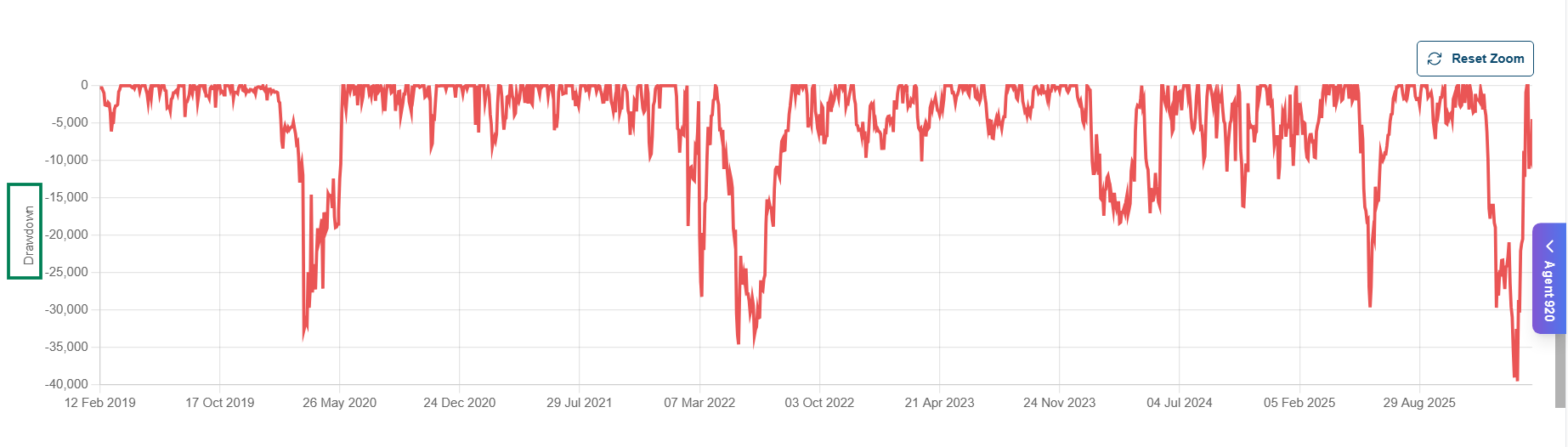
Max Drawdown - the largest peak to trough decline: the worst losing stretch you'd have sat through.
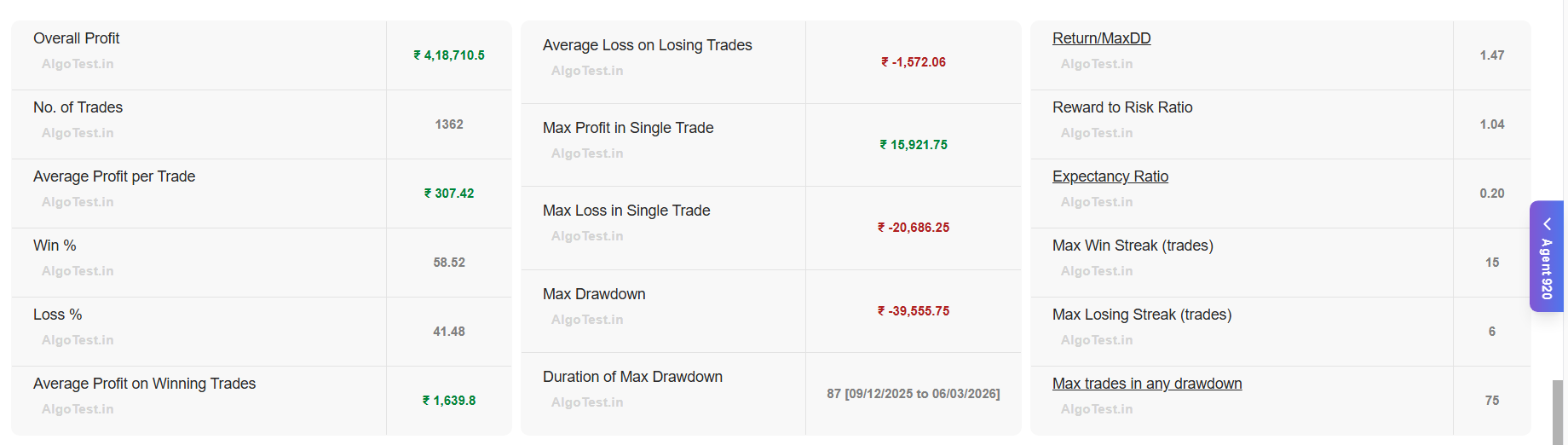
Strategy Stats - total P&L, number of trades, win rate, average profit/loss, risk-reward ratio, and winning/losing streaks.
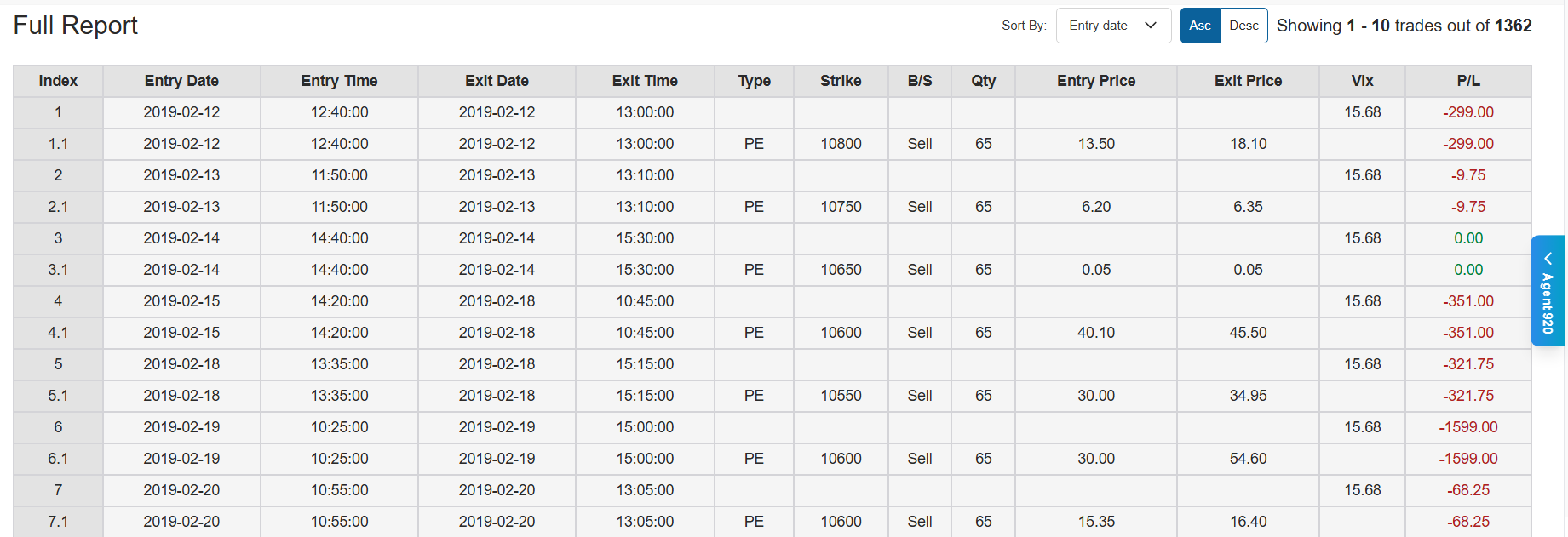
Full Report - daywise trade logs, downloadable as CSV, sortable by P&L or day.
What to look for
| Metric | Question it answers |
|---|---|
| Win rate + avg win/loss | Does the edge come from many small wins or few large ones? |
| Max drawdown | Could you psychologically and financially survive the worst stretch? |
| Year-wise returns | Does it work across market regimes, or only in one lucky year? |
| Number of trades | Enough trades to be statistically meaningful (not 5)? |
Save the strategy
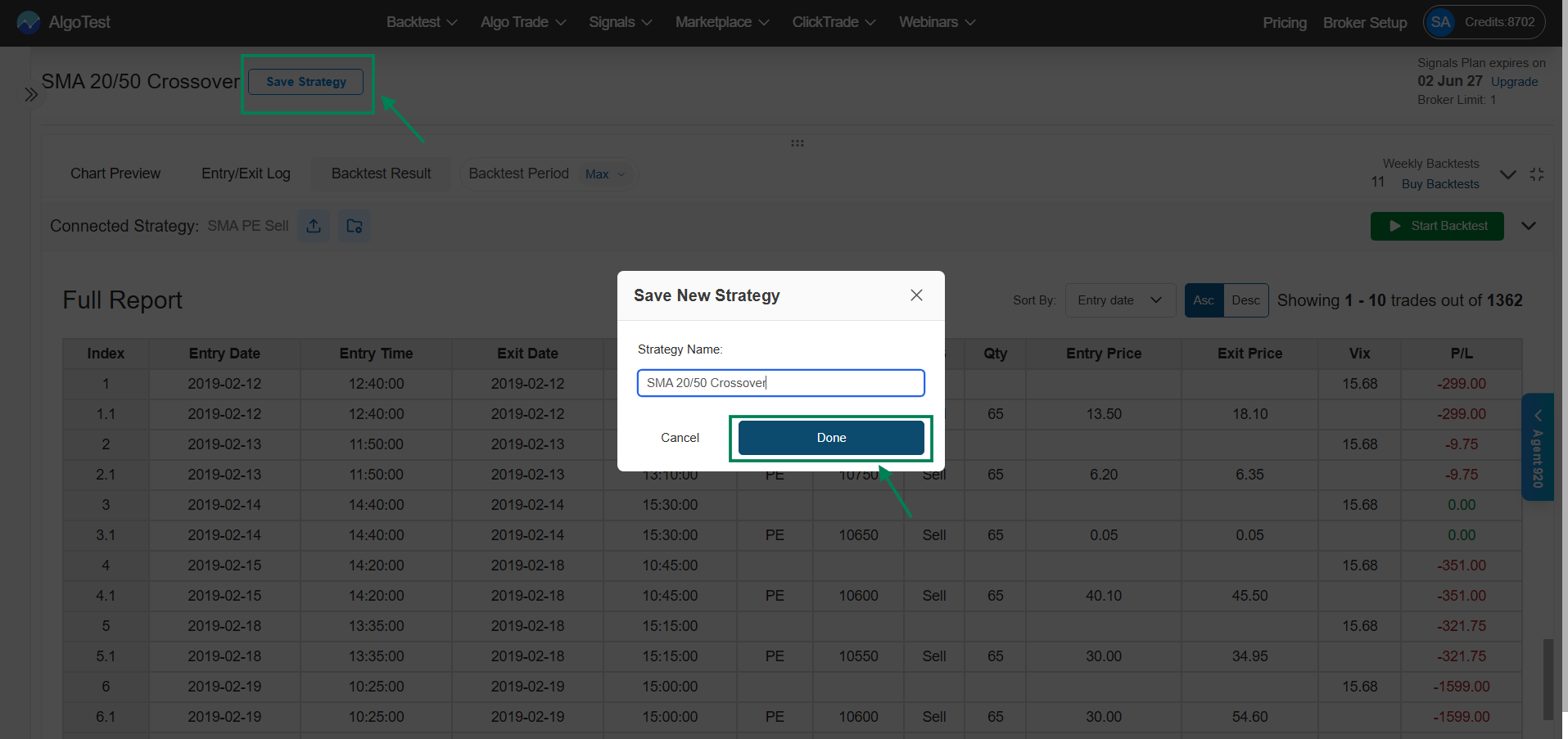
Satisfied? Click Save Strategy, name it, and save. It will appear in Saved Signals, ready to deploy.
Backtests don't capture slippage, order fills, and execution latency the way live markets do. Always forward test before going live. See why results can differ.