Using the AI Agent
The Signals AI Agent is a chat assistant that turns a plain English description of your signal into working logic on the Canvas. You can also use it to modify an existing signal - just tell it what to change.
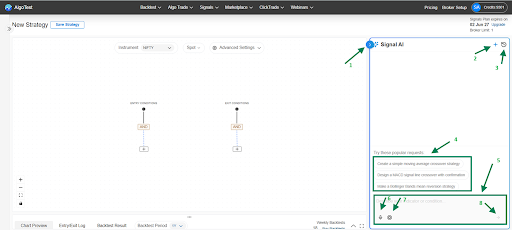
The chat panel
| Control | What it does |
|---|---|
| Input Box | Type your strategy logic, or ask for changes to the current strategy |
| Enter | Generates (or updates) the strategy on the Canvas |
| Suggested Prompts | One-click starter strategies (EMA crossover, MACD, etc.) |
| Voice Recording | Speak your strategy instead of typing - regional and global languages supported |
| Select Model | Pick which AI model answers you - see Choosing a model |
| History | View and reuse strategies you built earlier |
| New Chat | Start fresh and clear previous inputs |
| Close Chat | Hide the chat panel to work on the Canvas full screen |
Choosing a model
Select Model lets you choose which AI model builds your strategy. Every model spends from the same pool of AI tokens, but they don't cost the same per reply - so this choice decides how far your balance goes.
| Token burn | Models | Best for |
|---|---|---|
| Lowest | Gemini 3.8 Flash, Qwen3, GLM 4.7 | Everyday strategy building and quick edits - stretches your balance furthest |
| Moderate | Gemini 3.1 Pro (default), GPT-5.6 Sol | Balanced reasoning for multi condition strategies |
| Highest | Claude Sonnet 5, Claude Opus 5 | Complex, multi step logic where the extra cost is worth it |
The default is Gemini 3.1 Pro, a middle tier model. For routine work - a crossover, an RSI filter, a timeframe change - switching to Gemini 3.8 Flash gets you meaningfully more messages from the same balance. Save the premium models for strategies with several interacting conditions.
You can change the model at any time, including part way through a conversation. It doesn't affect strategies you've already built.
Writing a good prompt
Include these four things and the AI will almost always get it right the first time:
- Instrument - e.g., NIFTY, BANKNIFTY, RELIANCE, BTCUSD
- Chart data and timeframe - e.g., spot on 5 minute candles, futures on 15 minute
- Entry condition - including indicator parameters (periods, levels)
- Exit condition
Example prompt:
Create an EMA crossover strategy where the entry condition is EMA 20 crossing above EMA 50, and the exit condition is EMA 20 crossing below EMA 50. Use the 5 minute timeframe on NIFTY spot.
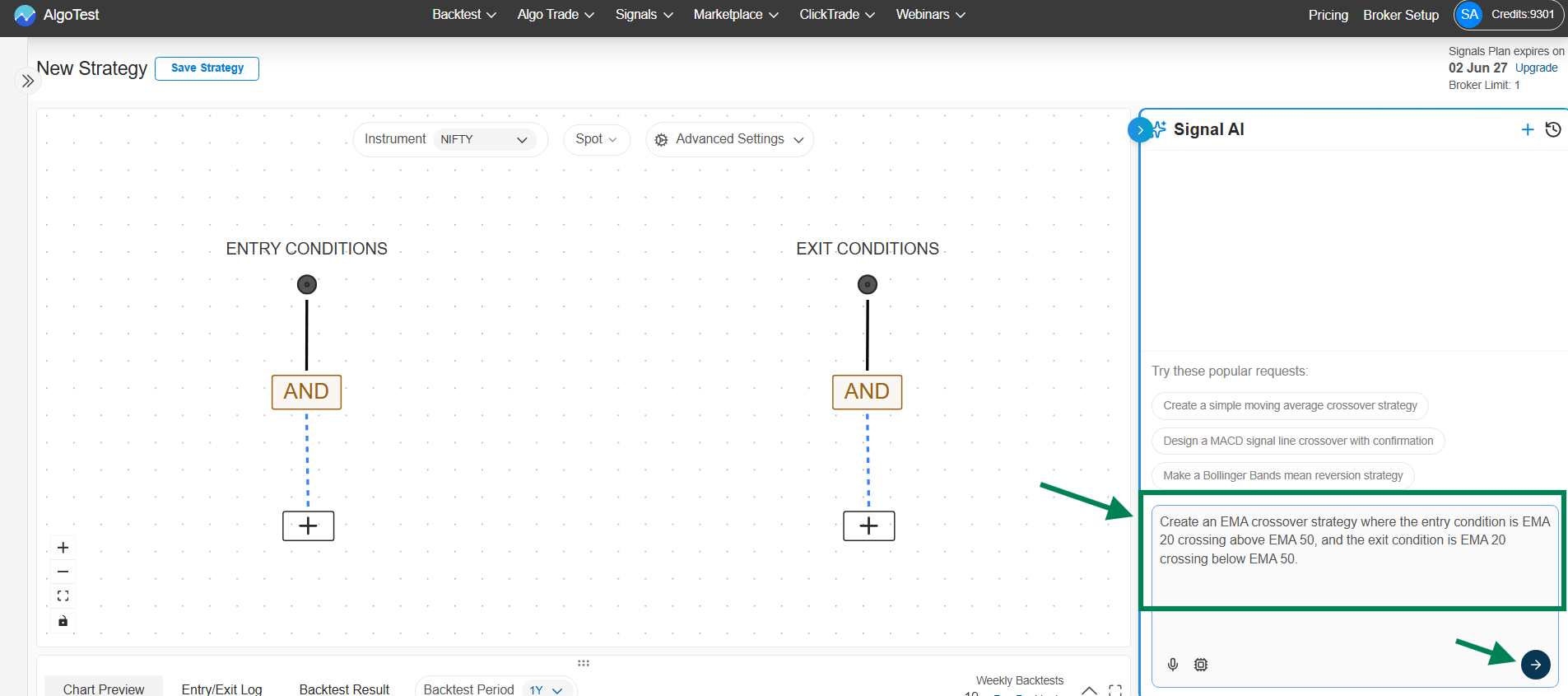
The AI generates the strategy and displays it on the Canvas:
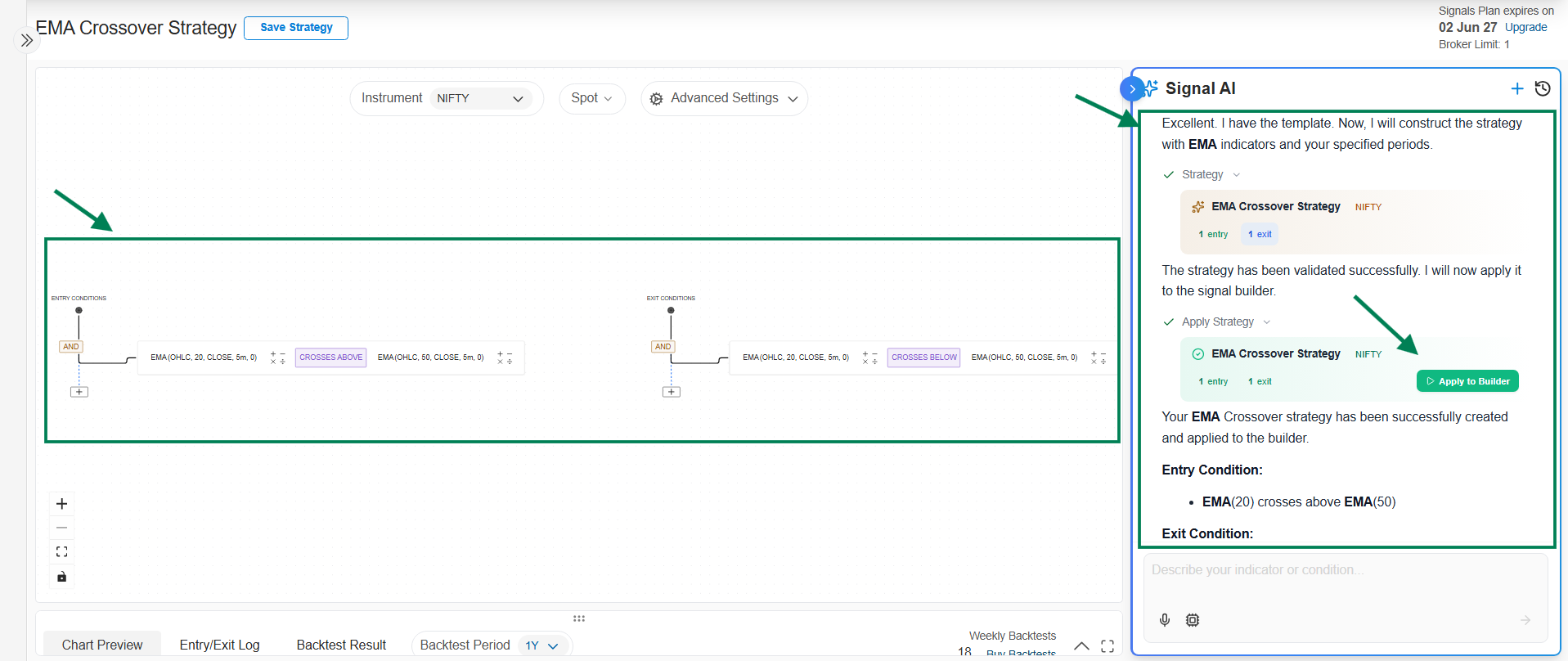
If you leave out parameters (like the RSI period), the AI uses sensible defaults. You can always say "use default indicator settings" explicitly, or adjust them later on the Canvas.
Refining a strategy
You don't have to start over to make changes. Type follow ups like:
- "Change the timeframe to 15 minutes"
- "Add an entry condition: only enter when RSI(14) is below 60"
- "Only take entries after 9:30 AM"
The AI updates the Canvas in place. You can also edit any node directly on the Canvas - AI and manual editing work together.
See it in action
Interactive demo: Signals AI Agent walkthrough