Building on the Canvas
The Canvas is the visual strategy builder. Every strategy - whether you built it with the AI Agent or by hand lives here as connected blocks called nodes. You can inspect, edit, add, or remove any part of the logic.
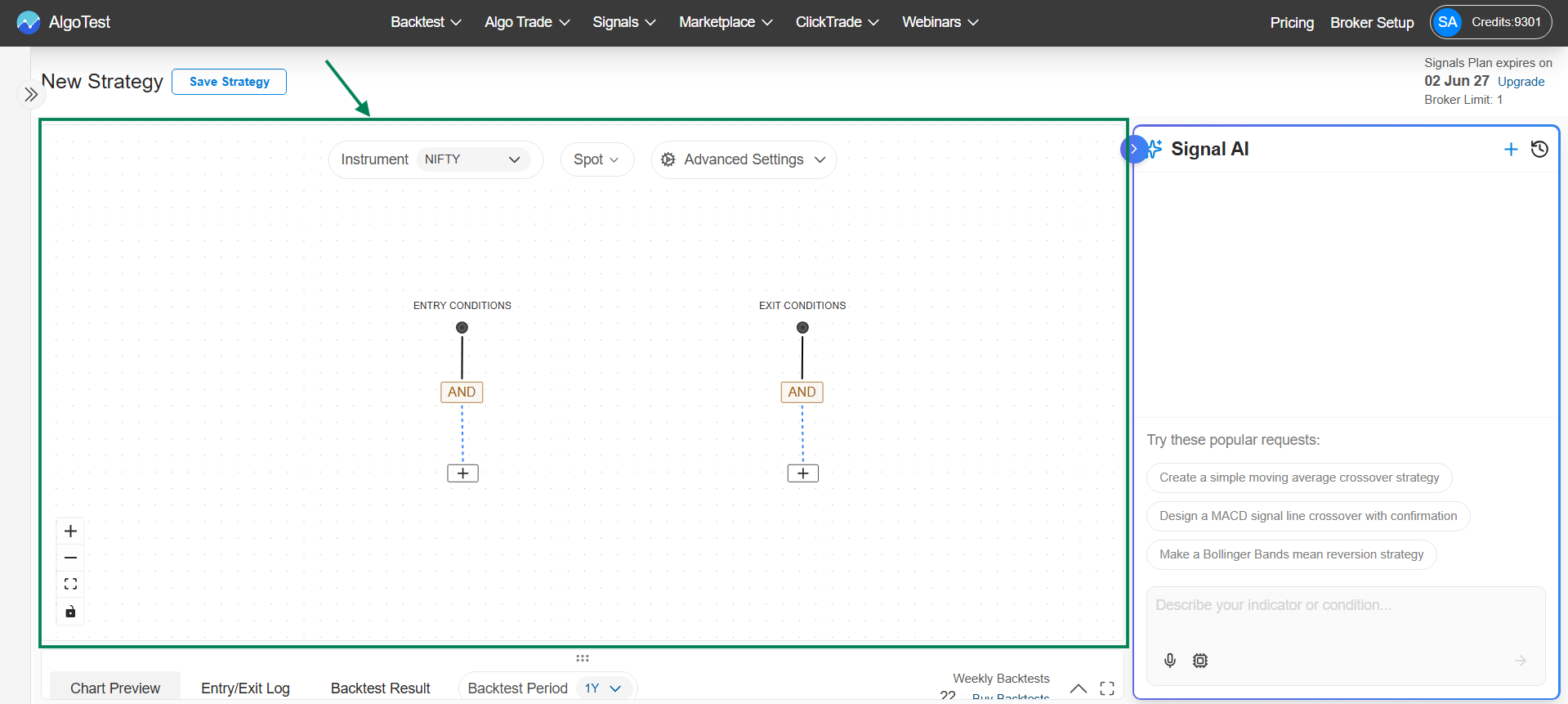
Entry and exit conditions
Every strategy has two condition groups:
- Entry Conditions - when these become true, the strategy generates an entry signal (a trade is opened).
- Exit Conditions - when these become true, the strategy generates an exit signal (the open position is closed).
Both are built from the same node types; only their purpose differs.
The four node types
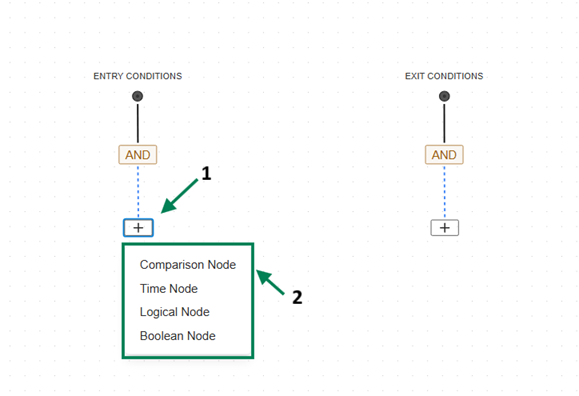
1. Comparison Node
The workhorse of every strategy. It compares two values —-indicators, prices, or constants - using an operator.
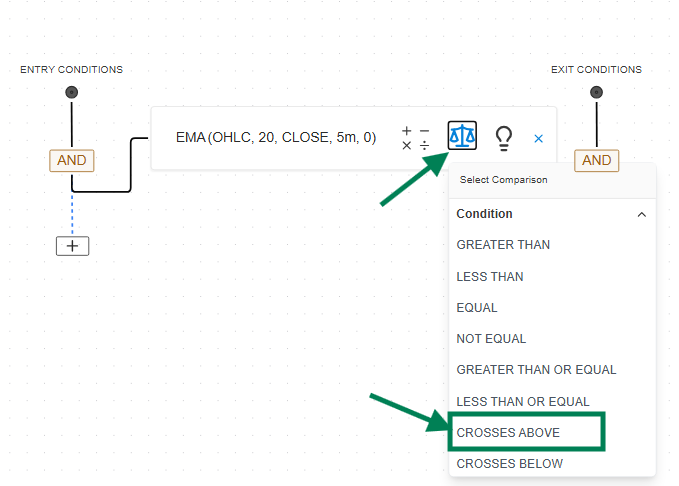
Operators: Greater Than, Less Than, Equal, Not Equal, Greater/Less Than or Equal To, Crosses Above, Crosses Below
Examples: EMA(20) crosses above EMA(50) · RSI(14) > 60 · Close < VWAP
Either side can be an indicator, raw price, a previous candle's value, an N-candle high or low, or a constant - see What You Can Compare for the full list.
To add one: click "+" under Entry or Exit Conditions → select Comparison Node → choose an indicator or value for each side → pick the operator from the dropdown.
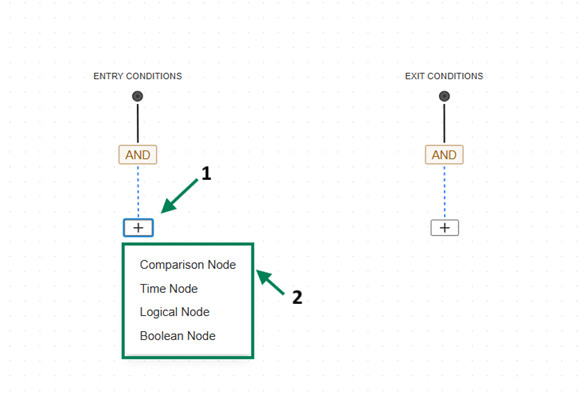
Greater Than is true on every candle where EMA 20 > EMA 50 - it can fire repeatedly. Crosses Above is true only on the candle where EMA 20 moves from below to above EMA 50 - it fires once per crossover. For crossover strategies, you almost always want Crosses Above / Crosses Below.
2. Logical Node
Combines multiple conditions:
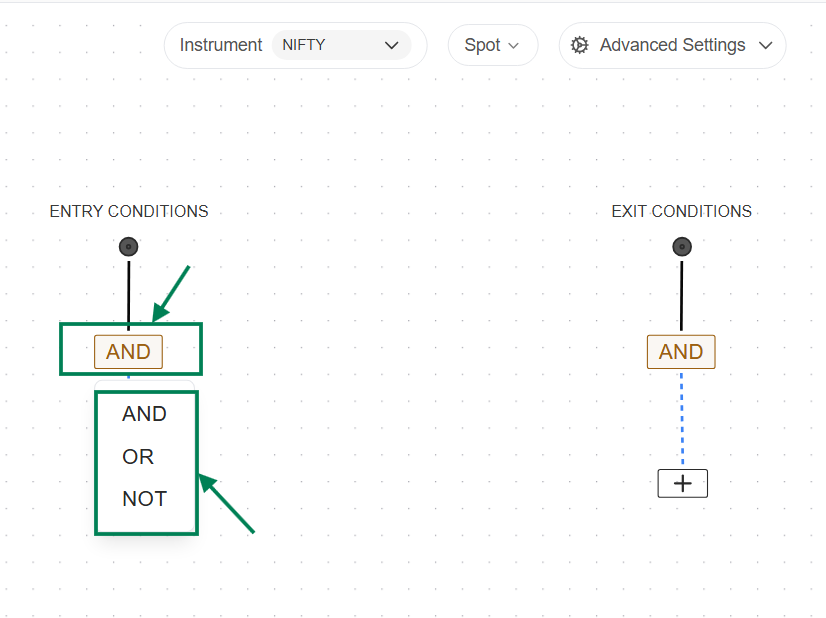
- AND - all connected conditions must be true
- OR - any one condition is enough
- NOT - reverses a condition
Example: EMA(20) > EMA(50) AND RSI(14) < 60 - entry triggers only when both are true.
An AND node is present by default in both Entry and Exit conditions. Click it to switch to OR/NOT, or add a new one via "+" → Logical Node.
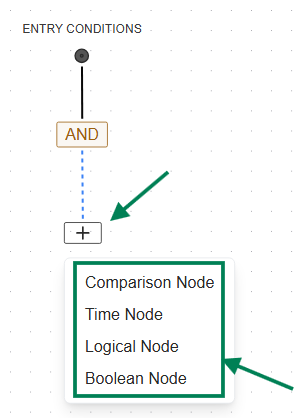
3. Time Node
Restricts when conditions can trigger, based on candle time.
Example: Candle Time > 09:30 - entries only after 9:30 AM.
To add one: click "+" → Time Node → choose an operator [> or < or =] → set the time in HH:MM format.
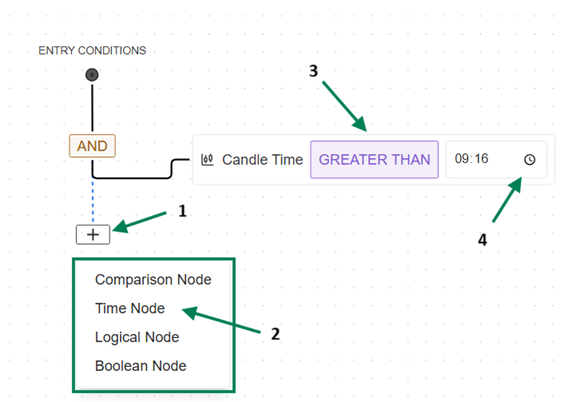
4. Boolean Node
A fixed TRUE or FALSE value, with no indicator involved. Useful as a placeholder while building, or for always true / always false branches in complex logic.
To add one: click "+" → Boolean Node → select TRUE or FALSE.
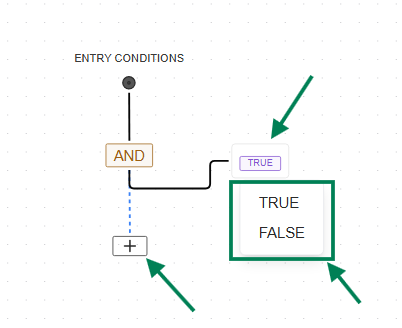
Worked example: EMA 20/50 crossover, built manually
This builds the same strategy as the Quickstart without the AI:
-
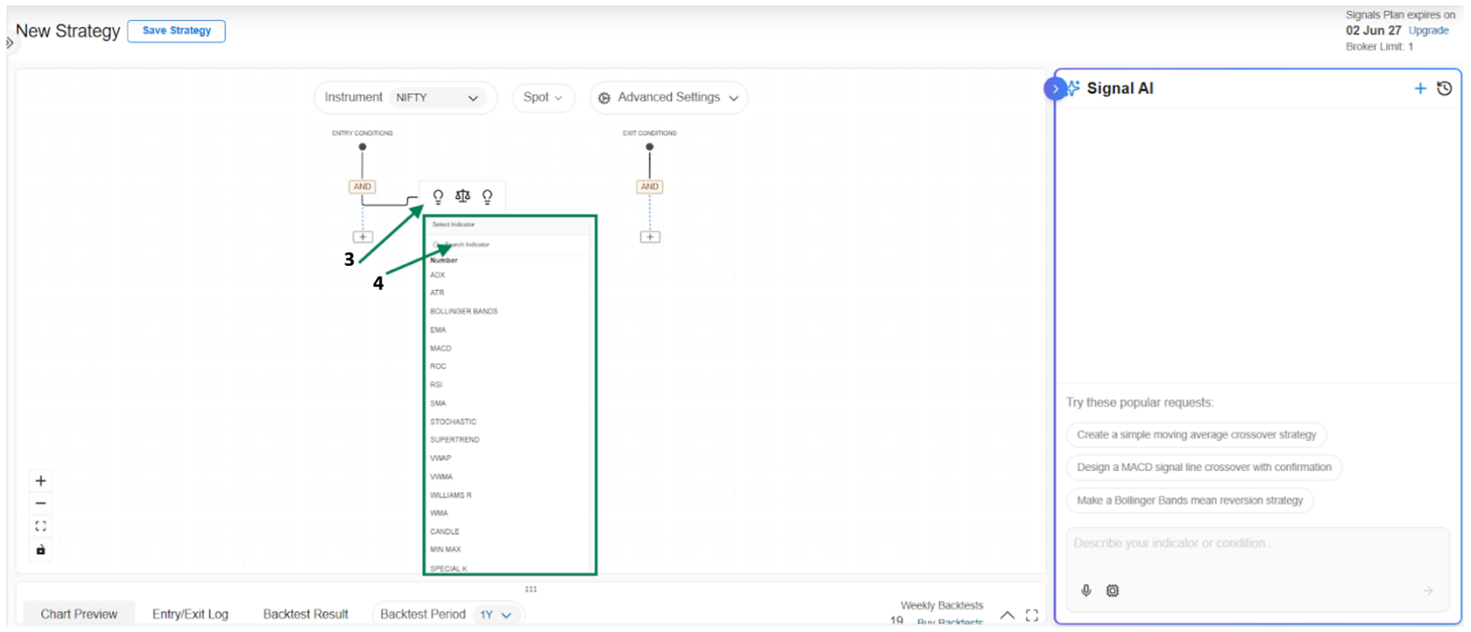
Under Entry Conditions, click "+" and select Comparison Node.
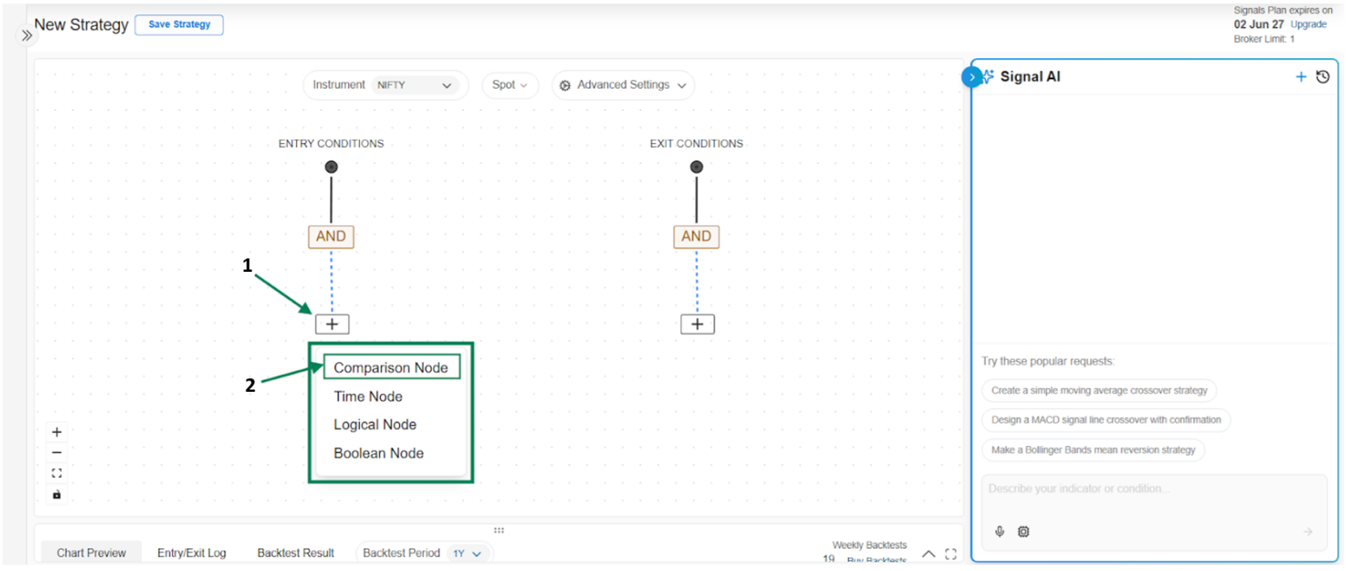
-
In the first input, search for and select EMA.
-
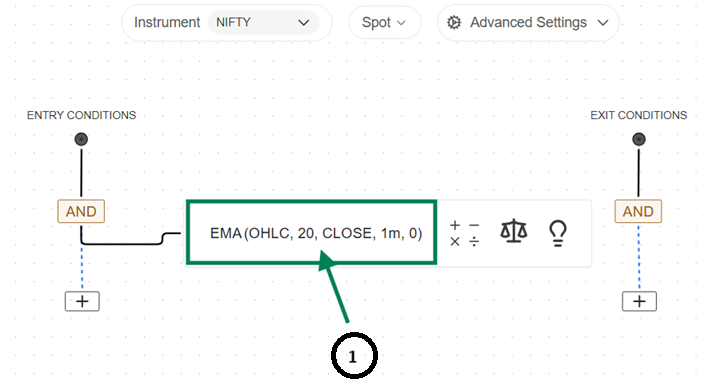
Click the EMA block and set its parameters - Period: 20, Source: Close, Timeframe: 5m; then save.
-
Set the operator to Crosses Above.
-
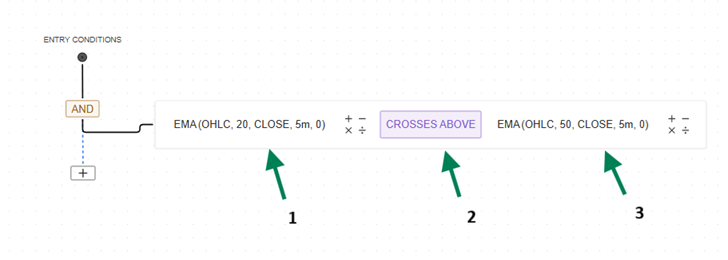
In the second input, add another EMA with Period: 50 (same timeframe) and save.

-
Repeat the same steps under Exit Conditions, using Crosses Below.
The finished entry condition looks like this:
The full strategy workflow
- Select the instrument - e.g., NIFTY
- Select the chart data - Spot, Futures, Options, Synthetic Futures, or Combined Premium
- Set signal limits (optional) - max concurrent signals, max signals per day
- Build entry conditions - using the nodes above; see What You Can Compare for every value a condition can use
- Build exit conditions
- Preview on the chart - verify the signals look right
Let the AI Agent generate the base logic, then fine tune parameters on the Canvas or build manually and ask the AI to add conditions. Both edit the same strategy.