Broker Level Settings
At AlgoTest, you have the luxury of setting up Stop Loss, Target and Trailing Stop Loss on all the strategies that you deployed on a specific broker on the platform. These settings are called "Broker Level Settings".
These settings will apply to all the strategies that you deploy through AlgoTest, but not on trades that you make manually through your broker. To access these settings, you can go to the "live trade" page in AlgoTest, but note that this feature is only available after you have deployed a strategy.
How to configure Broker Level Settings
To configure broker-level settings, you just need to follow a few simple steps. See the instructions below for guidance.
-
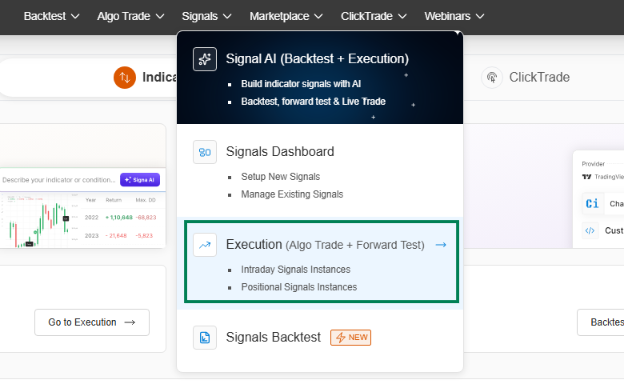
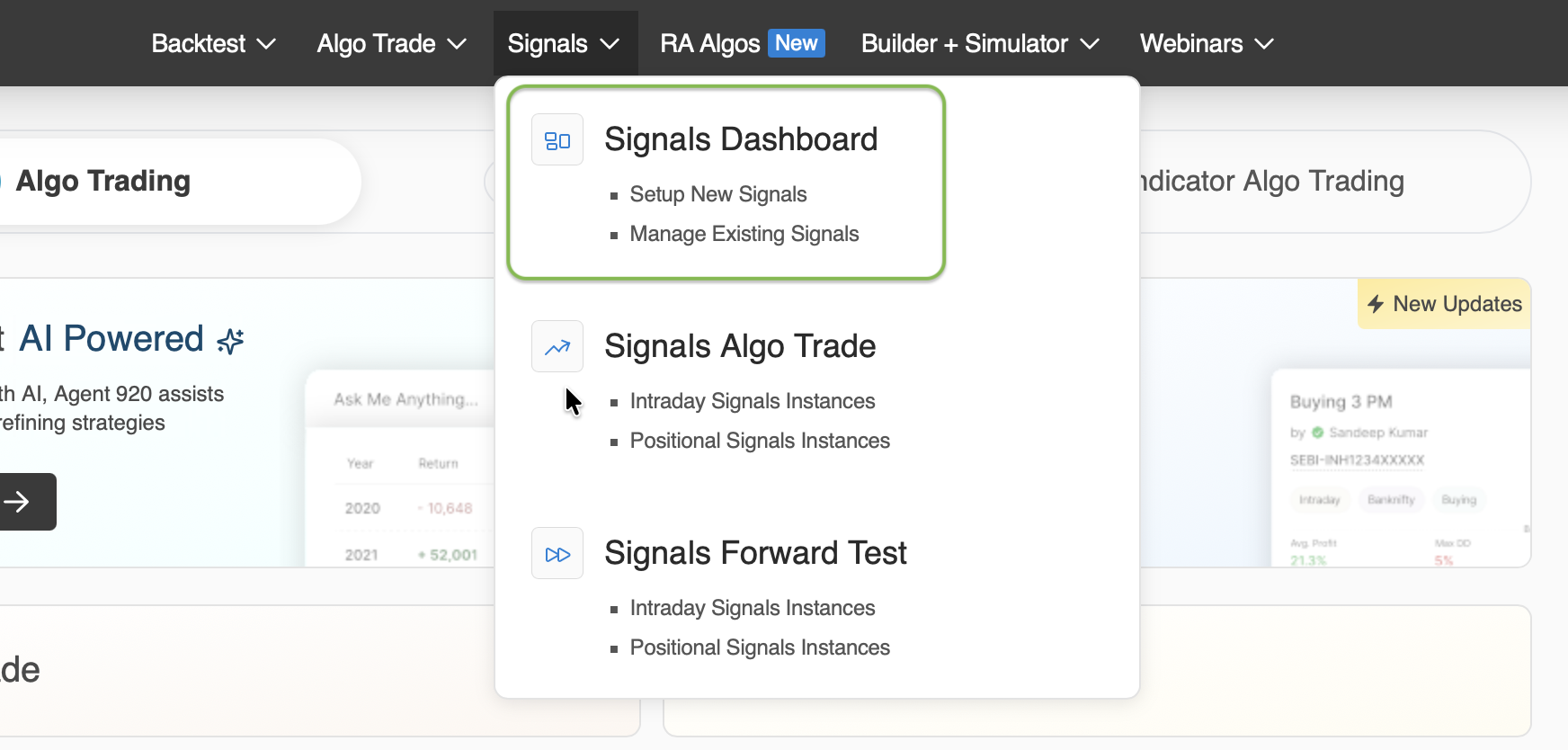
Please navigate to the "Signals Algo Trade" page in Algotest by clicking on the corresponding button as displayed in the image below.
-
Click on Signals - - > Executions - - > AlgoTrade - - > MTM
-
On the Live Trade page, you can view your deployed strategy/portfolio and the running MTM of a specific broker. To add Broker Level Settings, click on the "Add Settings".
-
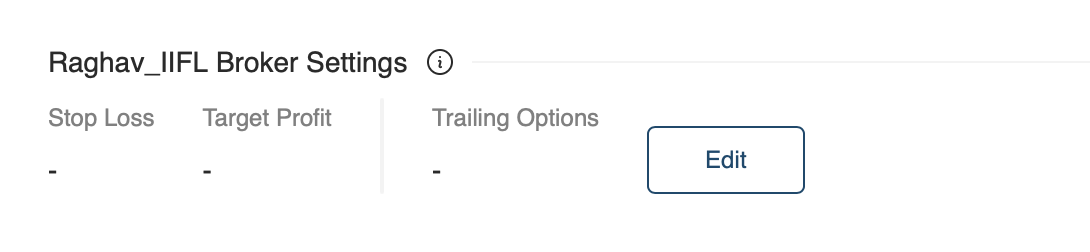
Click on the "Edit" button, as illustrated in the image below.
-
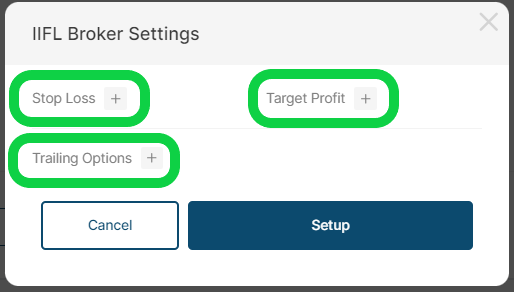
Now there is an option to set broker level Stop Loss, Target and Trailing. You can choose the desired feature and save the settings by clicking on "setup" button.
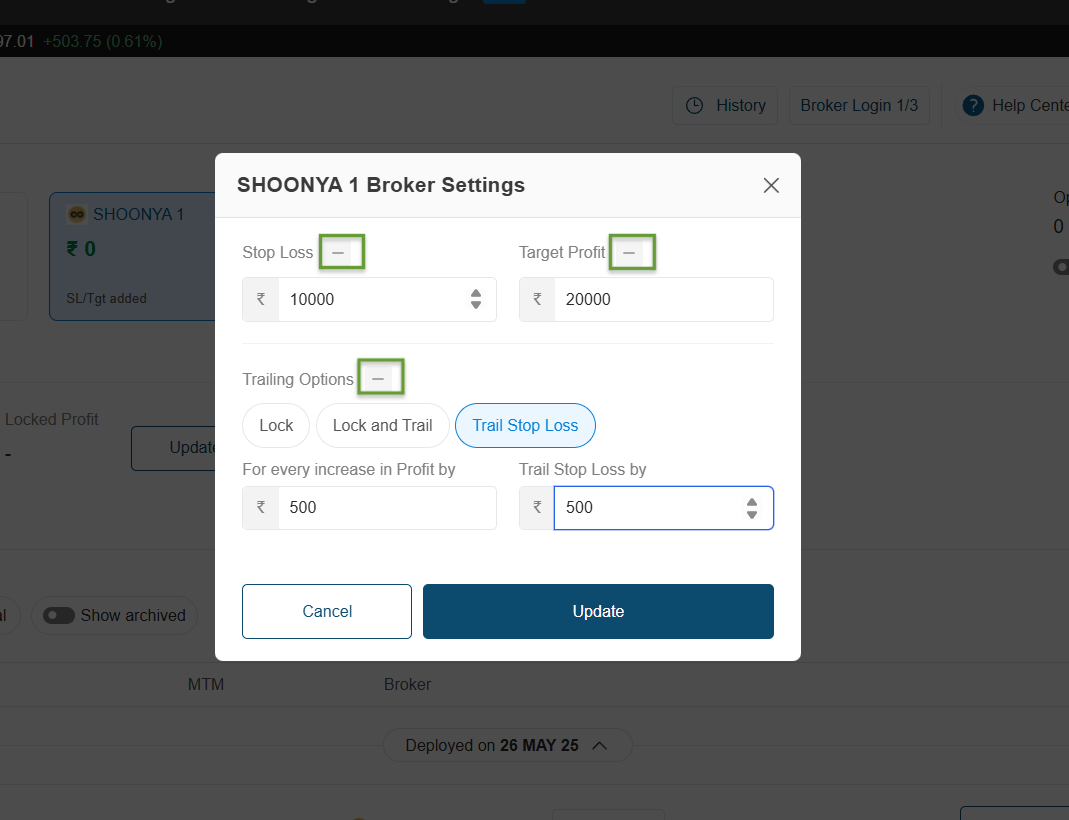
- Click on "-" icon to remove the setup and click on update, as illustrated in the image below.
How Broker Level Stop Loss Works
In Algotest, you can set a broker level stop loss that applies to all deployed strategies. This stoploss automatically squares off all running strategies once it's reached.
For instance, if you set the broker level stop loss to 5000, as soon as it breaches, all strategies will be squared off.
It's important to note that this setting needs to be updated daily.
To set a broker-level stop loss, please follow the steps below.
- To set a stop loss, click on the "Stop Loss" button indicated in the image below.
- Assuming that our loss exceeds 5000, the system will square off all our strategies. To set this up, we must enter 5000 in the stop loss field and click the "Setup" button.
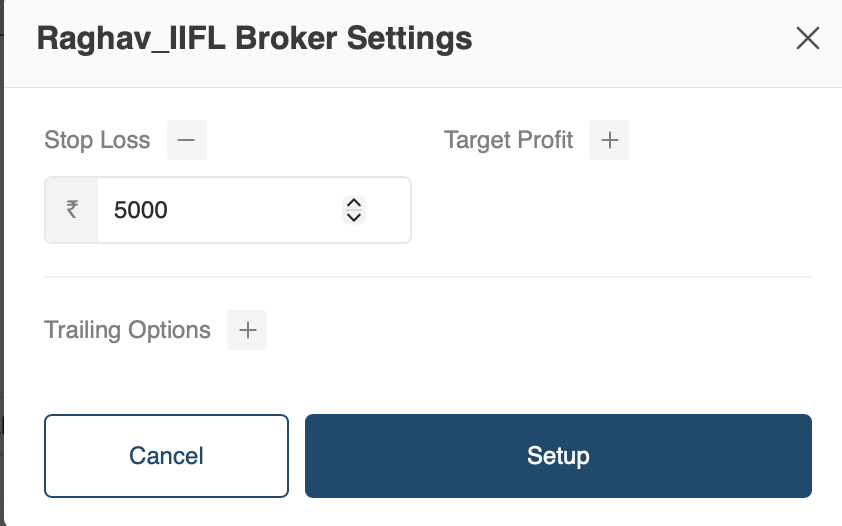
- Our broker level settings are added. Now, as soon as our stop loss breaches 5000, all our running strategies will be squared off.
How Broker Level Target Works
In Algotest, you can set a broker level target that applies to all deployed strategies. This target automatically squares off all running strategies once it's reached.
For instance, if you set the broker level target to 5000, as soon as it crosses, all strategies will be squared off. It's important to note that this setting needs to be updated daily.
To set a target at the broker level, please follow the steps below:
- To proceed, kindly locate and click on the 'Target Profit' button as indicated in the image below.
- We want that if the overall profit of deployed strategies reaches 10000, the system will automatically square off all my strategies. To set this up, I will enter 10000 in the target and click the "Setup" button.
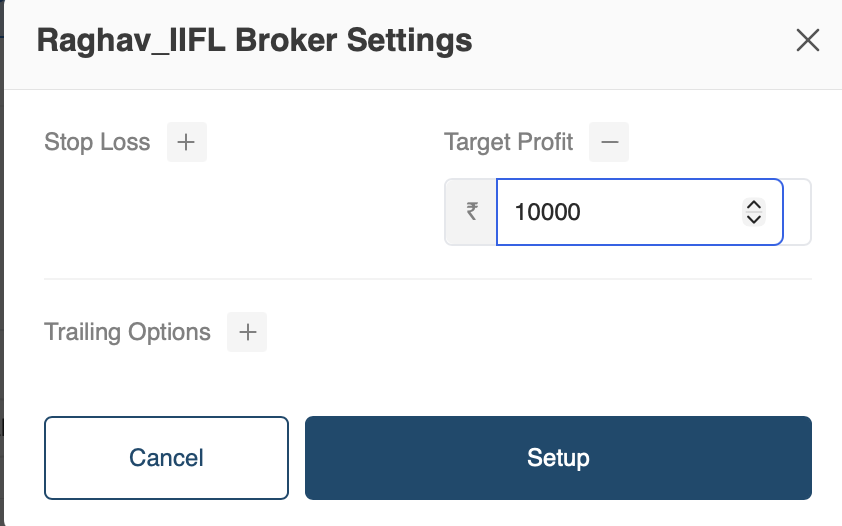
- Our broker level settings have been configured to automatically square off all running strategies once the target of 10000 is reached, as shown in the image below.
How Broker Level Trailing Works
This feature allows you to trail the overall profit or loss of your deployed strategies. To access the trailing options, click on "Trailing Options".
This feature provides three options for trailing: Overall Trail SL, Lock Profit, and Lock and Trail.
Overall Trail SL
This feature allows you to trail your broker level overall SL as the market moves in your favour.
For example your broker level SL is 5000 and you want that for every Rs. 500 profit, trail your broker level SL by Rs. 500, you can do this using this feature.
Imagine your broker level MTM reached ₹ 500.
So as soon as it crosses ₹ 500, trail your broker level sl i.e. 5000 to 4500.
Now if profit reaches ₹ 1000, our broker level SL will be trailed from ₹ 4500 to ₹ 4000.
Now again if profit reaches ₹ 1500, our broker level SL will be trailed from ₹ 4000 to ₹ 3500.
It will keep on doing till our broker level trailing sl hit.
So now assume after some time the market reverses and profit starts coming down. When it crosses a loss below 3500, it will exit all your strategies.
To set the Broker Level Trail SL, please follow the steps below.
-
Please click on the "Trail Stop Loss" button.
-
Click on the "Setup" button after entering your trailing inputs.
-
You can now view the "Trailed Stop Loss" section in your settings, which displays the Trailed value of your broker level. This information is accompanied by a message that reads "Settings Added,".
Lock
This feature enables you to secure your profits.
Let's say you want to ensure that if your profit reaches a certain amount, let's call it 10000, you take at least 5000 home in case the market reverses. You can use this feature to lock in the 5000 when your profit reaches 10000. This way, if the market goes against you and your profit drops below 5000, the feature will exit the deployed strategies.
Imagine your broker level profit reached ₹ 10000. So as soon as it crosses ₹ 10000, the system will lock ₹ 5000 profit.
So now assume after some time the market reverses and profit starts coming down. When it crosses below ₹ 5000, the system will exit at ₹ 5000 profit.
To set a lock, follow the steps below:
-
Click on the Lock button and enter your desired inputs.
-
To save the settings, please click on the "Setup" button.
-
You will see "Settings Added". Once your lock condition is met, you will see the locked profit value under "Locked Profit".
Lock and Trail
This particular feature enables you to secure your profit and subsequently trail your secured profit as the prices move in your favour.
For instance, if you wish to lock your profit when it reaches a certain amount of 10000, say 5000, and then trail your secured profit by 500rs for every 500rs increase in profit from 10000rs, you can easily do so using this feature.
Imagine broker level profit reached ₹ 10000. So as soon as it crosses ₹ 10000, the system will lock ₹ 5000 profit.
Now according to our trail condition if profit reaches ₹ 10500,, our lock profit i.e. ₹ 5000 will be trailed to ₹ 5500. Now again if profit reaches ₹ 11000, our lock profit i.e. ₹ 5500 will be trailed to ₹ 6000.
So now assume after some time the market reverses and profit starts coming down. When it crosses below our trailed sl i.e. ₹ 6000, the system will exit at ₹ 6000 profit.
To set the Lock and Trail, follow the steps below:
-
To enable the lock and trail feature, click on the "Lock and Trail" button and enter the desired trailing condition in the space provided, following the displayed instructions.
-
To save the settings, please click on the Setup Button.
-
You will see "Settings Added". Once your lock condition is met, you will see the trailed profit value under "Trailed Profit".
Will the MTM of Squared-Off Strategies be considered?
-
Set SL/Target across all active or squared-off strategies for the day.
-
Broker-level SL/Target can be set at any point during the day and will consider the P&L of all running and squared-off strategies for that broker.
IMPORTANT POINTS
-
Broker-level settings must be set daily and apply only to strategies deployed via AlgoTest, not manual trades.
-
Strategies in a paused state or switched to manual mode are excluded from MTM calculations.
-
For strategies that go into an error state, only the closed leg MTM will be considered in broker-level calculations.
Will the MTM of Squared-Off Strategies be considered?
-
Set broker-level SL/Target from the Signals Execution page.
-
Once hit, all signals for the day are blocked for that broker.
-
To allow further trades after a broker-level SL/Target is hit, you must manually reset it from the Signals Execution page.
IMPORTANT POINTS
-
Broker-level settings must be set daily and apply only to strategies deployed via AlgoTest, not manual trades.
-
Strategies in a paused state or switched to manual mode are excluded from MTM calculations.
-
For strategies that go into an error state, only the closed leg MTM will be considered in broker-level calculations.
Signal Multi-Broker Execution
The Signal Multi-Broker feature allows you to connect and execute a single signal across multiple broker accounts, simultaneously and seamlessly. This eliminates the need to duplicate signals for each broker, simplifying your workflow and improving operational efficiency.
Traditionally, users had to create separate signals for each broker connection. With Multi-Broker Execution, you can now:
- Link multiple brokers to one signal
- Execute trades in parallel across all linked brokers
- Manage multiple accounts (including client or PMS accounts) more efficiently
This feature is ideal for traders, portfolio managers, and prop desks who trade similar strategies across multiple broker accounts.
How It Works
-
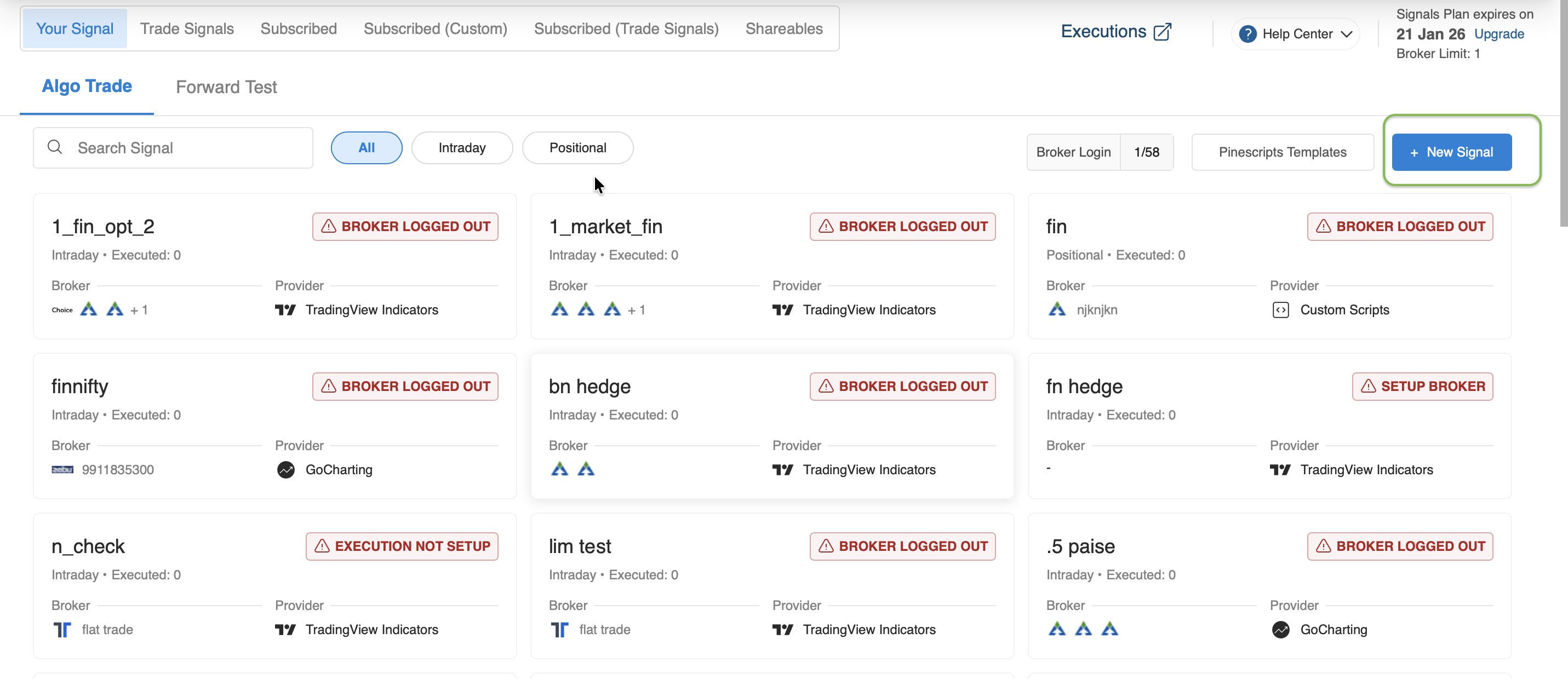
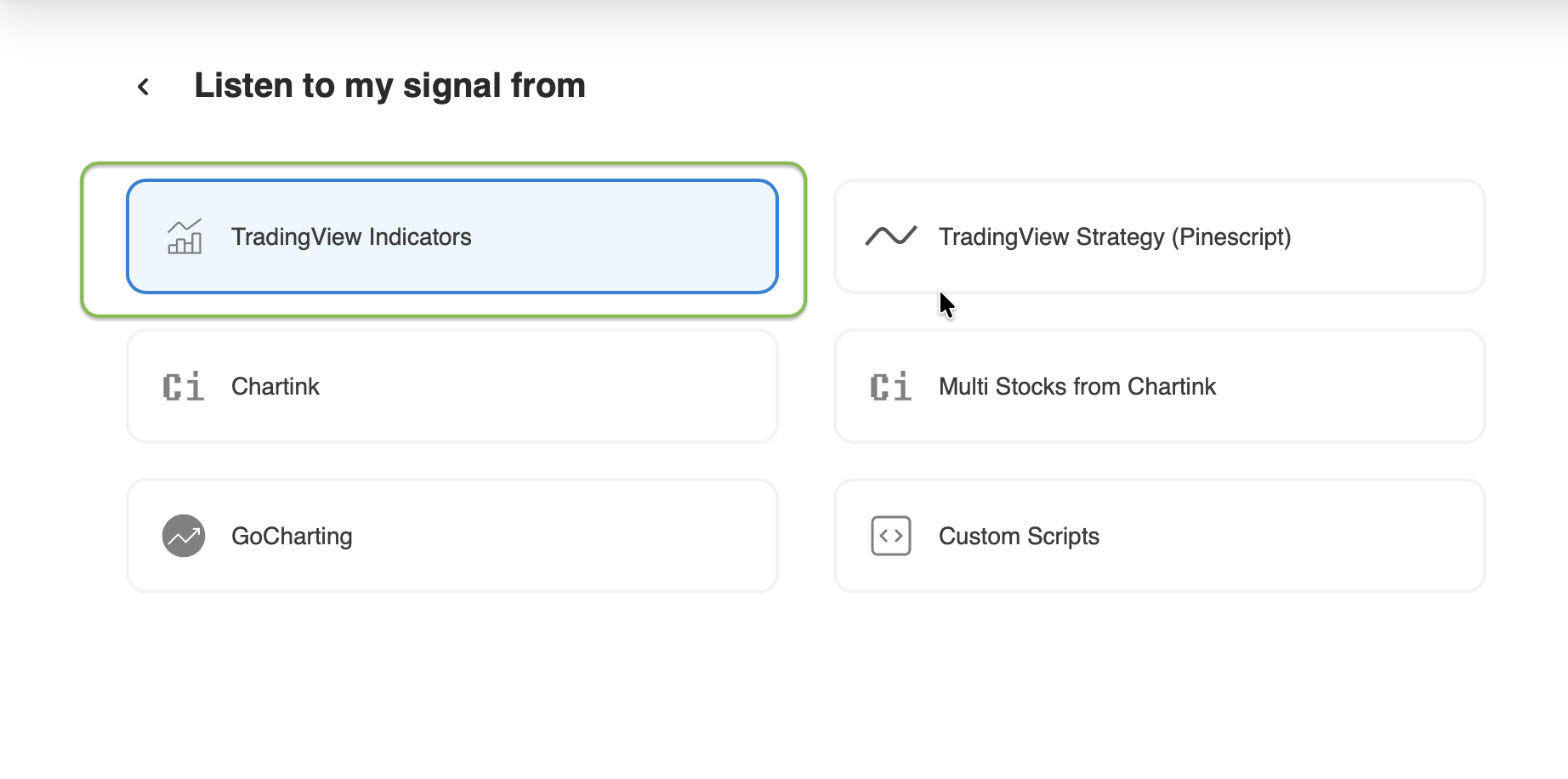
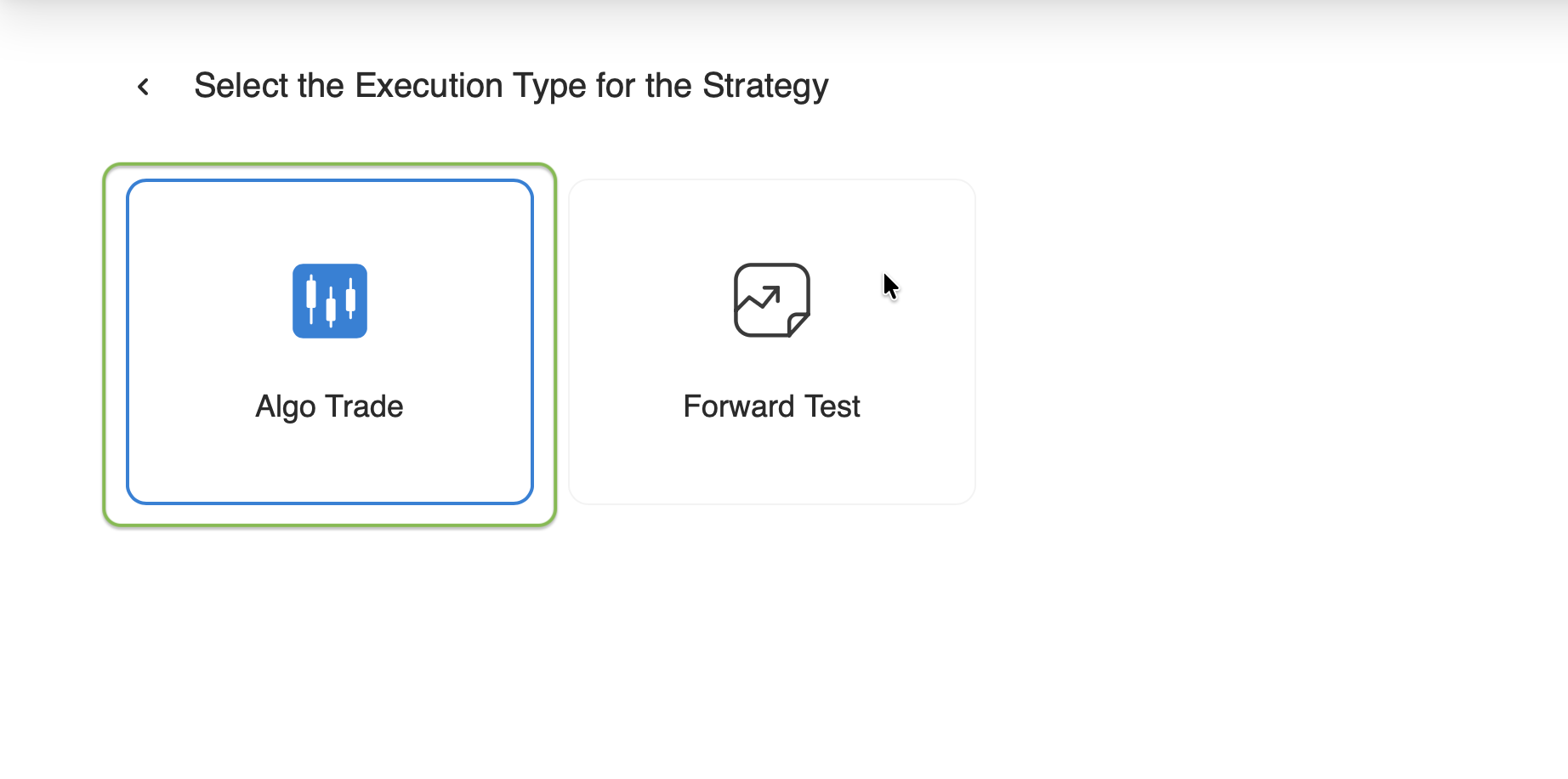
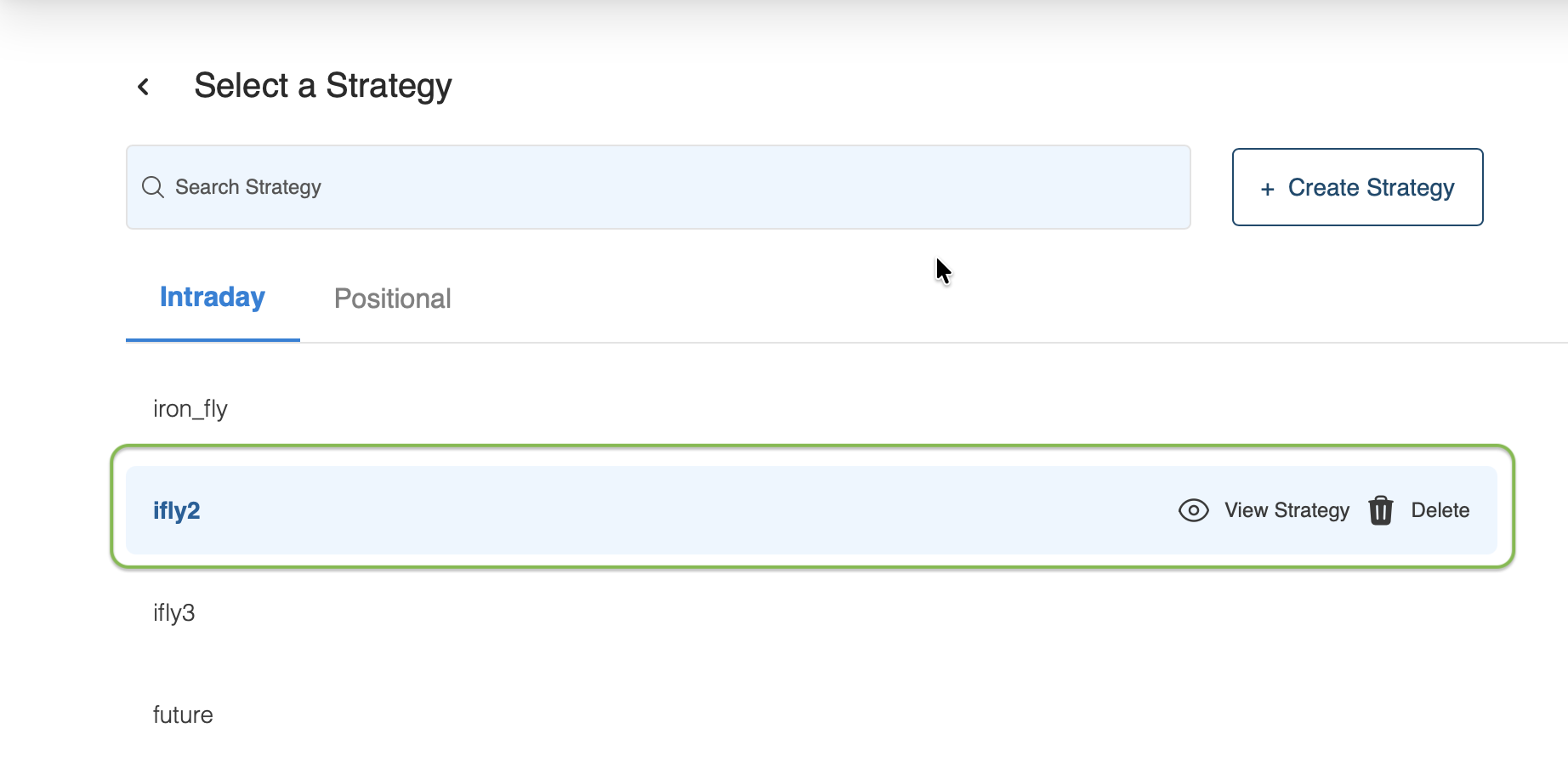
Create a Signal: Go to your AlgoTest dashboard → Signals → Create or edit an existing signal.
-
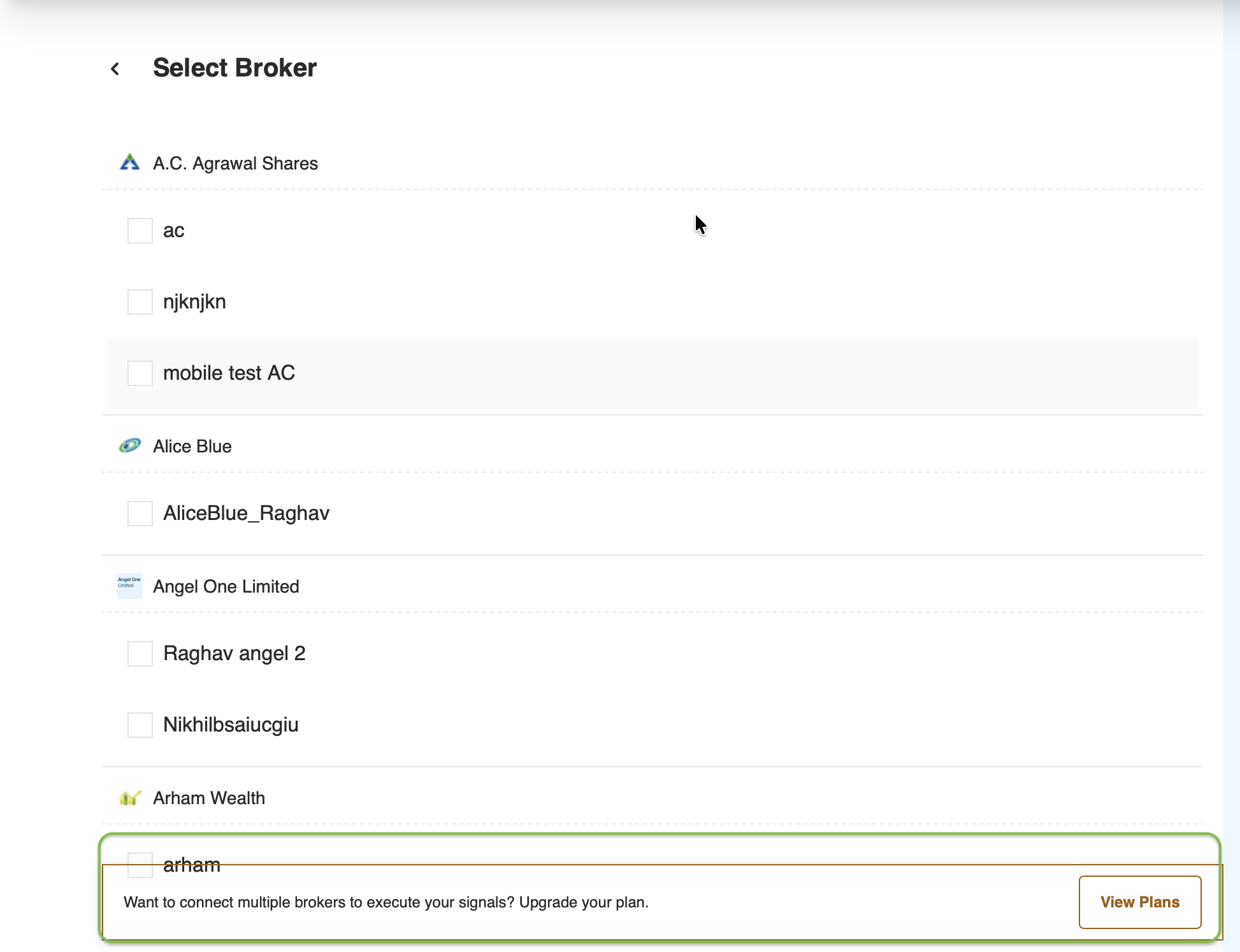
Link Multiple Brokers: Under the broker selection section, choose more than one broker. The same signal will be broadcasted to all linked brokers.
-
Execution in Parallel: When your signal triggers (via TradingView, Chartink, or webhook), AlgoTest executes the trade across all linked brokers at the same time.
-
Unified Monitoring: View trade status, PnL, and logs for all connected brokers from a single dashboard.
Benefits
| Benefit | Description |
|---|---|
| Simplified Setup | No need to duplicate the same signal for each broker |
| Faster Deployment | Morning setups like rolling straddles or adjustments happen in one click |
| Reduced Alerts | Fewer TradingView or Chartink alerts needed, one alert can trigger trades across all brokers |
| Scalable Automation | Expand your execution capacity with plan-based broker linking |
Plan & Pricing Structure
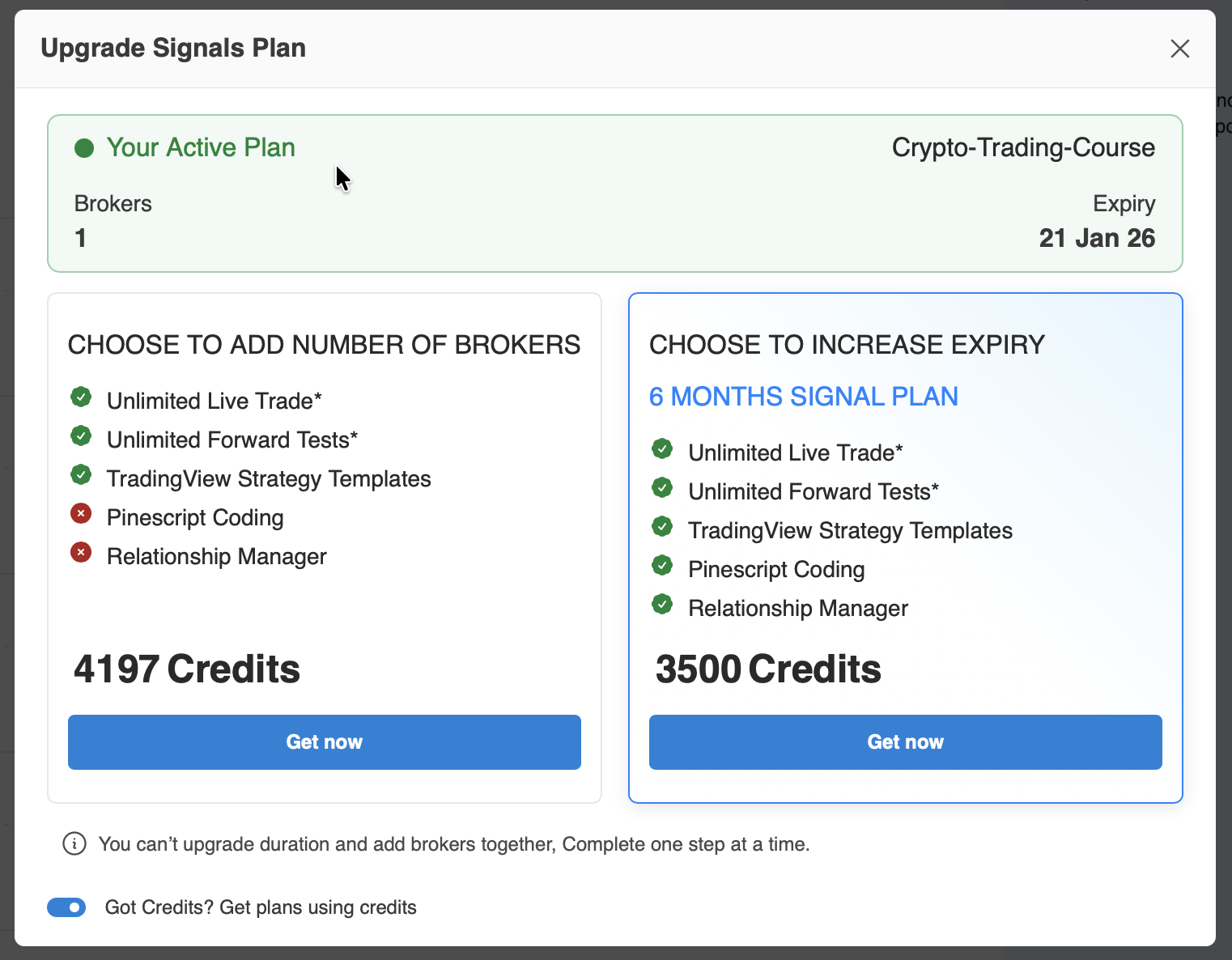
Multi-Broker support scales linearly with your Signals Plan. Each additional Signals Plan allows you to connect one more broker per signal and multiplies your live and forward test concurrency accordingly.
| Plan Type | Brokers per Signal | Concurrent Signal Multiplier | Description |
|---|---|---|---|
| 1 Signals Plan | 1 Broker | 1× | Base plan |
| 2 Signals Plans | 2 Brokers | 2× | Connects 2 brokers per signal |
| 3 Signals Plans | 3 Brokers | 3× | Connects 3 brokers per signal |
Example: If your plan allows 2 brokers per signal, your concurrent live and forward testing signal limits are automatically multiplied by 2.
Imp:
If your existing Signals Plan has, say, 40 days of validity left for one broker, and you decide to add another broker, the second broker will automatically receive the same 40 days of validity.
The pricing calculator will determine how many credits are required for the additional broker based on the remaining plan duration. This ensures fair pricing and consistent validity across all linked brokers.
Compatibility
- Works with all broker integrations available on AlgoTest
- Supports both Live Trade and Forward Test signals
- Compatible with TradingView, Chartink, or custom webhook signal sources
Note: Each broker must be individually authenticated before linking to a signal.
Important Notes
- If any broker connection fails, AlgoTest will continue executing the signal on remaining connected brokers.
- Execution prices may vary slightly across brokers due to their individual order routing and latency.
- Ensure you have sufficient margin in all connected broker accounts.
- If you exceed your plan’s broker limit per signal, the system will prompt you to upgrade your Signals Plan.
Example Use Case
Scenario:
- You manage three client accounts with different brokers: Groww, AngelOne, and Dhan.
- You want all three to trade the same intraday straddle strategy.
Before Multi-Broker:
- You had to create three separate signals and three alerts.
Now with Multi-Broker:
- You create one signal, link all three brokers, and trigger trades across all accounts simultaneously.