Additional Features
Signals View Trades – Square All + Add External Trades
Square off all (SQ All)
Square off all (SQ All) lets you square off every open position in a single click from the Signals View Trades screen.
Steps to use SQ All in Signals View Trades
Step 1:
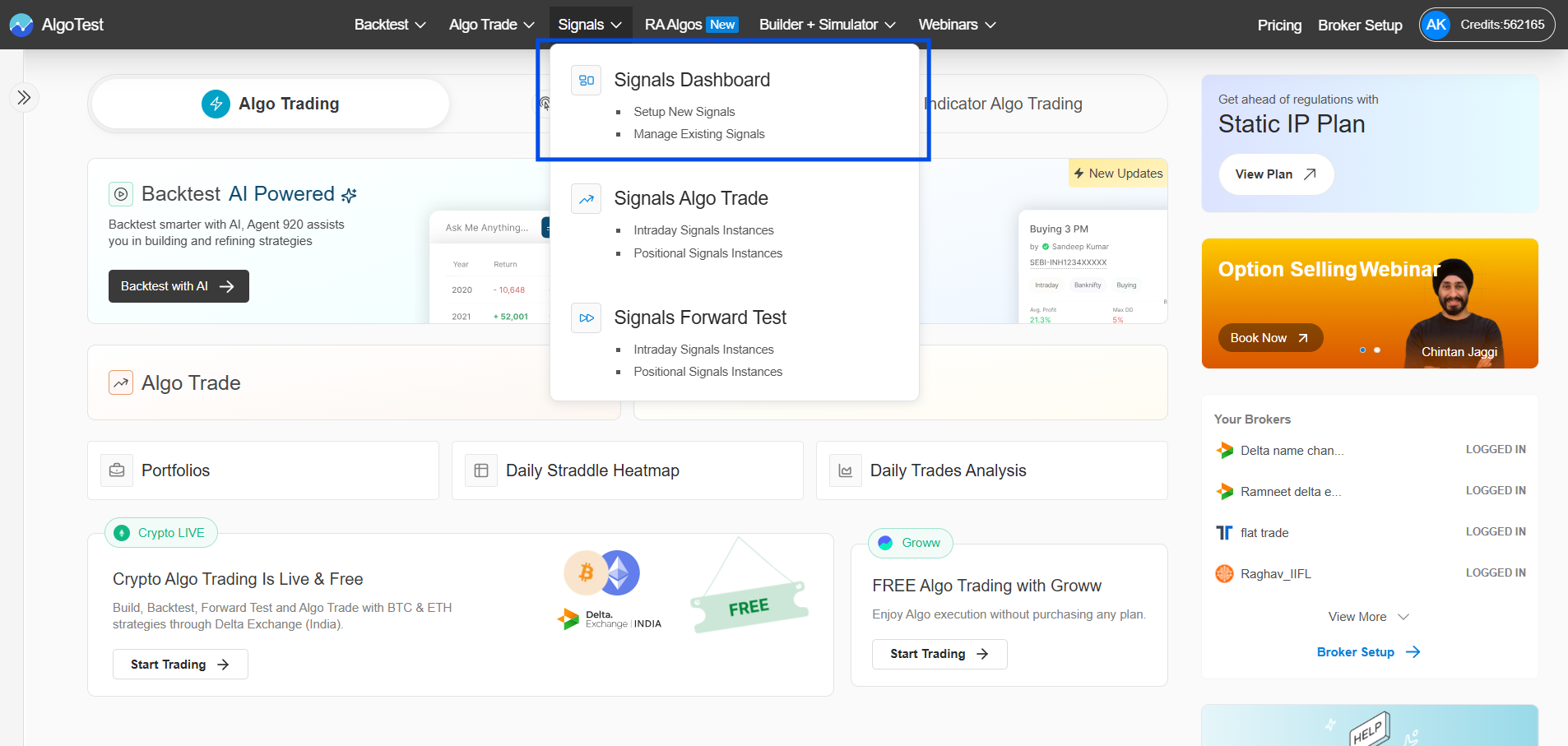
Go to the Signals section from the main menu.
Step 2:
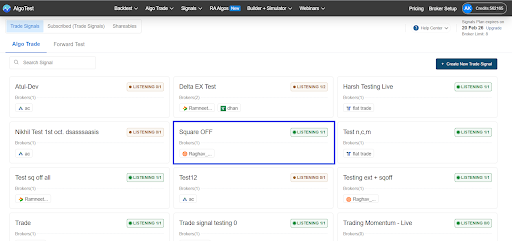
Select the relevant signal.
Step 3:
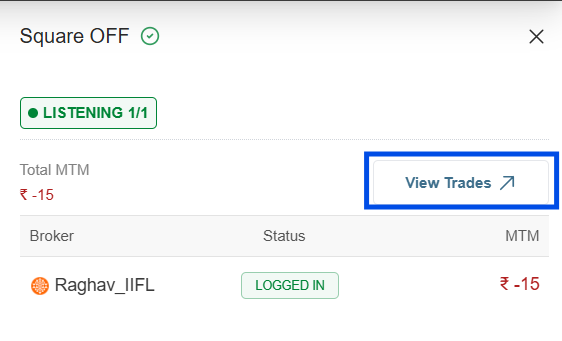
Click the View Trades button to see all the open positions.
Step 4:
Click Square off all (SQ All).

Step 5:
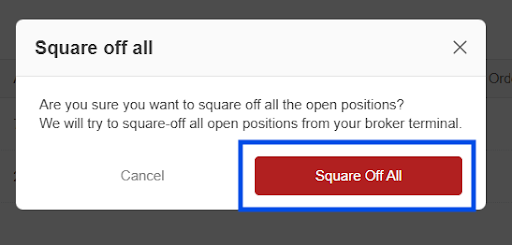
Confirm the action in the pop-up to square off all open positions for that signal at once, instead of closing each open position manually.
Add External Trades (Signals)
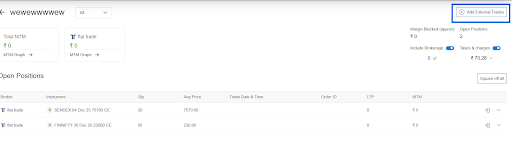
Add External Trades in Signals allows you to add an external trade to a signal at your desired price. This means you can record a trade taken directly on your broker with your chosen price and quantity, and the signal’s positions and P&L will be analysed based on that entry. You can view and manage this imported trade from the View Trades panel under Signals, alongside all other legs for that signal.
Steps to use Add External Trades in Signals
Step 1:
In the View Trades panel, click Add External Trade.
Step 2:
Select the following fields and then click Add Trade:
- Brokers
- Choose Underlying
- Instrument Type
- Expiry
- Strike
- Option Type
- Position
- Lots
- Price
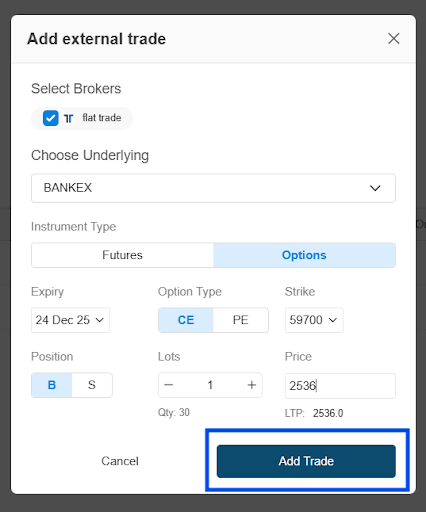
This is useful when you have manually traded on your broker end and want to add that trade to your signal. You can select the instrument, strike, quantity, and enter the price at which you want to add the trade, then click Add Trade.
The trade will be added to your signal and you will be able to view it in the View Trades panel, and square it off using the Square off button when needed.
You can also delete this external trade from the signal by clicking on the Delete button.
Important Note: Adding or deleting trades within Signals View Trades does not directly affect your actual broker account positions. It is solely for tracking and management purposes within AlgoTest’s interface.