Connecting Your Chartink Indicator
:For any queries reach out to us!
You can connect your Chartink with AlgoTest Signal by following some simple steps.
Connecting Your Chartink Indicator
You can connect your Chartink strategy with AlgoTest Signal. We will demonstrate how by following these simple steps :
- We will create an RSI strategy in Chartink
2. We will create an ATM Call Buy strategy in AlgoTest. 3. Connect both of them using AlgoTest Signals.
Step 1 - Creating RSI Strategy in Chartink
- First visit chartink.in and click on Watchlists, as shown in the image below

-
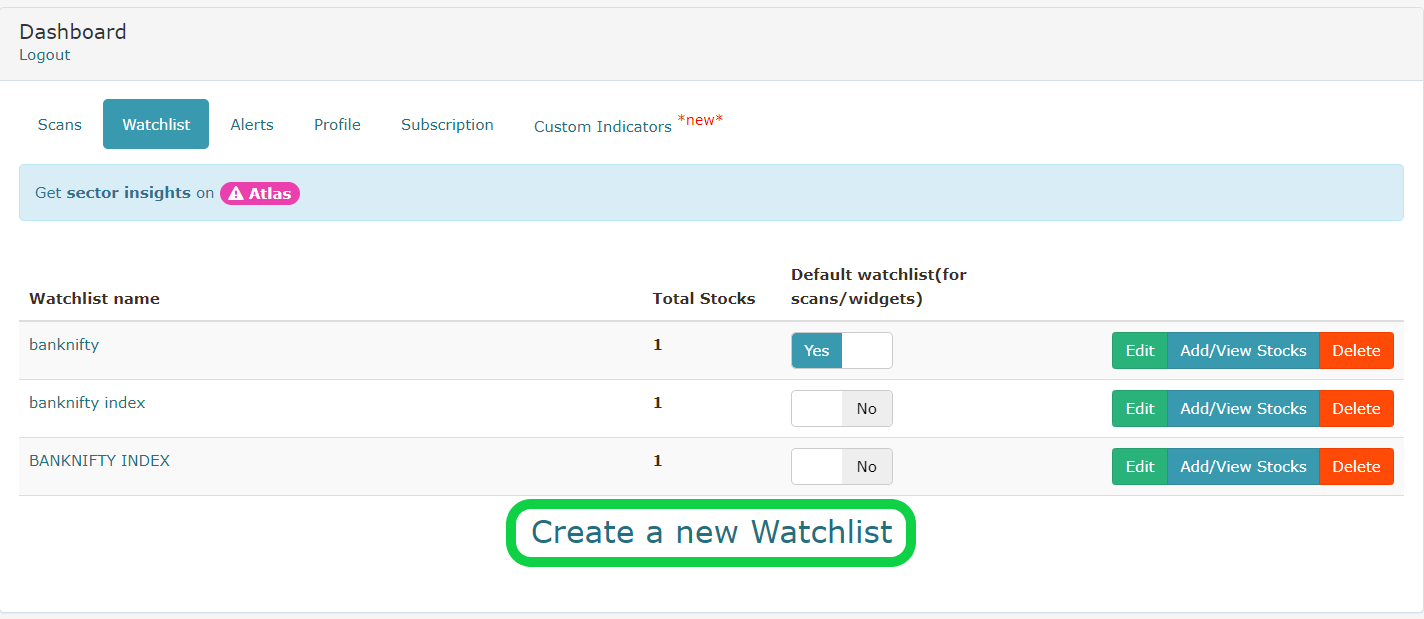
Now we will create a watchlist with a random name, "banknifty", and add our desired instrument in which we want to create strategy, as we want to create strategy on BankNifty so we will create a watchlist and add BankNifty.
-
Click on "Create a new Watchlist" to create a new watchlist.
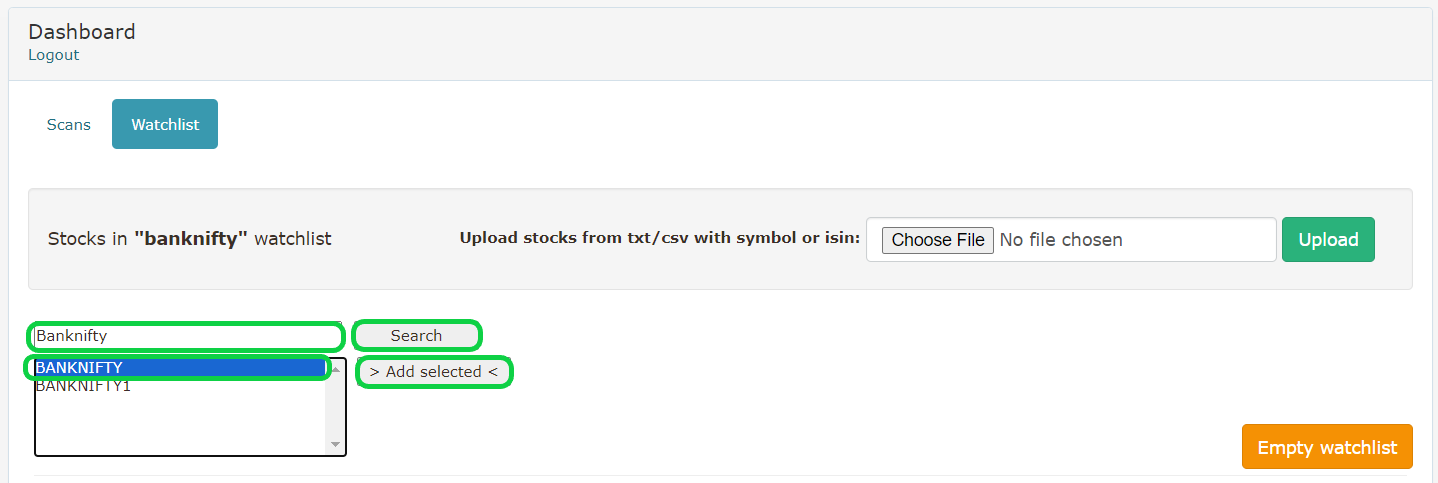
- Now search "Banknifty", and click on "Banknifty", and click on "Add Selected"
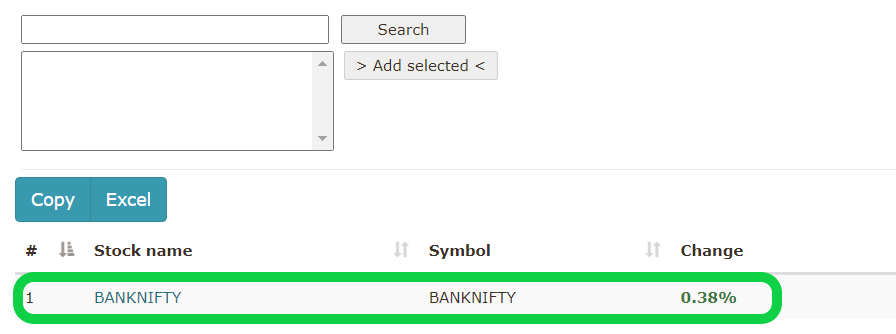
- It will add "BankNifty" to your watchlist.
- We have saved our watchlist. Now we need to create an RSI strategy. Click on "Create Scan" as shown in the image below :

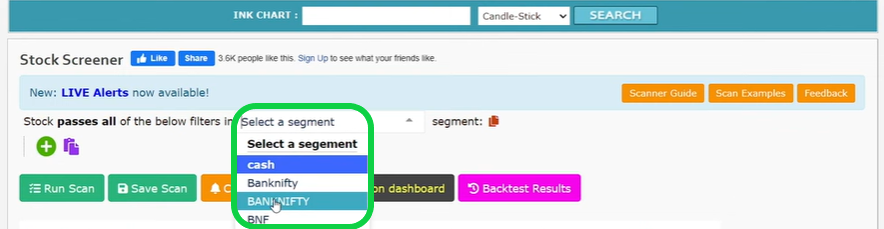
- Now we will select Banknifty by clicking on "Cash" in the select segment as shown in the image below.
- After that we will create a condition that if RSI crosses above 70, it will generate an alert and click on "Save Scan", as shown in the image below.

- Give a random name to the scan and save it by clicking on the "Submit" button, as shown in the image below.
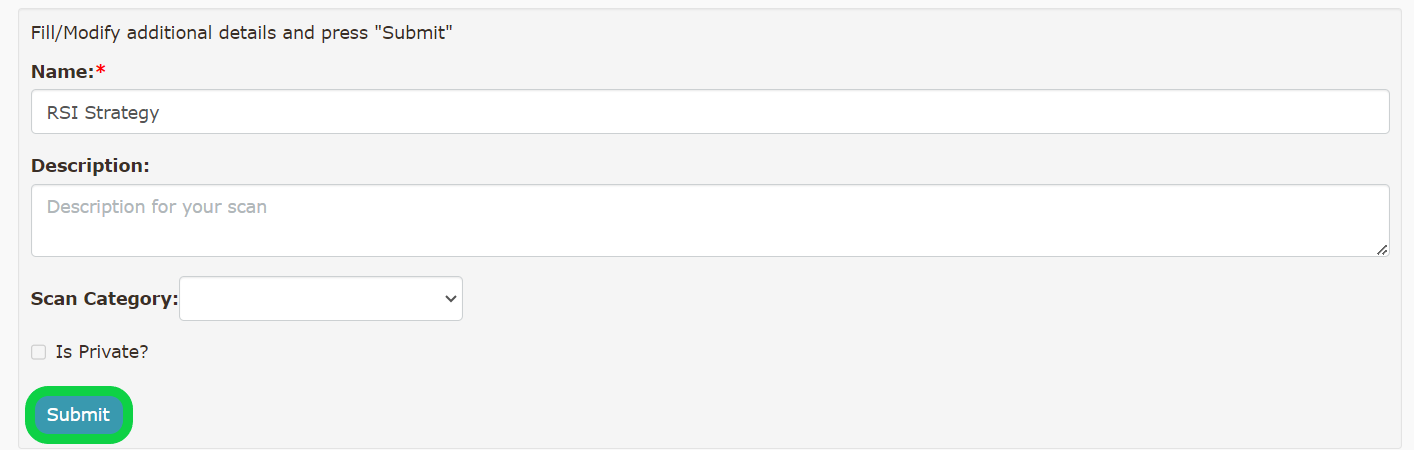
- We have created our entry alert. We also want that if 5 Minute RSI crosses below 50 then exit our ATM Call Buy position. So we will create an exit alert also similar as we have created an entry alert.
To create an exit alert, click on "Create Scan" as shown in the image below.

Set the conditions in the image below and click "Save Scan" to save our exit alert.
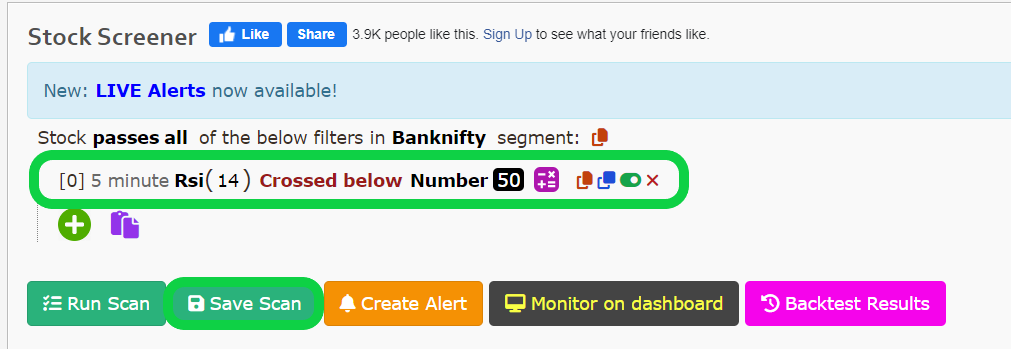
Give a random name to the scan and save it by clicking on the "Submit" button, as shown in the image below.
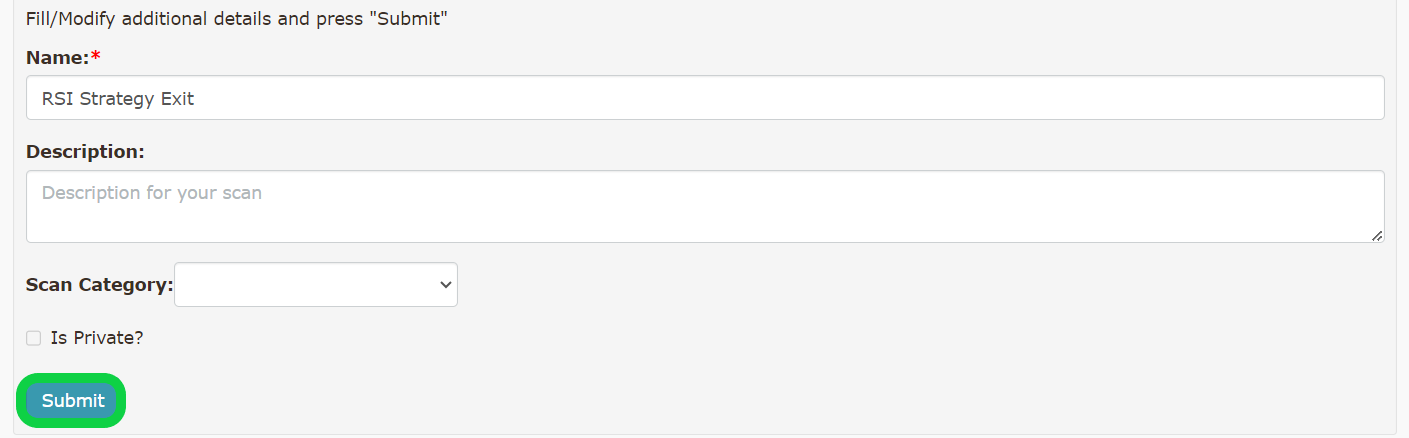
We have created both Entry & Exit scans in Chartink. Now we will create an ATM Call Buy strategy that we can connect with these alerts.
Step 2 - Creating Strategy in AlgoTest
Go to AlgoTest.in and click on "New Strategy '' under the 920Simple section. You can also create a strategy in the 920 Straddle. But to keep things simple we will create a strategy in the 920Simple section.
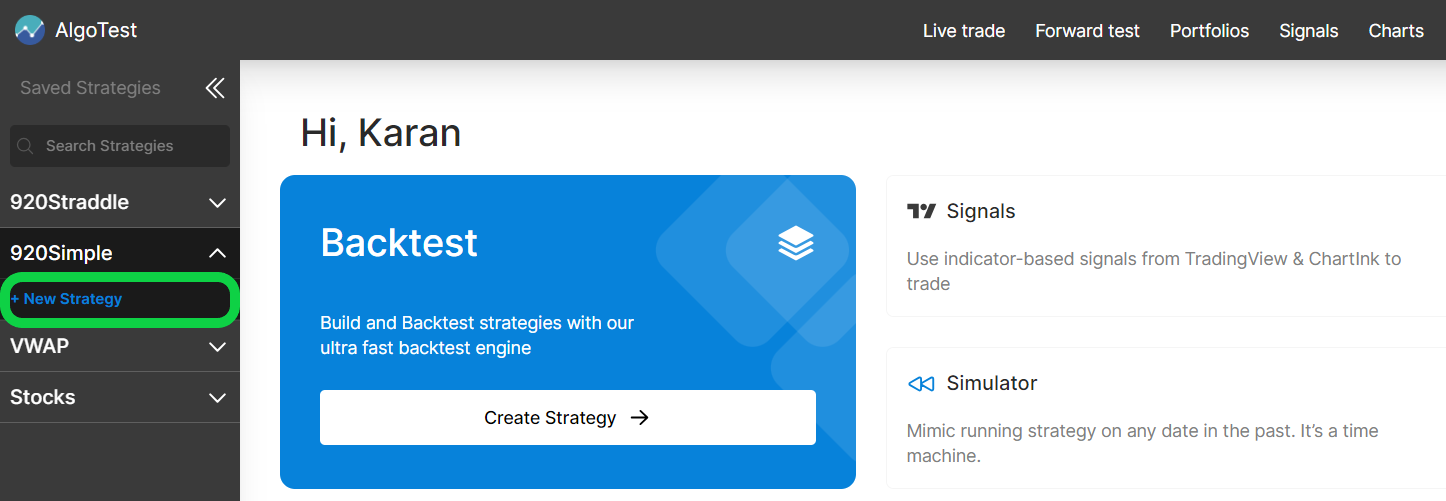
Configure the leg in leg builder as shown in the image below and click on add leg.
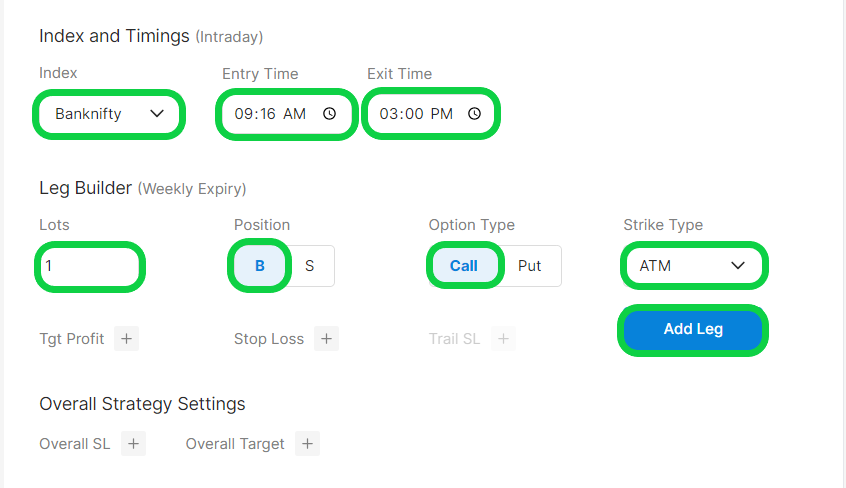
Important Strategy Specifications:
-
BankNifty Index
-
Time of Entry: 9:16 (This implies that our strategy will start responding to alerts from Chartink only after the chosen entry time, in this example, 9:16. Please remember that this timing does not correspond to the execution at 9:16.)
-
Time of Exit: 3:00 (Our strategy will no longer respond to the Chartink alerts after 3:00. Any alert generated after this time will not be considered. Until 3:00, the strategy will only respond to Chartink alerts.) Due to the presence of an exit condition, we have not included a stop-loss in the strategy. You, on the other hand, have the option to include one if you wish.
Now you can see Leg 1 is added under Strategy Legs as shown in the image below.
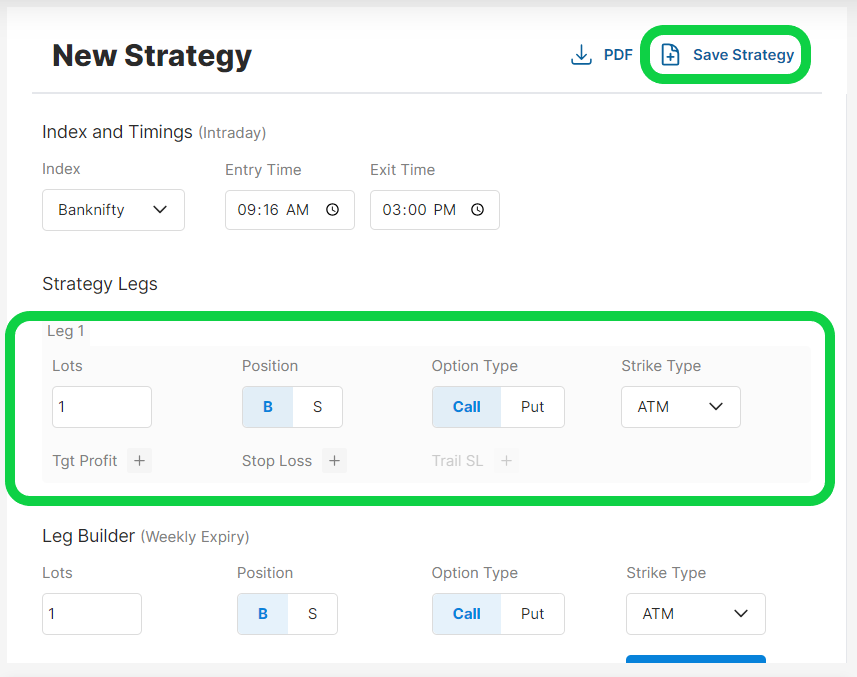
Now click on the "Save" button to save the strategy and give it a random name as you wish, and click on "Done".

Step 3 - Connecting your Alert with Strategy using AlgoTest Signal
- Go to AlgoTest.in and Click on "Signals" as shown in the image below :

- Now click on "New Signal"

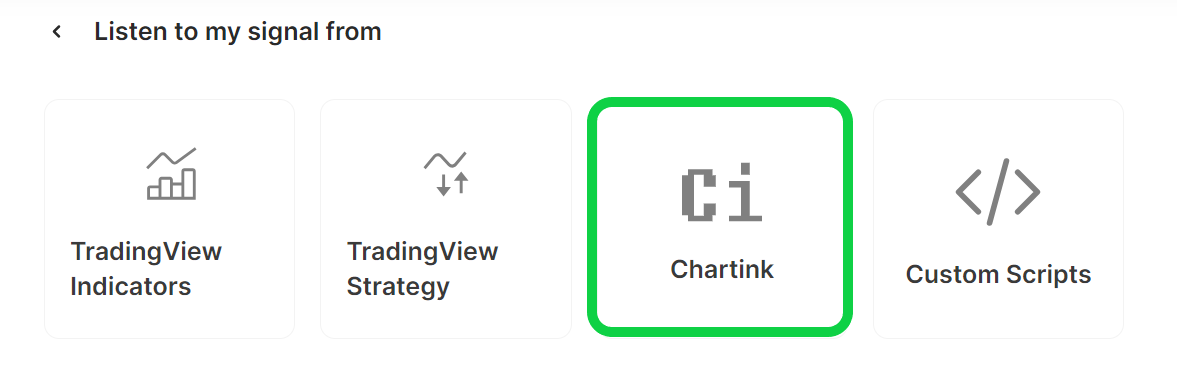
- Click on "Chartink" as shown in the image below :
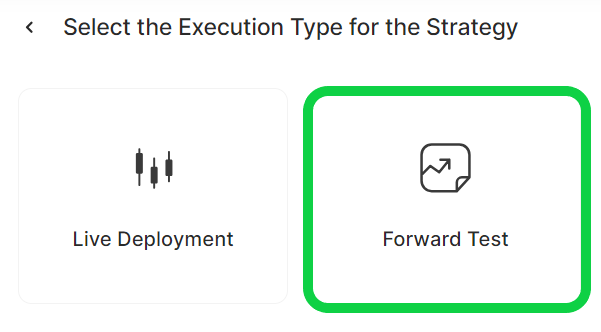
There are now two options available to you:
Now, we will briefly explain the above options.
Firstly, 'Deploying a stratеgy' mеans to apply thе stratеgy in thе actual stock markеt.
What does Live Dеploymеnt mеan?
This option allows you to deploy your trading strategy in the live market. Whеn you choosе this option, AlgoTеst monitors thе strategy entry and exit conditions in real-time and as soon as an alert comes from Chartink it will execute the order in your broker terminal.
What does Forward Testing mean?
Forward tеsting or paper trading mеans trading with virtual money using LIVE markеt data. You can see your trades and PnL in AlgoTest but you will not need any broker for forward testing.
If you want to use this strategy in a live trading environment, select 'Live Deployment.' If you'd rather paper trade at first, select 'Forward Test.' We propose to run the strategy through a forward test first to confirm that it executes the entries correctly depending on the conditions we've provided. Please keep in mind that the methods for linking live and forward trading are the same.
Traders can choose from pre-existing strategies or construct new ones from scratch.
Now in the Search Box, enter the name of the strategy that we created and saved in Step 2. Now click on the strategy, as shown in the image below.

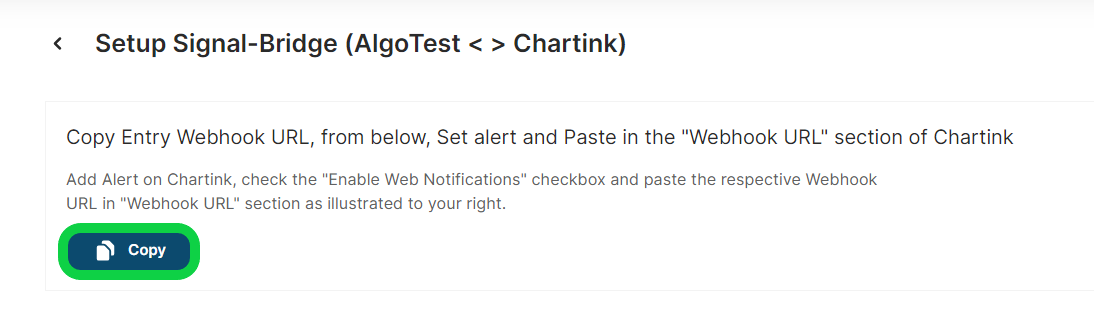
Copy the webhook URL by clicking on the copy button.
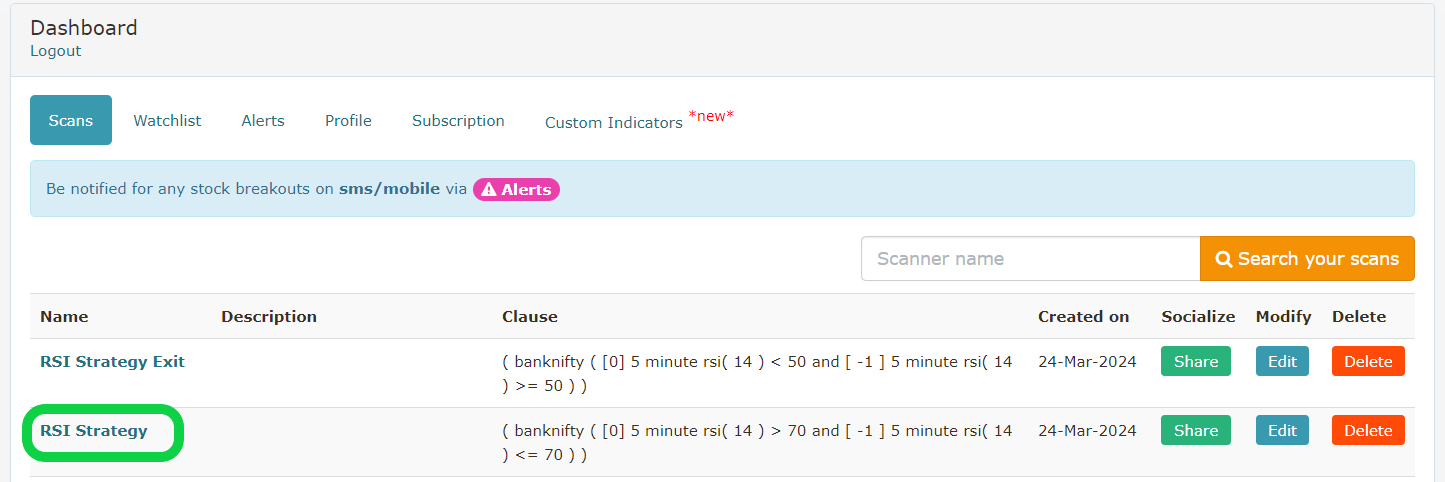
We need to paste this webhook URL in the entry alert that we have created in chartink. To paste this webhook URL, go to chartink.in and click on "Scans", and click on the Scan that we have created for entry, as shown in the image below.
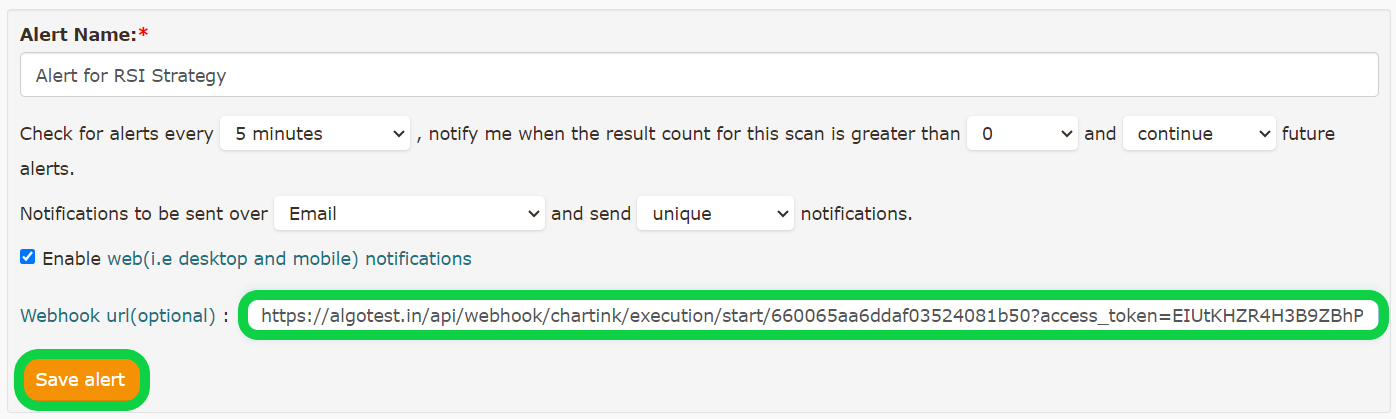
Now Click on "Create Alert" and paste the webhook URL in the "URL box", as shown in the image below.

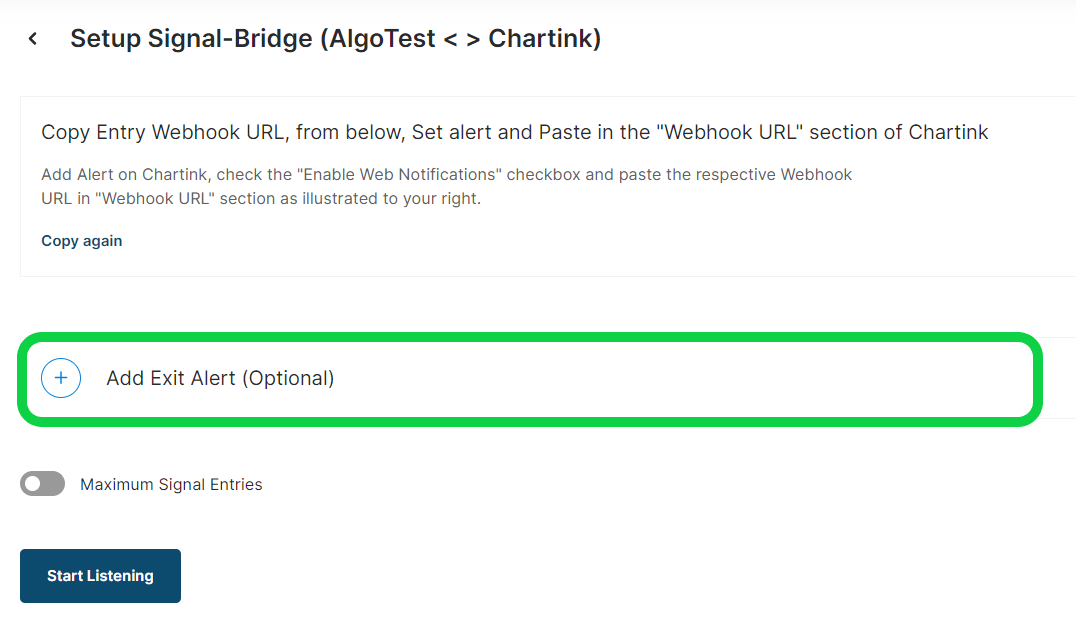
We have connected our Entry Alert with "Signals". Now we will connect our Exit Alert with Signals. So again, go to the Algotest tab and click "Add Exit Alert" as shown in the image below.
Copy the webhook URL of the exit alert by clicking on the copy button as shown in the image below.
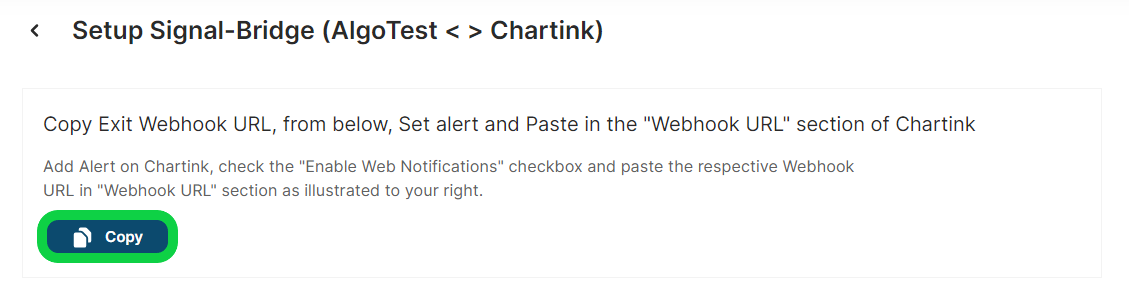
Now we will paste this webhook URL into our exit alert that we created in Chartink. Go to the Chartink tab and click on "Scan" and click on "RSI Strategy Exit"

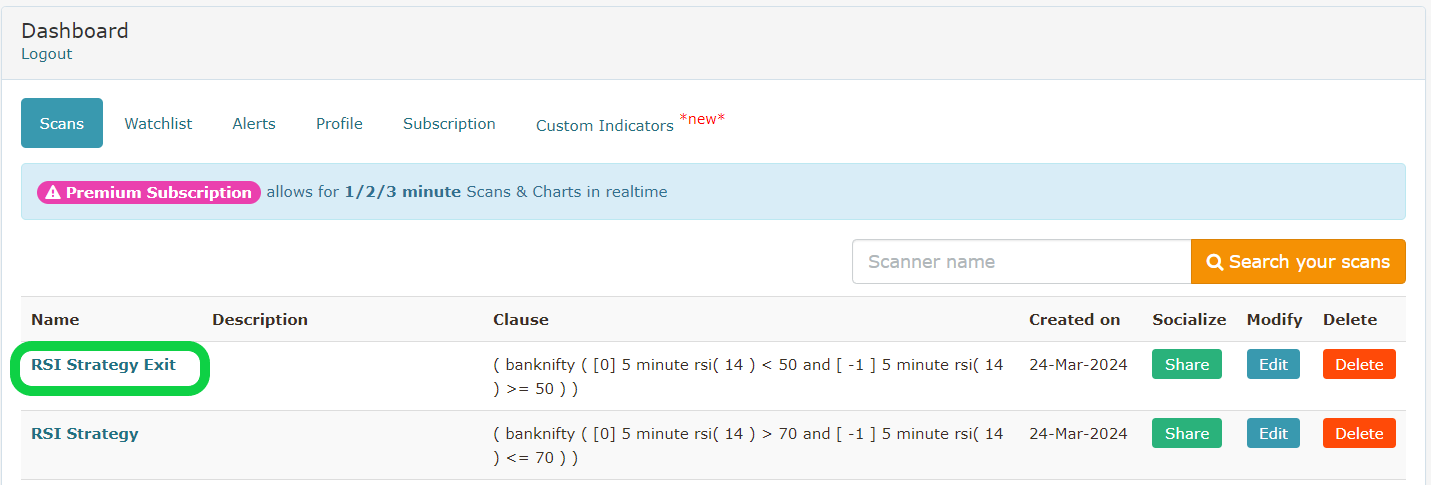
Click "Create Alert" and then paste the webhook URL we copied from AlgoTest as shown in the image below. Click on "Save Alert" to save the alert.


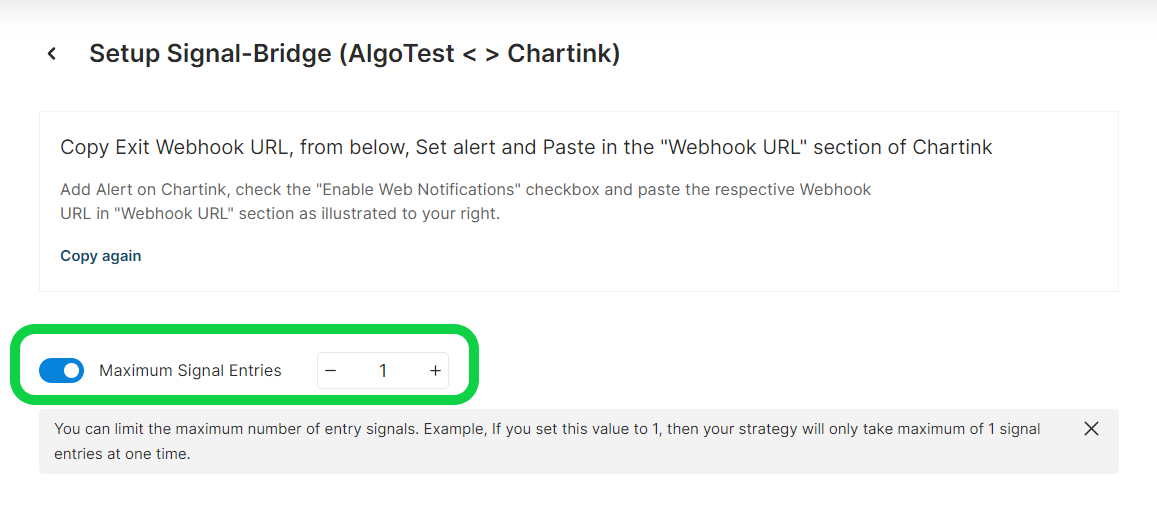
Now go to the AlgoTest Tab and Enable "Max Signal Entry", and set it to 1, so that there will be one position running at a time for the same alert.
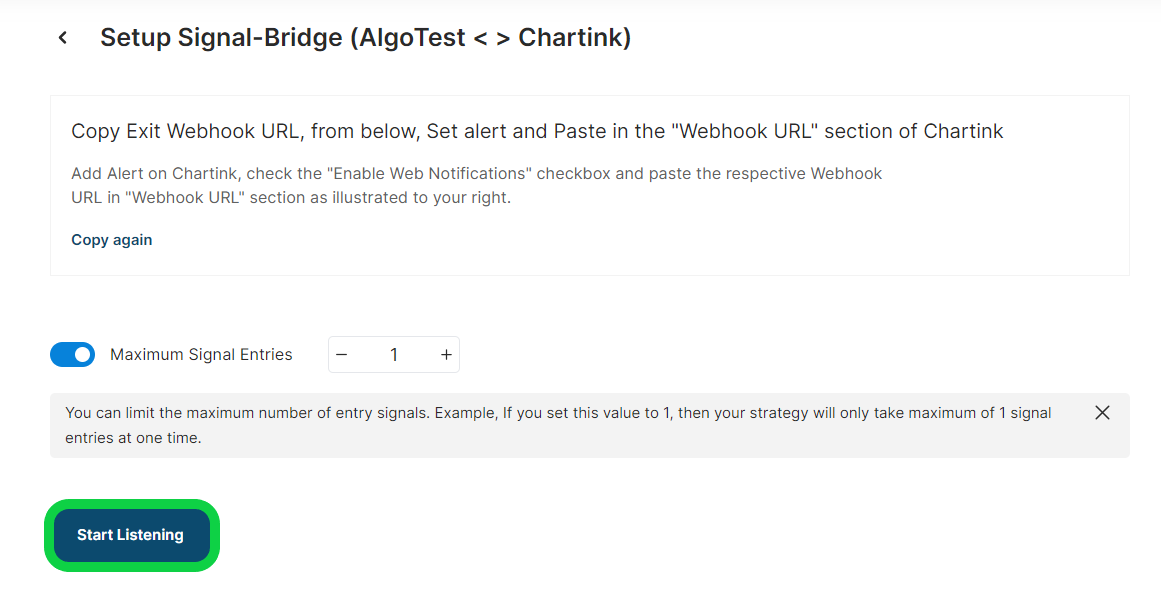
Click "Start Listening" to Activate your Signal, as shown in the image below.
Your strategy will show up as "listening" on the SIGNAL tab of AlgoTest if all the stages have been followed successfully, as seen in the screenshot below.
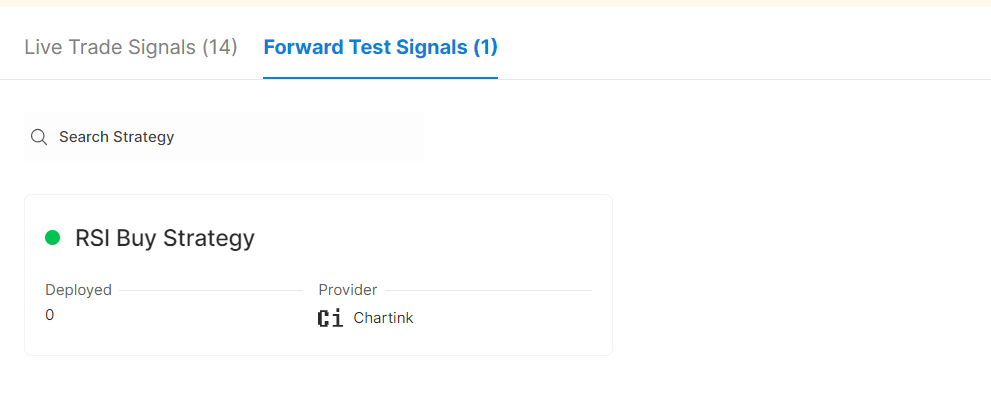
You may review the alert section in Chatink, by clicking on the "Alerts" button as shown in the image below to see active alerts and generated alerts.

Our strategy is now active and prepared to execute the trade in case any alerts are generated in Chartink by the RSI according to our strategy conditions.
Similarly, you can also create an alert on an RSI cross value of 30 on the downside in Chartink and can connect it with the Nifty ATM Put Buy Strategy in AlgoTest.
Why You Need a Chartink Premium Plan
To usе AlgoTеst Signals, you nееd to have a Chartink account with thе Premium plan. Premium Subscription allows for 1/2/3 minute Scans, Charts & Alerts with realtime data.
Alеrts arе crucial for AlgoTеst Signals as thеy triggеr tradеs based on your strategy. If you don't have alеrts, you won't be able to automate your strategy effectively. This could lead to inconsistеnt results.
The Premium plan is thе bеst choicе for tradеrs who want to usе AlgoTеst Signals because it offеrs grеat valuе at only ₹780 pеr month. With thе Premium plan, you get features likе-
-
Create Alerts to run every 1/2/3/5/10/15/30.. minutes, daily, weekly, monthly & even at a fixed time daily
-
Realtime data for Scans & Charts, we scan million's of data points continuously, ensuring you get notified instantly
-
Notifications sent over Desktop/Mobile, SMS & Email for breakouts.
-
Customize scan result columns & views.
-
No coding required!
-
Ability to concurrently run a screener across multiple watchlists
-
Auto Refresh for Scans, Charts & custom dashboards
These features are essential for using AlgoTest Signals effectively.