Leg Builder for AlgoTrading
AlgoTest’s Leg Builder helps you create multi-leg options and futures strategies without coding. You can choose instrument type (F&O), position (buy/sell), expiry (weekly/monthly/next monthly), and advanced strike selection methods like ATM/OTM, premium-based strikes, delta range, and straddle width.
This makes it easy to build, backtest, and forward test strategies with realistic trading logic before going live.
For example - if you want to create an ATM Buy position of current week, next week, or monthly expiry with 1 Lot, you can do that using this feature.

:For any queries reach out to us!
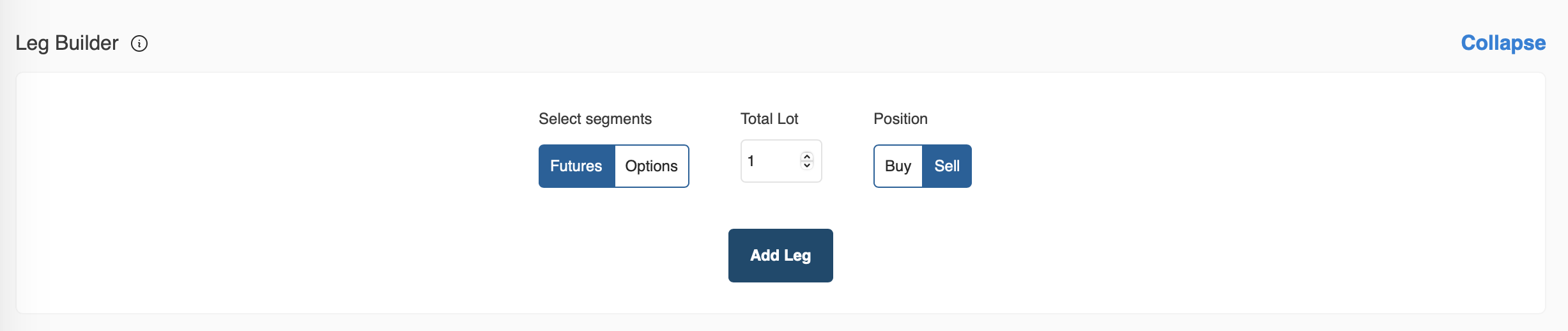
Select Segments
This feature enables you to add a leg in either Futures or Options.

If you want to backtest your strategy on Futures, select Futures as shown in the image below

If you want to backtest your strategy on Options, select Options as shown in the image below

Total Lots
This feature enables you to enter the desired quantity in terms of lots if you want to backtest each leg.
For example, if you want 10 lots, you can add them as shown in the image below.

Position
You can select a buy/sell position in a leg from this feature.

If you want to create Buy Options/Future position you can select Buy as shown in the image below.

If you want to create Sell Options/Future position you can select Sell as shown in the image below.

Option Type
This feature enables you to select CALL or PUT for your legs.

If you want to add a Call leg, you can select Call as shown in the image below

If you want to add a Put leg, you can select Put as shown in the image below

Expiry
This feature enables you to select the expiry of option contracts you want to backtest.
It provides you access to select different expiry contracts like weekly, next weekly, and monthly.

To select the current week's expiry, select weekly from the dropdown menu under expiry as shown in the image below.

To select the next week's expiry, select next weekly from the dropdown menu under expiry as shown in the image below.

To select the current month's expiry, select monthly from the dropdown menu under expiry as shown in the image below.

Next Monthly Expiry:
We have added support for a new expiry option: Next Monthly for Options & Futures, in the Leg Builder.
Previous
- Stocks F&O: Monthly expiry only
- Indices (NIFTY / SENSEX / BANKNIFTY): Weekly, Monthly, Next Weekly
New
- A new expiry type Next Monthly is now available.
- This option can be used for both Stock F&O and Index F&O instruments.
- Available for both Options & Futures segments.

Previously, traders could only:
- Select the current month expiry for stocks.
- Select Weekly, Next Weekly, or Monthly expiry for indices.
With Next Monthly, you can now directly trade contracts of the following month’s expiry without waiting for the current month's expiry to roll over.
This enables:
- Better planning for positional strategies
- Easier hedging
- Enhanced spread building
Example: BANKNIFTY
Before:
- Supported Expiries: Weekly, Next Weekly, Monthly
- If today is August 10, 2025, the available monthly expiry = 28th August 2025.
Now (with Next Monthly):
- Supported Expiries: Weekly, Next Weekly, Monthly, Next Monthly
- On August 10, 2025, in addition to 28th August 2025, you can also select 25th September 2025 as Next Monthly.
Example: RELIANCE (Stock F&O)
Before:
- Supported Expiries: Monthly only
- If today is August 10, 2025, the available expiry = 28th August 2025.
Now (with Next Monthly):
- Supported Expiries: Monthly, Next Monthly
- On August 10, 2025, you can now choose both 28th August 2025 (Monthly) and 30th September 2025 (Next Monthly).
How to Use
- While building your strategy, you will now see Next Monthly in the expiry dropdown in the Leg Builder.
- Simply select it.
- Backtesting and live execution will automatically map trades to the correct next-month contracts.
Key Benefit
This change gives traders more flexibility to:
- Plan positions beyond the current expiry
- Use advanced strategies such as spreads, hedging, and rollovers
- Trade with more confidence in both Options & Futures segments
Strike Selection
This section is all about the features available to select your desired option strike.
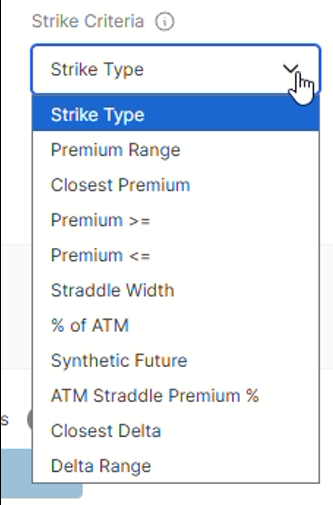
It provides you with different methods to select your desired option strike. You can select any of the available features to select a strike from the drop down under Select Strike Criteria as shown in the image below.
Strike Type
This feature enables you to select option strike based on their type.
For example, you can select ATM, OTM, ITM, etc. We have 30 OTMs available now.

-
Example 1- Assume our entry time is 09:18 and we want to enter in the 2 strike away OTM CE option strike at 09:18, so we will select OTM2 in strike type. So if at 09:18 the underlying will be at 20000, then it will select the 20100 CE strike.
-
Example 2- Assume our entry time is 09:30 and we want to enter in the 2 strike away ITM CE option strike at 09:30, so we will select ITM2 in strike type. So if, at 09:30, the underlying will be at 20000, then it will select the 19900 CE strike.
There is a gap of 50 between strikes here. So the strikes here are 19900, 19950, 20000, 20050, 20100, etc.

Round Strikes (Strike Rounding)
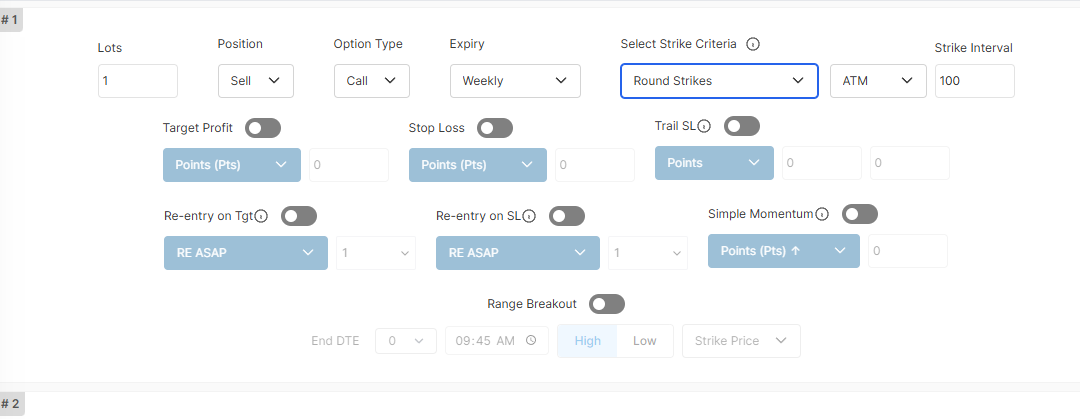
This feature enables you to select round-number option strikes based on an ATM, ITM, or OTM reference.
Round-number strikes may have higher liquidity and open interest, which can help reduce slippage in positional strategies.
With Round Strikes, you can choose an ATM, ITM, or OTM reference and specify a strike interval, such as 100, 200, or 500. AlgoTest will automatically select an eligible strike that matches the interval.
To use this feature:
-
Select Round Strikes under Select Strike Criteria.
-
Choose the required ATM, ITM, or OTM reference.
-
Enter the required value under Strike Interval.
-
Complete the remaining leg settings and click Add Leg.
How Round Strikes Are Selected
AlgoTest first identifies the regular ATM strike based on the underlying price at the time of entry. This ATM strike acts as the reference point.
-
For an OTM selection, AlgoTest moves in the OTM direction and counts only the strikes that match the selected interval.
-
For an ITM selection, AlgoTest moves in the ITM direction and counts only the strikes that match the selected interval.
-
For an ATM selection, AlgoTest selects the eligible round strike according to the selected interval.
For Call options:
-
OTM strikes are above the ATM strike.
-
ITM strikes are below the ATM strike.
For Put options:
-
OTM strikes are below the ATM strike.
-
ITM strikes are above the ATM strike.
Example: Selecting a Round OTM Call Strike
Assume the following:
-
Underlying: NIFTY
-
NIFTY price at entry: 24,126
-
Option type: Call
-
Strike gap: 50 points
-
Strike interval: 100
Based on the NIFTY price, the regular ATM strike is 24,150.
The standard Call strike sequence is:
| Strike Type | Strike |
|---|---|
| ITM3 | 24,000 |
| ITM2 | 24,050 |
| ITM1 | 24,100 |
| ATM | 24,150 |
| OTM1 | 24,200 |
| OTM2 | 24,250 |
| OTM3 | 24,300 |
| OTM4 | 24,350 |
| OTM5 | 24,400 |
When the strike interval is set to 100, AlgoTest considers only the OTM strikes that match the 100-point interval.
| Round Strike Selection | Selected Strike |
|---|---|
| OTM1 with interval 100 | 24,200 CE |
| OTM2 with interval 100 | 24,300 CE |
| OTM3 with interval 100 | 24,400 CE |
The 24,250 and 24,350 strikes are skipped because they do not match the selected 100-point interval.
Important: The ATM strike is used only as the reference point and is not counted as an OTM strike. OTM1 is the first eligible round-number strike in the OTM direction.
The strike is calculated using the underlying price available at the actual entry time. Therefore, the strike selected during execution may differ from the strike visible when the strategy is created.
Premium Range
This feature enables you to select an option strike based on the option premium range.
It will select a strike whose premium is in the range defined by you. According to the below image, it will select a strike whose premium is between 50 and 200.

- Example :- Assume our entry time is 09:18 and we want to select a strike whose premium is between 40 and 80. So we will select Premium Range in Select Strike Criteria, with 40 in the lower and 80 in the upper. So it will enter a strike whose premium is between 40 and 80.

Closest Premium
This feature enables you to select a strike based on the nearest option premium value.
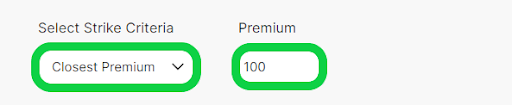
It will select an option strike whose premium is nearest to the premium value defined by you. Assuming you defined a value of 50, it will take entry in a strike whose premium is nearest to 50. If there are two strikes whose premiums are 49 and 52, it will select a strike whose premium is 49.

- Example :- Assume our entry time is 09:18 and we want to select a strike whose premium is closest to 100. So we will select the Closest Premium in the Select Strike Criteria and put 100 in the premium. So it will enter into a strike whose premium is closest to 100.
Premium >=
This feature enables you to select a strike based on an option premium value that is either more than or equal to a specific value.
It will select an option strike whose premium is either equal to or more than the premium value defined by you. Assuming you define a value of 50, it will take entry in a strike whose premium is either equal to 50 or more than 50. If there are two strikes whose premiums are 49 and 52, it will select the strike whose premium is 52.

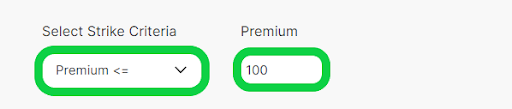
- Example :- Assume our entry time is 09:18 and we want to select a strike whose premium is more than or equal to 100. So we will select Premium >= in Select Strike Criteria and put 100 in Premium. So it will enter at 09.18 in a strike whose premium is either 100 or more than 100.
Straddle Width
This is an advanced way to select a strike. It enables you to select a strike based on the straddle price (ATM CE + ATM PE).
In simple terms, what it is doing here is multiplying the ATM straddle price with a number defined by you and adding or subtracting (selected by you) it from the ATM strike at that time.

- Example 1 :-
Assume entry timing 09:18
Nifty ATM Strike is 20000
Nifty ATM Straddle Price 200 ( Straddle = ATM CE + ATM PE)
If enter + and 0.5 as shown in the image below.

Strike it selects is
Strike = ATM STRIKE + ( 0.5 * ATM Straddle Price)
Strike = 20000 + (0.5 * 200)
Strike = 20000 + (100)
Strike = 20100
So it will select the 20100 strike at our entry time, i.e., 09:18.
- Example 2 :-
Assume our entry timing is 09:20
Nifty ATM Strike is 20000
Nifty ATM Straddle Price is 200 ( Straddle = ATM CE + ATM PE)
We enter - and 1 as shown in the image below.

Strike it selects is
Strike = ATM STRIKE - ( 1 * ATM Straddle Price)
Strike = 20000 - (1 * 200)
Strike = 20000 - (200)
Strike = 19800
So it will select the 19800 strike at our entry time, i.e., 09:20.
% of ATM
This feature enables you to select strikes based on the percentage of ATM Strike. Assuming you want to select a strike that is 99% or 101% of the ATM Strike, you can do this using this feature.
We have 2 options here: “+ -” and “% of ATM." What it is doing here is subtracting or adding a % (which we define) from the ATM Strike. So if we want to select a strike that is 101% of the ATM, we just add(+) 1% to the ATM. If we want to select a strike that is 99% of the ATM, we just subtract (-) 1% from the ATM.

- Example 1 :-
Assume entry timing 09:18
ATM Strike at 09:18 is 20000
We enter - and 1 as shown in the image below

Strike it selects is
Strike = ATM - 1% of ATM
Strike = 20000 - (1% of 20000)
Strike = 20000 - 200
Strike = 19800
So it will select the Nifty 19800 strike at our entry time i.e. 09 : 18.
- Example 2 :-
Assume entry timing 09:18
ATM Strike at 09:18 is 20000
We enter + and 1 as shown in the image below

Strike it selects is
Strike = ATM + 1% of ATM
Strike = 20000 + (1% of 20000)
Strike = 20000 + 200
Strike = 20200
So it will select the Nifty 20200 strike at our entry time i.e. 09 : 18.
Synthetic Future
This feature enables you to select your strike based on Synthetic Future.
We can select any type of strike like ATM, OTM, ITM etc based on Synthetic future. Synthetic Future is calculated as below :
Synthetic Future = Spot ATM Strike - Spot ATM PE + Spot ATM CE
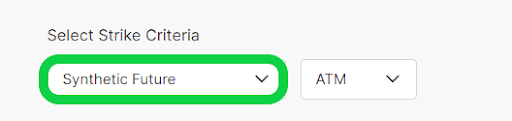
Example : Let's assume we want to select an ATM strike based on Synthetic Future. We will select Synthetic Future and ATM from the dropdown under Select Strike Criteria as shown below.
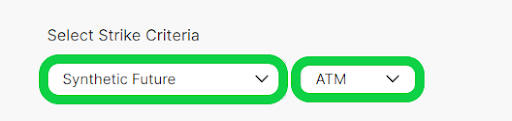
Let's assume we have the following values:
- Banknifty Spot = 45025
- Spot ATM Strike = 45000
- Spot ATM PE = 275
- Spot ATM CE = 550
Synthetic Future = 45025 - 275 + 550 = 45300
Synthetic Future ATM = 45300
So it will select the 45300 strike at our entry time.
ATM Premium %
This feature enables you to select strikes based on the percentage of Premium of ATM Straddle.
For example ATM Straddle Premium (ATM CE + ATM PE) is 400 and you want to select an option whose premium is 30% of this ATM Straddle Premium then you can do so using this feature. It will select a strike whose premium is closest to 120 (30% of 400).

Example :
- Nifty Spot = 20210
- Spot ATM Strike = 20200
- Spot ATM PE = 120
- Spot ATM CE = 80
- Straddle Premium = 120 + 80 = 200
If we select ATM Straddle Premium % and enter 20% as shown in the image below.
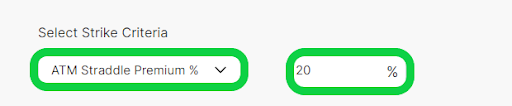
The Strike it will select is
Strike Premium = 20 % of ATM Straddle Premium Strike Premium = 20% of 200 Strike Premium = 40
So it will select a strike whose premium is Closest to 40.
Closest Delta
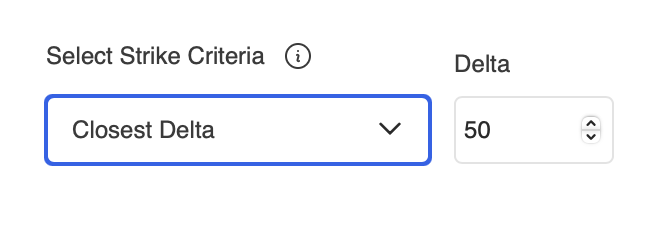
This feature enables you to select a strike based on the closest delta.
It will select an option strike whose delta is nearest to the delta defined by you. Assuming you defined a value of 50, it will take entry in a strike whose delta is nearest to 50. If there are two strikes whose deltas are 49 and 52, it will select a strike whose delta is 49.
The input should in the range of 0 to 100 (both inclusive).
Delta Range
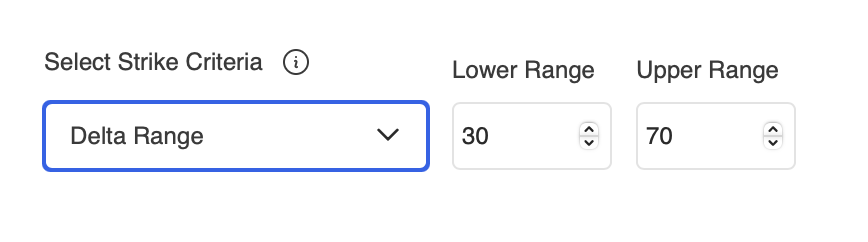
This feature enables you to select an option strike based on the delta range.
It will select a strike whose delta is in the range defined by you. According to the image below, it will select a strike whose delta is between 0 and 100.
For the delta range, when multiple strikes lie between the range, this process is followed: For a buy position: It chooses the strike with the lowest delta. For a sell position: It chooses the strike with the highest delta. If no strikes fit the criteria, then the leg entry is skipped.
Example of selecting a Delta:
Case 1:
Say you want to buy a call, and strikes are given below from the table, within the delta range (20–40), are:
- 18200 CE → 22
- 18300 CE → 28
- 18400 CE → 36
Among these, 18200 CE has the lowest delta.
Result: For a Buy leg, it chooses 18200 CE.
Case 2: Sell Position
Say you want to sell a call, and strikes are given below from the same list:
- 18200 CE → 22
- 18300 CE → 28
- 18400 CE → 36
Among these, 18400 CE has the highest delta.
Result: For a Sell leg, it chooses 18400 CE.
Case 3: No Valid Strike
If the delta range was 45 to 55, and all available deltas are below that range (maximum is 42), then:
- No strikes fall within the delta range.
Result: The leg is skipped.
Once your strategy is ready, you can backtest it and then run it via forward testing before going live.