Replaying Strategies
Replay Trades on Strategy Builder
We're thrilled to introduce our new feature - Replay Trades, a powerful new feature on Algotest's Strategy Builder and on Live Trade/Algo Trade page. With Replay Trades, you can revisit and replay your trading strategies, starting from your very first trade. This feature enables you to thoroughly analyse and refine your strategies for better insights and performance.
How to use Replay Trades On the Strategy Builder
Replay Trades on the Strategy Builder lets you simulate and review your past manual trades with a detailed payoff graph. This visual representation helps you analyse trade outcomes, refine strategies, and improve future decision-making. Follow this step-by-step guide to learn how to use Replay Trades feature on the Strategy Builder.
Step 1
- Login to AlgoTest.in and click on the Strategy Builder button as shown in the image below.

Step 2
- Click on the Strategies Button to expand your strategies.
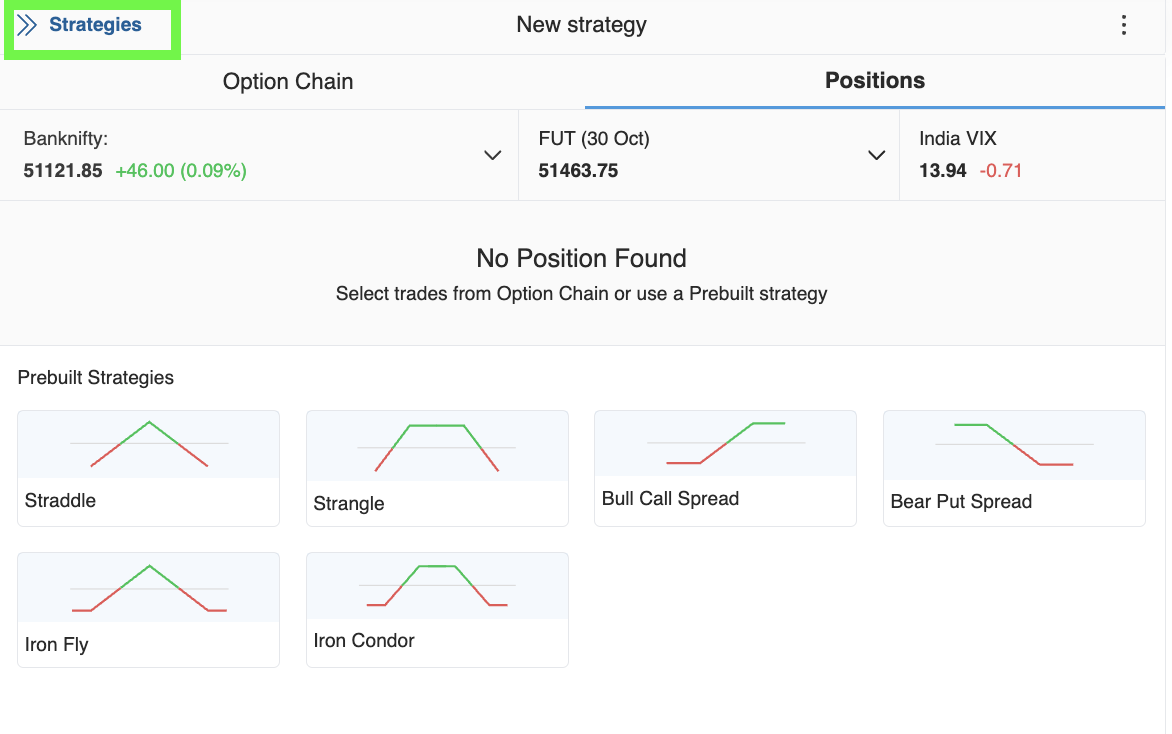
Step 3
- This will open your Saved/Deployed Strategies.
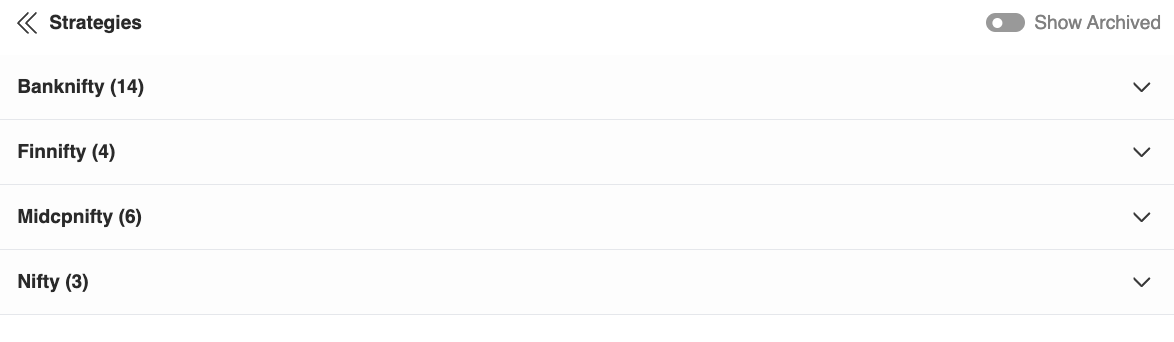
Step 4
- You can click on the dropdown button to view and manage your strategies. This will open a list that displays your saved and deployed strategies, categorised by index. By expanding this section, you can easily access and track each of your strategies
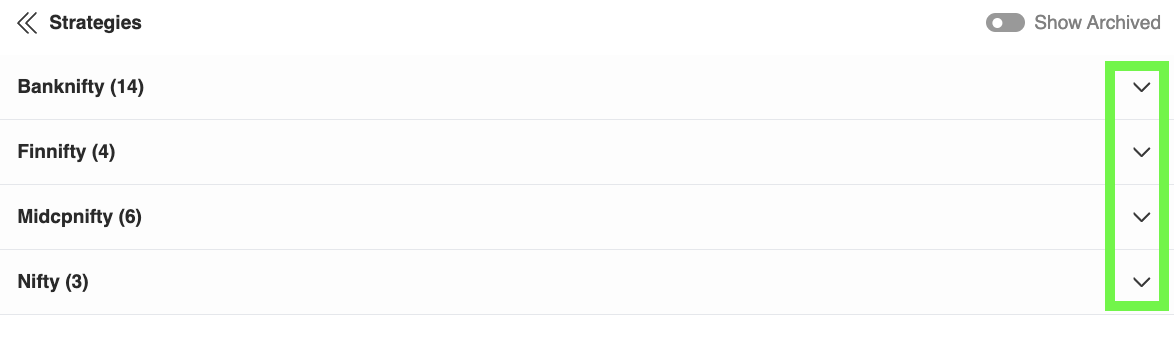
It will expand your index wise strategies and you can click on the strategy you want to replay. This will open your selected strategy.
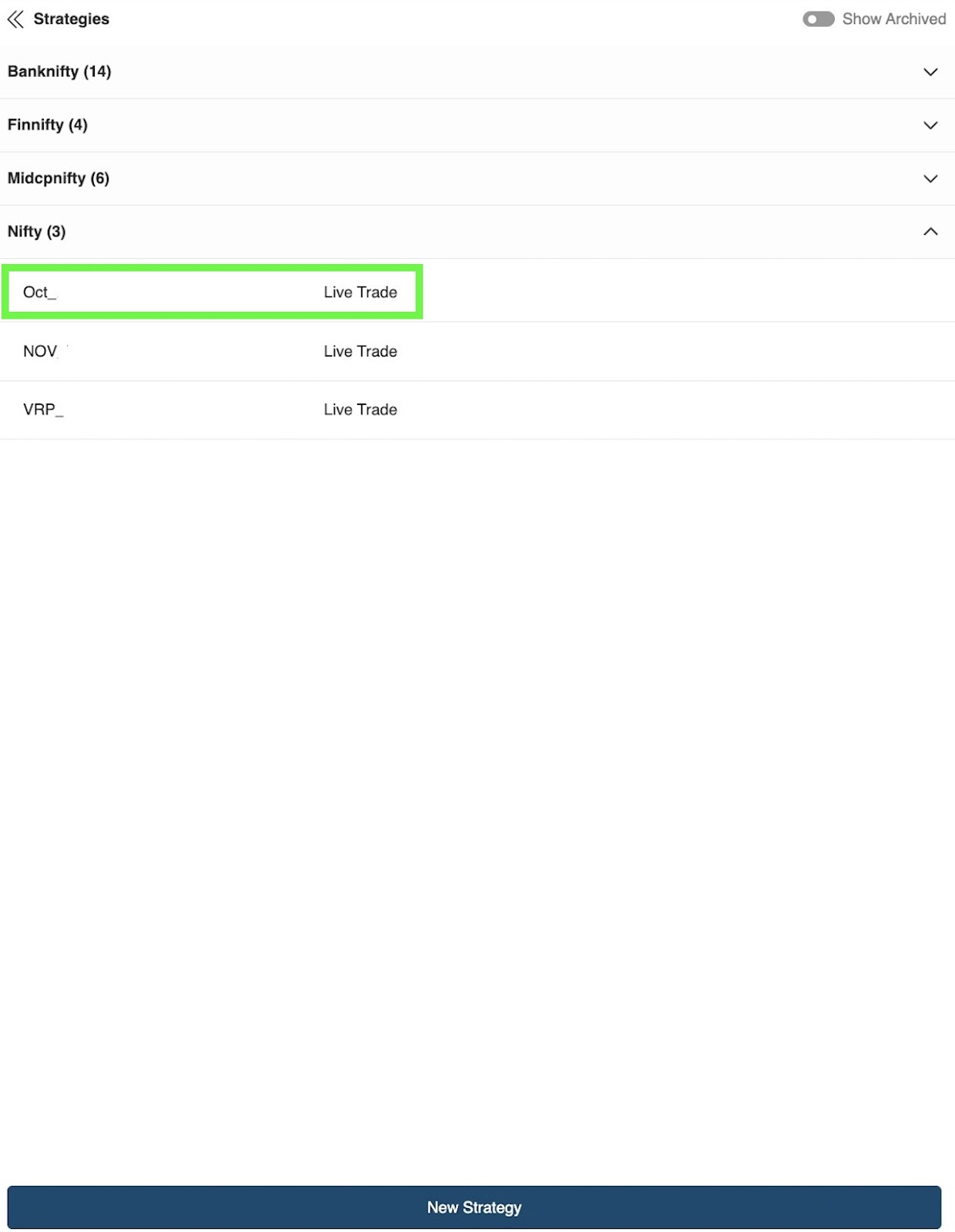
Step 5
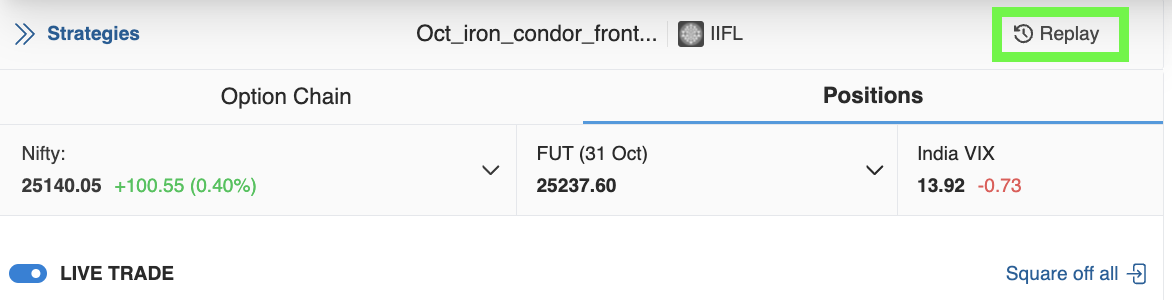
- Click on the replay button above the Positions tab to start Replay of your strategy.
Step 6
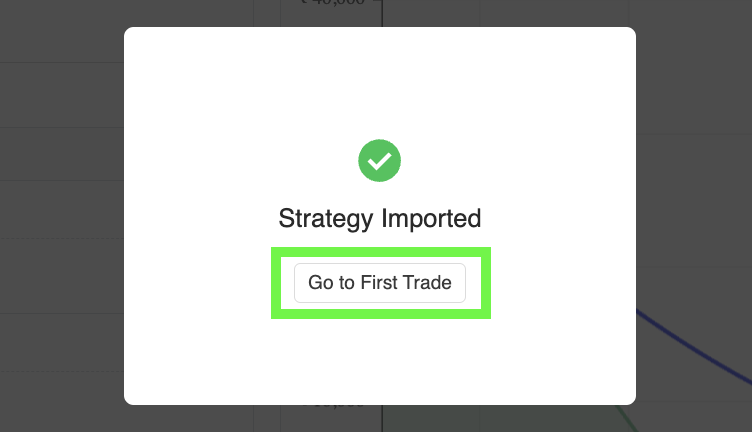
- Once you click on the Replay button above, it will import your selected strategy and you will get a popup as Strategy Imported!
Step 7
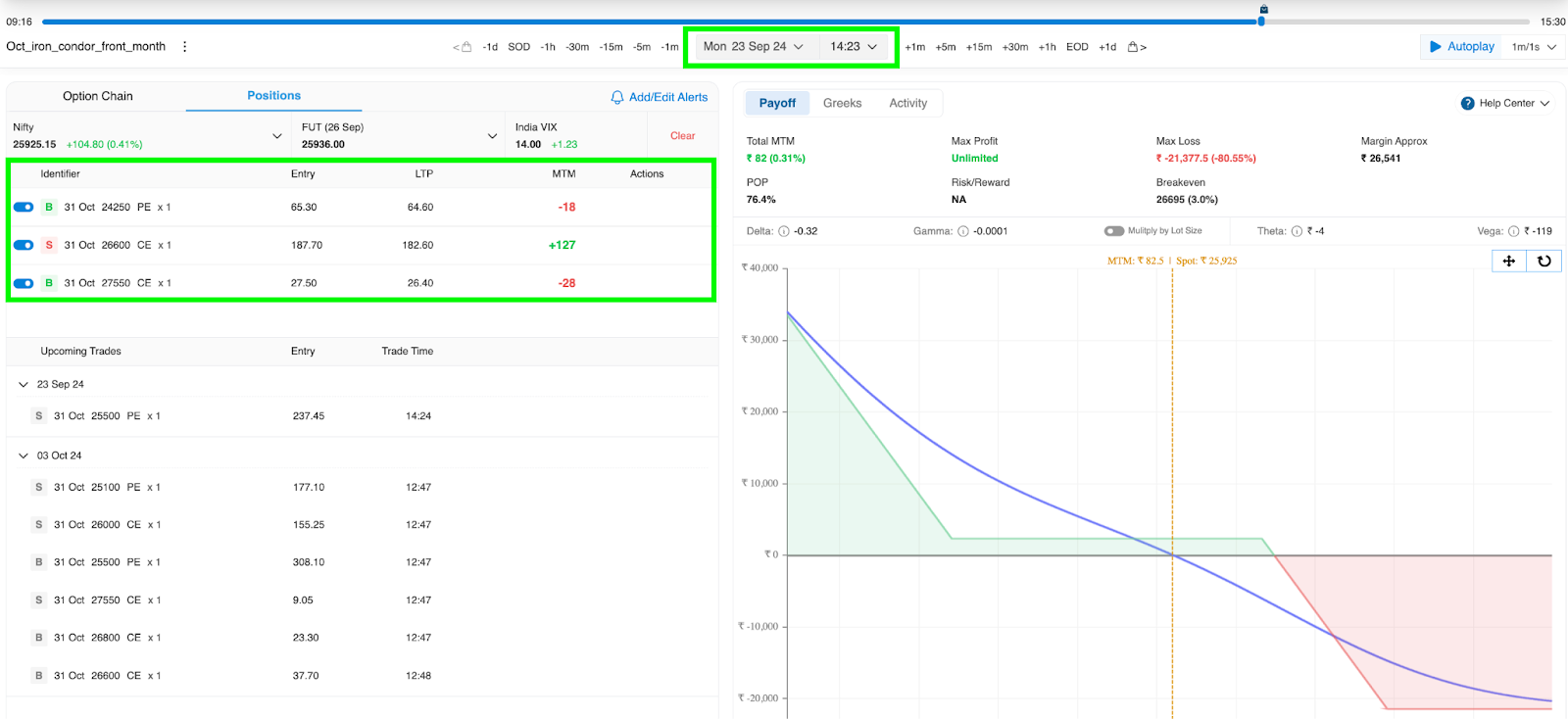
- Click on the Go to First Trade button to Start your Trades Replay from the very first trade of the strategy. Here you will see your fist trade as well as upcoming trades. In the positions tab
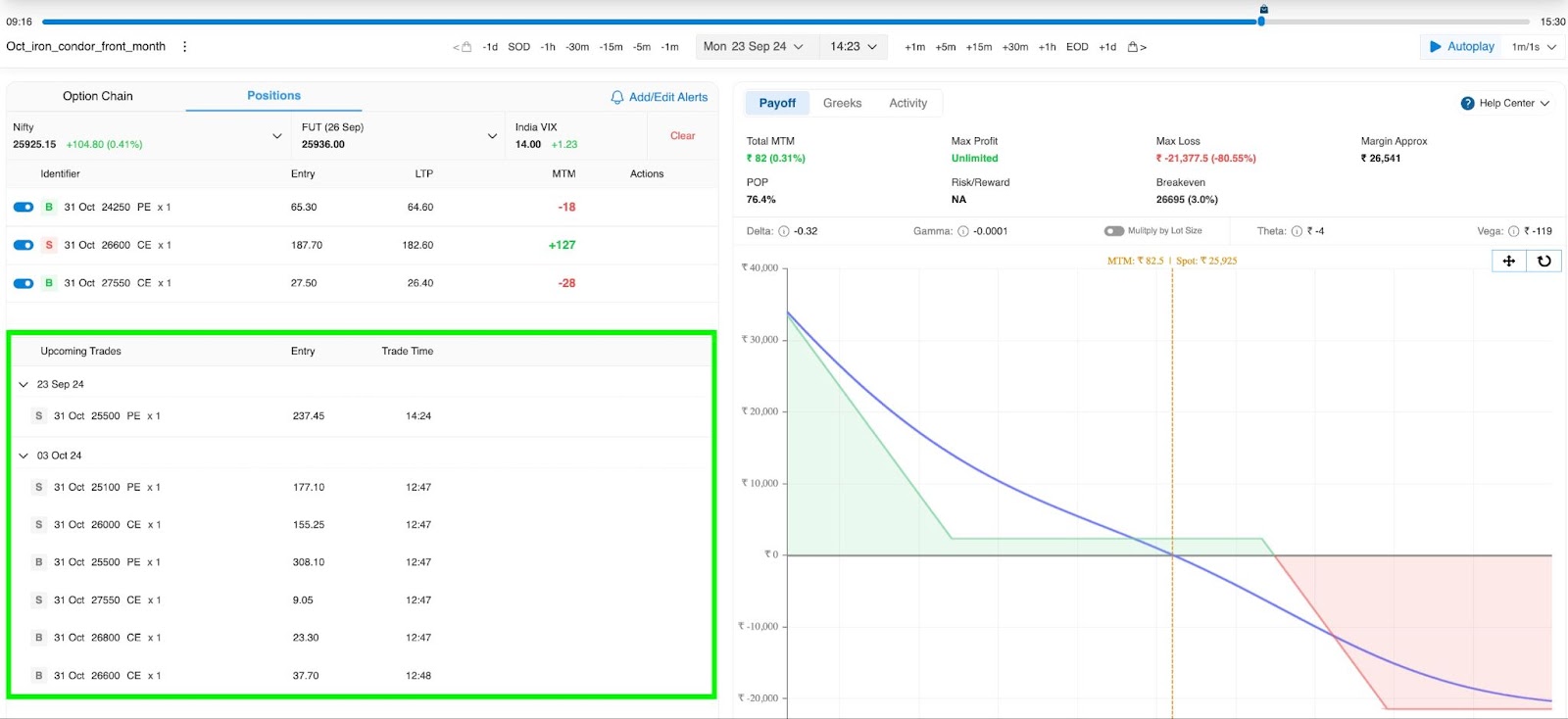
- You can also see your upcoming trades in the positions tab, it represents the upcoming adjustments or additional trades you did in your strategy day wise.
- You can also simulate your trades on any time of the day by seeking your desired time on the Simulation Bar.

- You can also go to next trade by clicking on the Next Trade button.

- You can also go to Previous trade by clicking on Previous Trade button

- You can also autoplay your trade by clicking on the Autoplay button on Simulator. You can also select the frequency of autoplay in the dropdown in minutes, hours and days per seconds.
