Data Points
Data selection plays a vital role in indicator-based strategy building. Indicator conditions are applied based on the selected instrument and chosen data type.
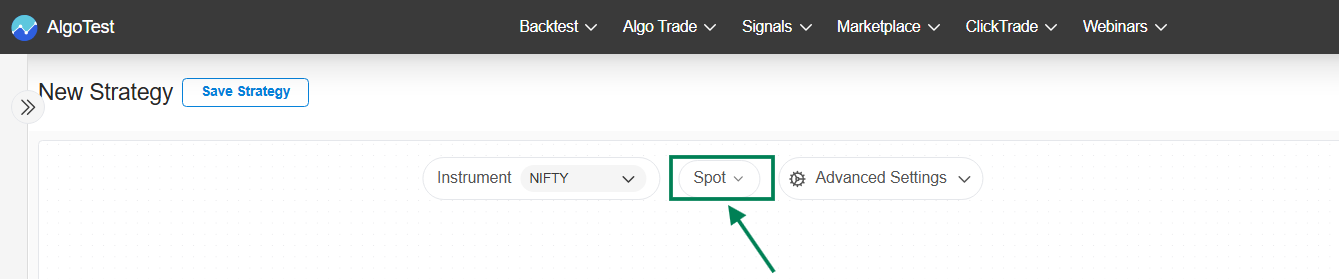
On the Canvas, users can click on Data Selection and choose from available options such as Spot, Futures, Options, Synthetic Futures, or Combined Premium.
1. Click on the Spot Data selection
-
Select either of the options here: Spot, Futures, Options, Synthetic Futures, or Combined Premium and then apply.
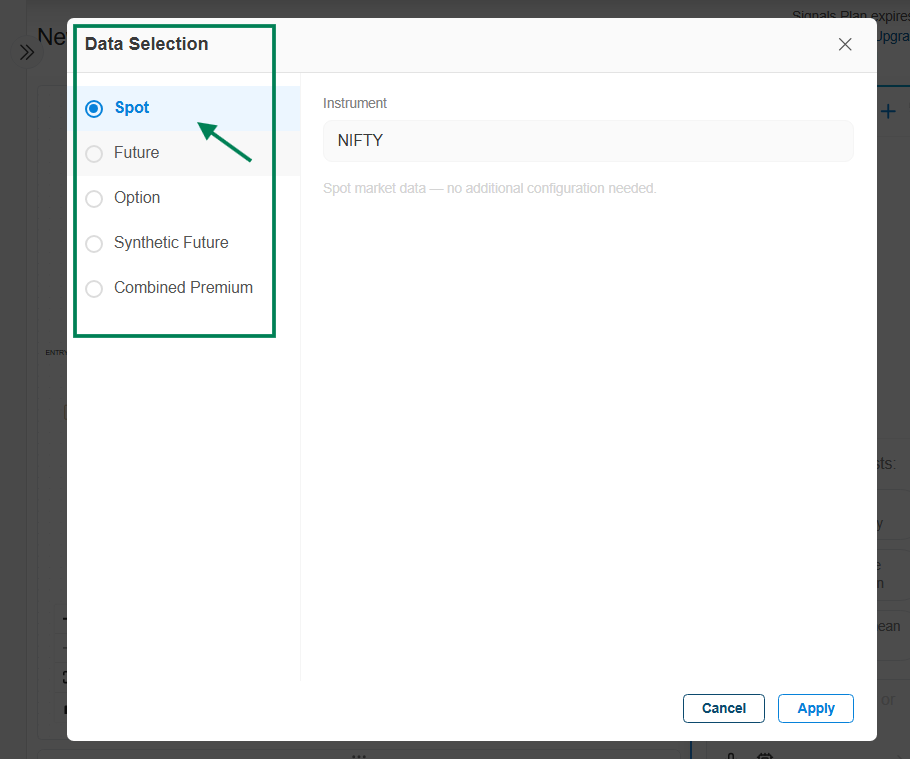
→ Data Selection :
- Data Selection on Spot (Underlying) chart: Indicators are applied on the underlying cash/index chart price data. It is suitable for generating indicator-based signals on indices and stocks, and can be used on both index and stock charts.
Currently supported underlying instruments include:
-
Indices: NIFTY, BANKNIFTY, SENSEX, MIDCPNIFTY, FINNIFTY, BANKEX
-
Stocks: NSE F&O enabled stocks
-
Crypto: BTCUSD, ETHUSD
→ Let's see the procedure to select the Nifty Index Spot.
- Instrument Selection
\
Click on the Instrument drop-down\
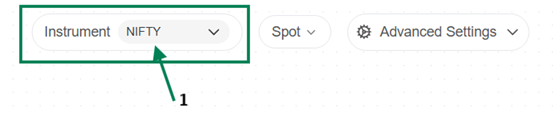
Search or directly select the Instrument.
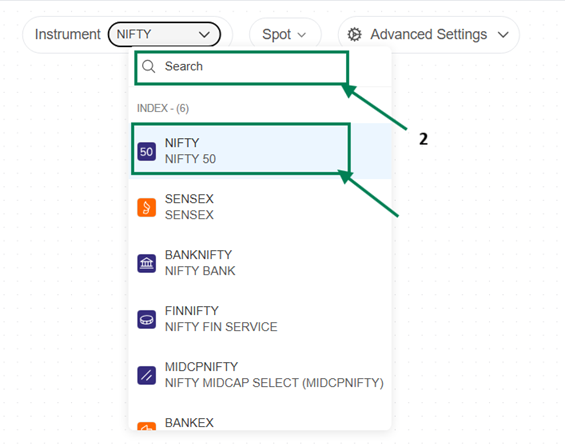
- Data Selection (Spot)
- Click Spot Data selection
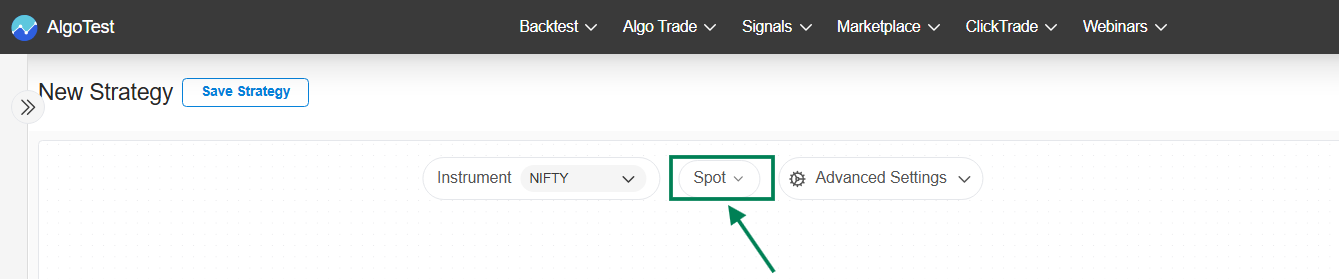
Under Data selection: Click on Spot and Apply.
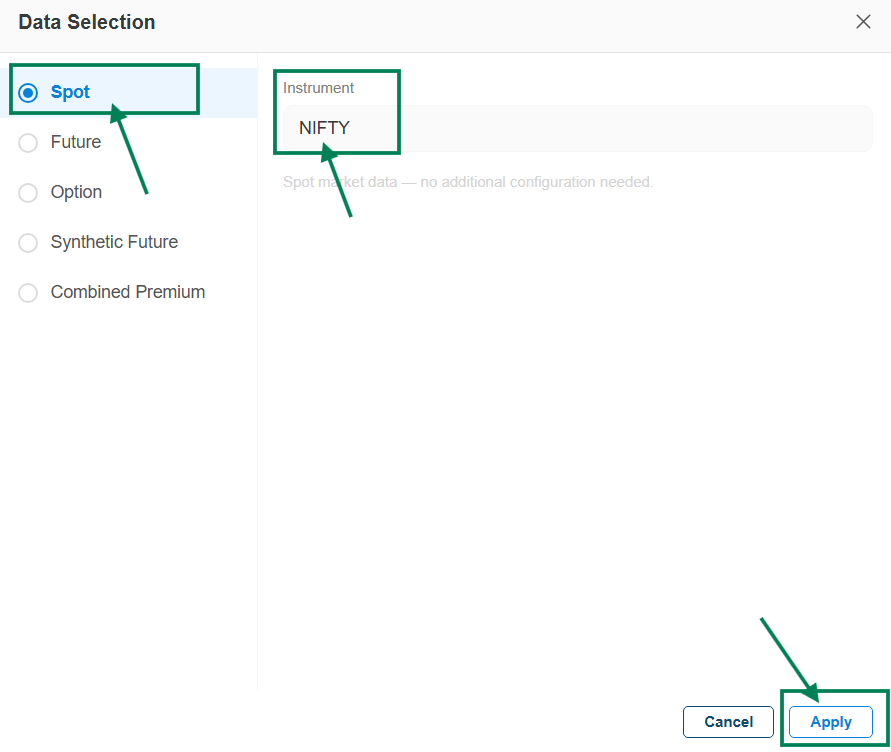
→ Here is the Nifty Spot Selection looks like:

2. Data Selection on Futures chart: Indicators are applied on futures
contract chart price data.
It is suitable for generating Indicator-based signals on futures instruments charts. Futures data may differ from Spot due to a premium or discount.
Futures can be used on Index futures, stock futures charts and Crypto Futures.
Currently, you can apply Futures data for the following instruments:
-
Index Futures (NIFTY FUT, BankNifty FUT, FINNIFTY FUT, etc.)
-
Stock Futures (NSE F&O enabled stocks )
-
Crypto Futures (BTCUSD, ETHUSD)
→ Let's see the procedure to select the Nifty Future in Canva.
- Instrument Selection
-
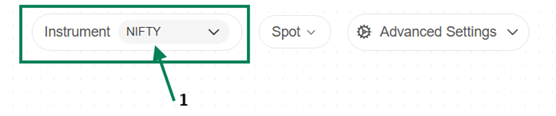
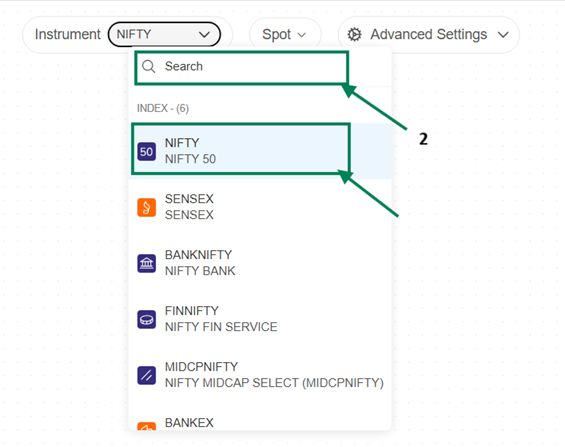
Click on Instrument drop down
-
Search or directly select the Instrument.
- Data selection:
- Click on Spot drop down
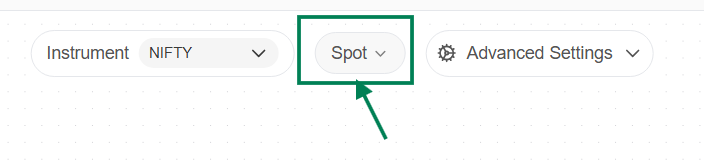
Then Data selection will appear - Click on Future, select the Expiry and then Apply
→ After Selection Nifty Future looks like.
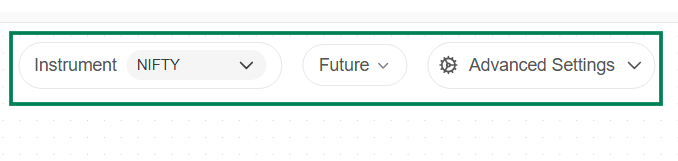
→ In a similar way users can select the different Index or Stocks or Crypto Instrument, then Data selection as Future, then select Expiry and Apply.
- Data Selection on options Chart: Indicators are applied on Options contract chart price data instead of Spot or Futures chart.\
-
Indicator-based strategies on Options chart price data use the option premium (CE/PE) instead of Spot or Futures prices.
-
All indicators (SMA, RSI, Bollinger Bands, etc.) are applied directly on option price movement.
-
Option prices are influenced by underlying movement, time decay (Theta), and volatility (IV).
-
Signals may differ from Spot/Futures charts due to these additional factors.
Suitable for traders who want to trade based on actual option premium behavior.
→ Currently supported instruments include:\
-
Index Options: NIFTY, BANKNIFTY, FINNIFTY, SENSEX, MIDCPNIFTY, BANKEX
-
Stock Options: NSE F&O enabled stocks
-
Crypto options charts are not available currently.
→ Let's see the procedure to select the Nifty options on Canva.
Instrument Selection
- Click on Instrument drop down
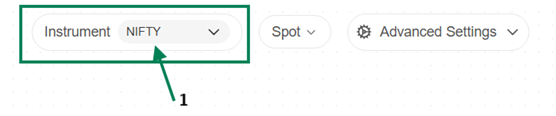
Search or directly select the Instrument.
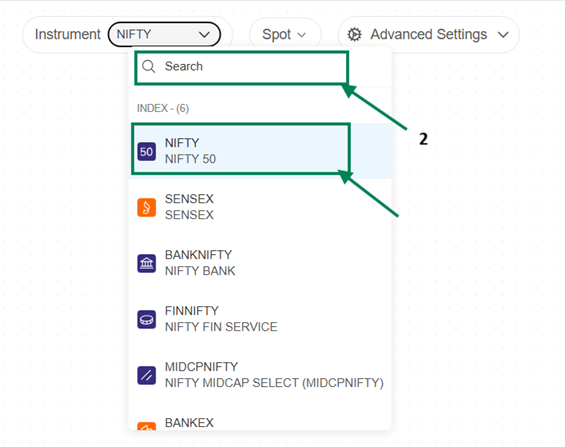
Data selection:
-
Click on Spot drop down
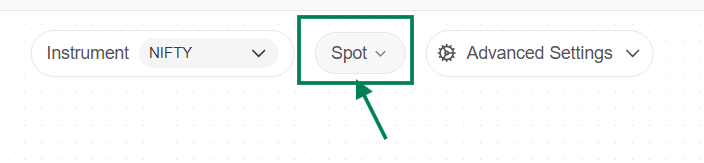
Then Data selection will appear - Click on options and select and configure* the details then apply it.
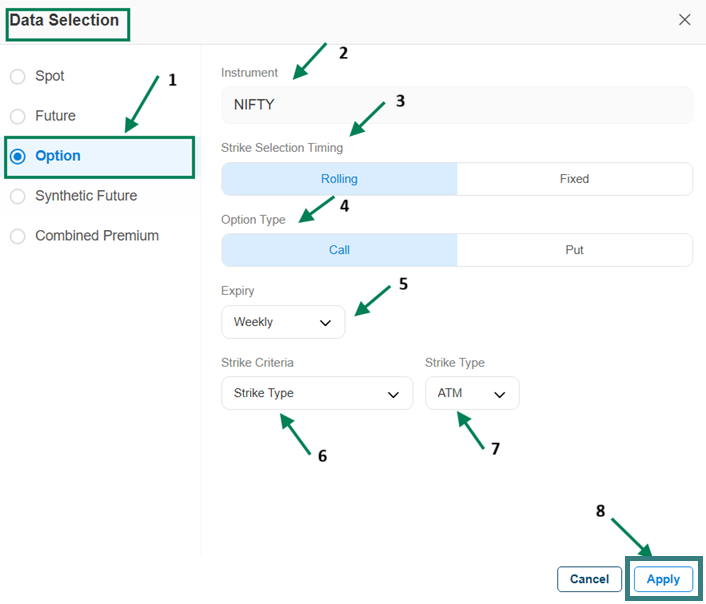
**→ Data selection Options configuration: **
-
Data Selection : Options
-
Instrument : NIFTY - Displays the selected instrument details.
Strike selection Timing : Either you can select Rolling or Fixed Data Type.
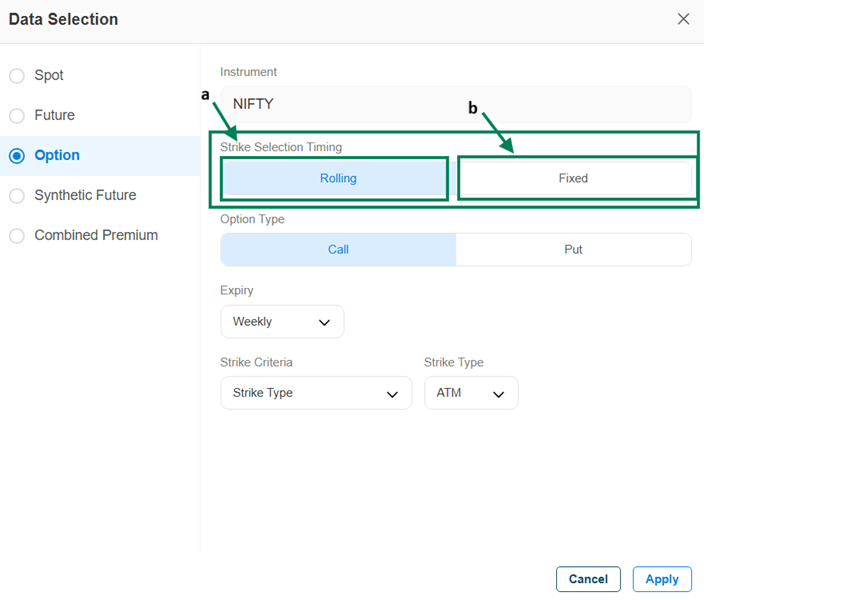
Data Type: There are two types of data selection available.
a. Rolling → Rolling means the system keeps selecting a new strike that matches the conditions. If the strike criteria changes, it updates the strike, then applies indicators and evaluates entry and exit signals accordingly.
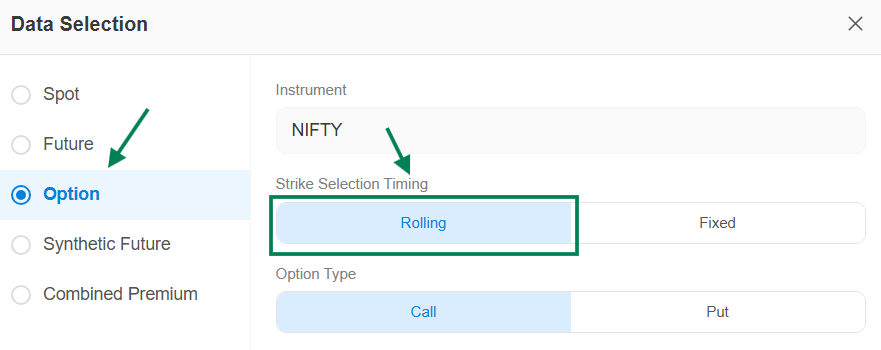
b. Fixed → In this type, the strike is selected at a specific time during the day based on defined criteria (strike selection, option type, and expiry) and remains fixed for the rest of the session, all entry and exit signals are evaluated on the same strike, and it is mainly used for intraday strategies where a new strike is selected each day.
→ Fix Time: 9:16
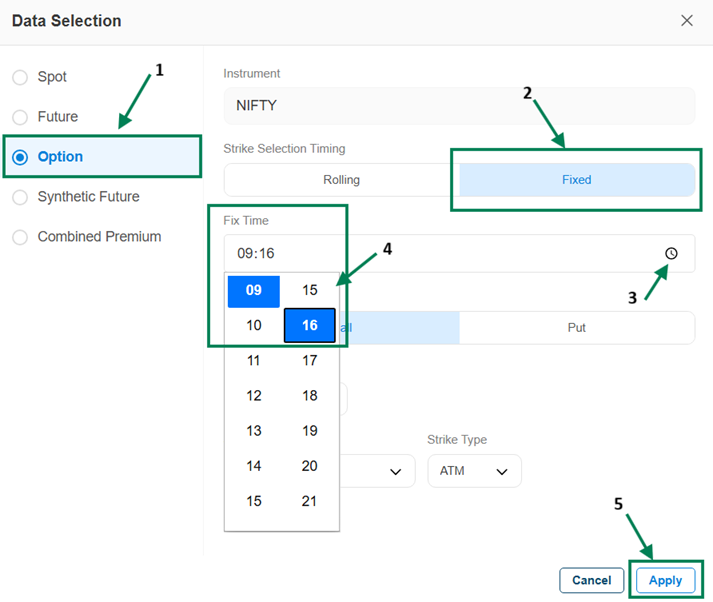
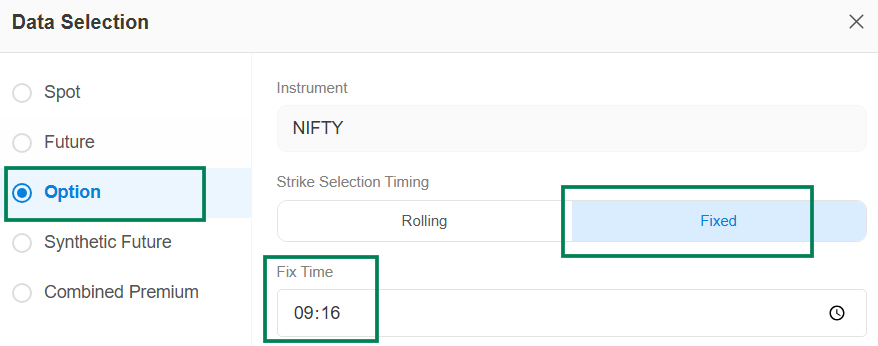
→ Here is the result after selecting 9:16 as the Fix Time, it looks like this.
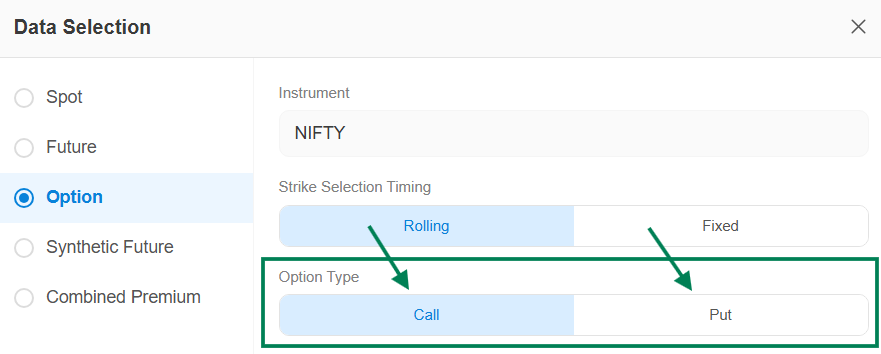
4. Option Type: There are two types of options, you can select either one based on your view.
-
Call (CE): Used when you expect the market to go up, its value increases as the price rises.
-
Put (PE): Used when you expect the market to go down, its value increases as the price falls.
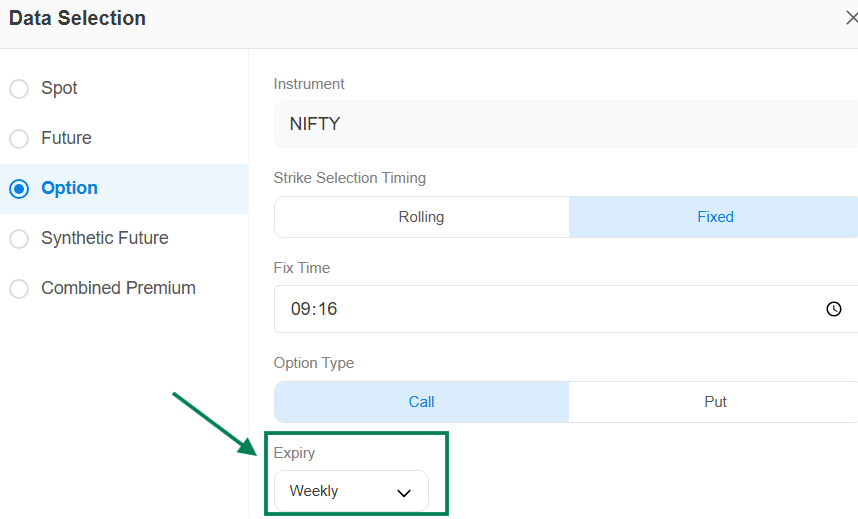
- Expiry: there are four expiry options available - Weekly, Next Weekly, Monthly, and Next Monthly - which you can select based on your requirement.
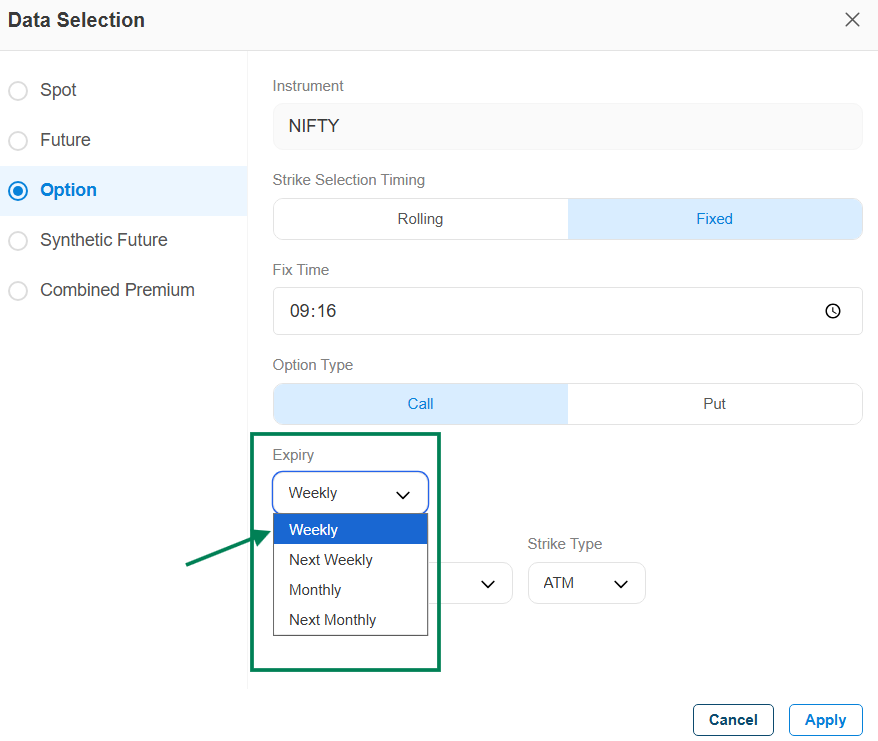
→ Here Weekly option selection looks like this.
6. Strike Criteria
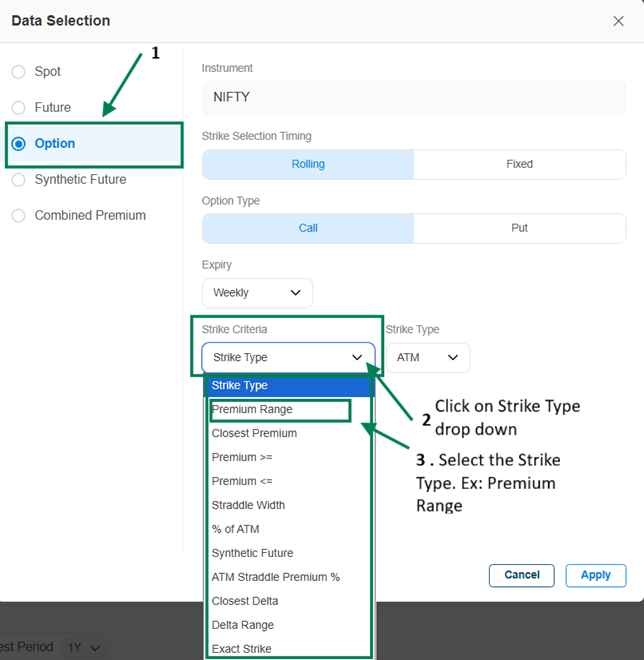
→ Here is the result after selecting Strike Type as Premium Range. Once Strike Type is set to Premium Range, users can specify the Lower and Upper Range values to suit their individual strategy requirements.

→ After Option Data Selection

→ For more detailed information on Strike Criteria and Strike Type, please refer to the Documentation: https://docs.algotest.in/Time-Based-Algo-Trading/How-to-Master-Backtesting-on-AlgoTest/features/leg-builder/#strike-selection
4. Data Selection on Synthetic Future: Indicators are applied on Synthetic Future price data, which is derived by combining option contracts to replicate futures-like price behavior instead of using Spot or actual Futures data.
Indicator-based strategies on Synthetic Future use calculated price data (from CE/PE combinations) to reflect near-futures movement.
All indicators (SMA, RSI, Bollinger Bands, etc.) are applied directly on synthetic price movement.
Synthetic prices are influenced by underlying movement, option premium, and implied volatility. Signals may differ from Spot/Futures charts due to the derived nature of the data.
Suitable for traders who want futures-like behavior without directly using futures contracts.
For More info on Synthetic Future: Doc link
→ Let's see the procedure to select the Synthetic Future on Canva.
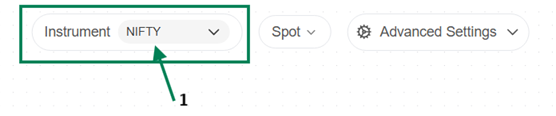
** Instrument Selection**
Click on Instrument drop down
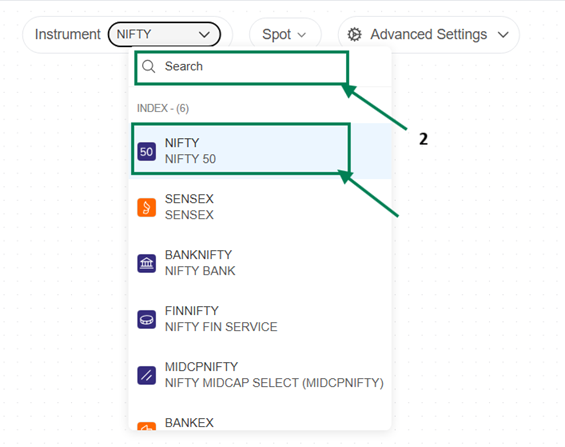
Search or directly select the Instrument.
** Data selection**:
-
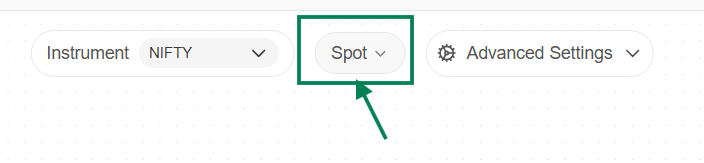
Click on Spot drop down
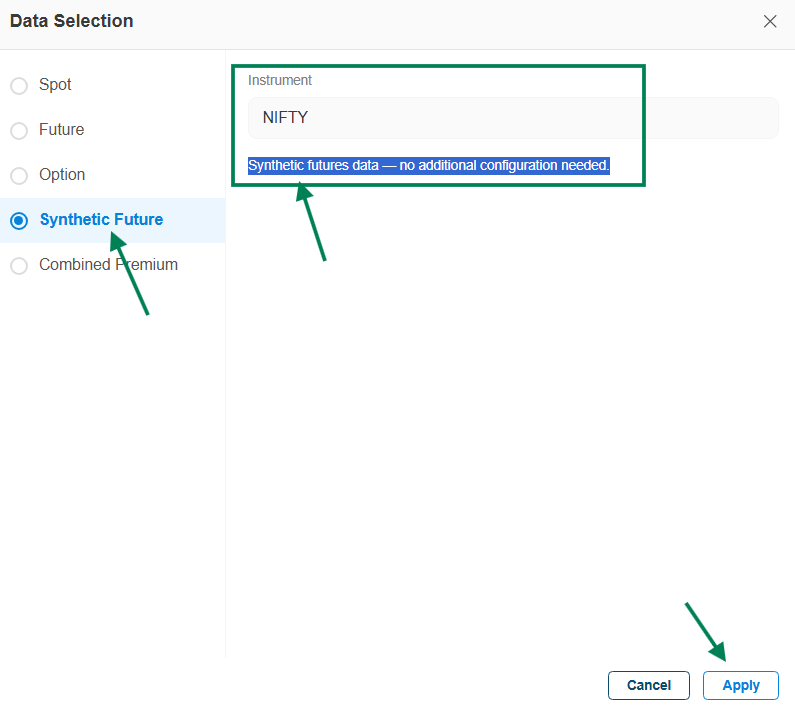
Then Data selection will appear - Click on Synthetic Future and apply. Note: Synthetic futures data - no additional configuration needed.\
→ Here’s how the Synthetic Future looks after selection.

5. Data Selection on Combined Premium: Indicators are applied on the combined premium of option contracts instead of Spot or Futures chart data.
Indicator-based strategies on Combined Premium use the sum of option premiums (CE + PE) to analyze overall market movement.
All indicators (SMA, RSI, Bollinger Bands, etc.) are applied directly on the combined premium values. Combined premium is influenced by underlying movement, time decay (Theta), and volatility (IV).
Signals may differ from Spot/Futures charts due to the combined effect of both CE and PE premiums. Suitable for traders who want to analyze total option premium behavior and volatility-based movements.
→ Let's see the procedure to select the Combined Premium on Canva.
** Instrument Selection**
- Click on Instrument drop down
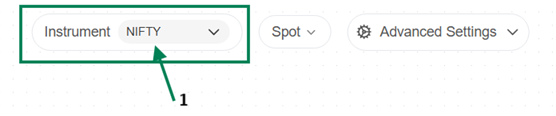
Search or directly select the Instrument.
** Data selection**:
- Click on Spot drop down
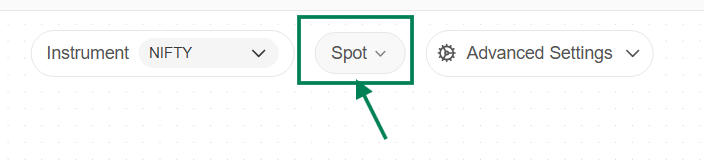
- Once you click on Spot Data selection drop down - the Data Selection window will appear → Click on Combined Premium, then select the required options. Legs will be created based on the selected template.
Set Multiply (default is 1, can be changed if required), choose Strike Selection (Rolling or Fixed), select Option Type, Expiry, Strike Criteria, and Strike Type, and finally click on Apply.
Note: You can configure the different settings as per your requirement.
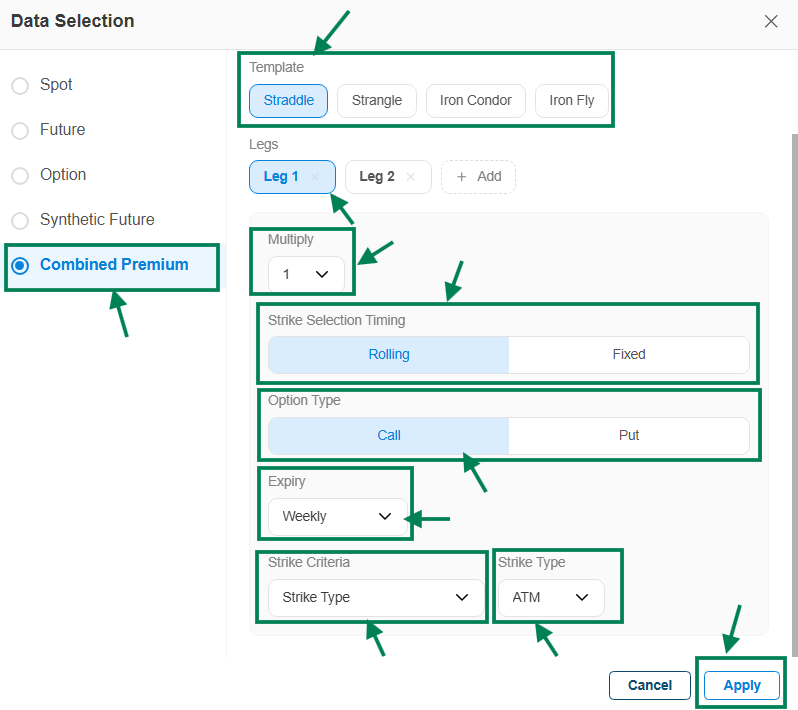
→ Here’s how the Combined Premium looks after selection.

User Guide: Combined Premium Data Selection
Follow the below steps to configure Combined Premium for your strategy:
1. Select Instrument
Choose the underlying instrument
Example: NIFTY
2. Select Template
Pick a predefined options strategy structure
Options include: Straddle, Strangle, Iron Condor, Iron Fly
Based on the selected template, required legs will be created automatically
3. Configure Legs
-
Legs represent individual option positions (Call/Put)
-
You can add/remove legs as per your strategy
-
Each leg will have its own configuration
4. Multiply
-
Default value is 1
-
Increase if you want to scale the premium calculation
Example: 2 = double premium impact
5. Strike Selection Timing
-
Rolling: Strike updates dynamically based on market movement
-
Fixed: Strike remains constant after selection
Choose based on whether you want dynamic or static strikes
6. Option Type
- Select Call or Put for each leg
Defines the type of option contract used
7. Expiry
- Choose contract expiry
Example: Weekly / Monthly
Defines the time horizon of the option
8. Strike Criteria
- Select how strike should be chosen
Example: Strike Type
9. Strike Type
- Choose strike position
Options include: ATM, ITM, OTM
Defines how far the strike is from current price
10. Apply Settings
After configuring all parameters, click on Apply to finalize data selection
\